
Manage Users
Info
- The main Manage Users page is only accessible to users with the Admin role. Users with the standard User role have restricted access and can only modify their own settings via the separate Administration → Modify User page; refer to Modify User.
- For global authentication settings, such as enabling 2FA services and setting password complexity rules, refer to Authentication.
Warning
Be careful not to lock out or delete all users with the Admin role. If this happens, no user will have the necessary permissions to manage accounts, and a factory reset may be required.
This chapter provides a comprehensive guide to user management on the router. It explains the differences between user roles and details how to create, modify, and delete accounts.
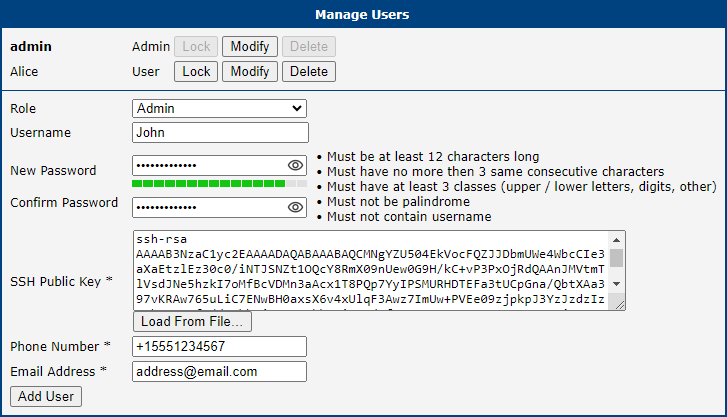
The Manage Users page is the central hub for creating, modifying, and deleting user accounts on the router. In the figure below, you can see that there are two existing users, root and Alice, and we are about to add a new user named John with the Admin role.
User Roles and Permissions
The router supports three user roles, each with a different level of permissions:
- User Role: Intended for basic monitoring. Users with this role have read-only access to most of the web interface and cannot make configuration changes (except for modifying their own account). Console access is disabled.
- Admin Role: Intended for full device management. Administrators have full read-write access to the entire web interface and can log in via the console. However, this is not equivalent to the
rootsuperuser on a standard Linux system. - Operator Role: Intended solely for special-purpose Router Apps and future high-granularity access rights configurations. This role is highly restricted: users can log in to the web interface and change their own password, but cannot access other pages or perform other actions.
Adding, Modifying, and Deleting Users
The main part of the page lists all existing users. Available actions vary by account; some actions may be unavailable, as shown for the root account in the figure.
| Button | Description |
|---|---|
| Lock | Temporarily disables the user account, preventing login via both the web interface and the console. |
| Modify | Opens the Modify User page, allowing you to change the password, update contact information, or manage security settings like the SSH public key and 2FA; refer to Modify User. |
| Delete | Permanently removes the user account from the router. |
To create a new account, fill out the form shown in the figure above and click the Add User button.
Item | Description |
|---|---|
| Role | Assigns the user role. Available options are Admin, User, and the highly restricted Operator role. |
| Username | The name for the new user account. |
| New Password | Sets the password for the user. It must always comply with the rules defined by the Force Password Complexity setting (see Authentication). |
| Confirm Password | Re-enter the new password to confirm it. This helps prevent typos. |
| SSH Public Key | Paste a public SSH key here, or load it from a file using Load From File, to enable SSH key-based console login for this user. The maximum supported size is 32 KiB. Refer to SSH Key-Based Console Login for a detailed guide. |
| Phone Number | The user's mobile phone number. If provided, an SMS notification will be sent to this number whenever the user's password is changed. Note: This feature is only available on cellular router models. |
| Email Address | The user's email address. If provided, an email notification will be sent to this address whenever the user's password is changed. Note: This feature requires a functional SMTP server configuration. |
Modify User
Info
The Administration → Modify User page is available to users with the User role.
Users with the User role can manage only their own account here. Users with the Admin role manage user accounts, including their own, through Administration → Manage Users, as described in Manage Users.
The figure below shows the Administration → Modify User page as seen by a user with the User role, who cannot access the Manage Users page.
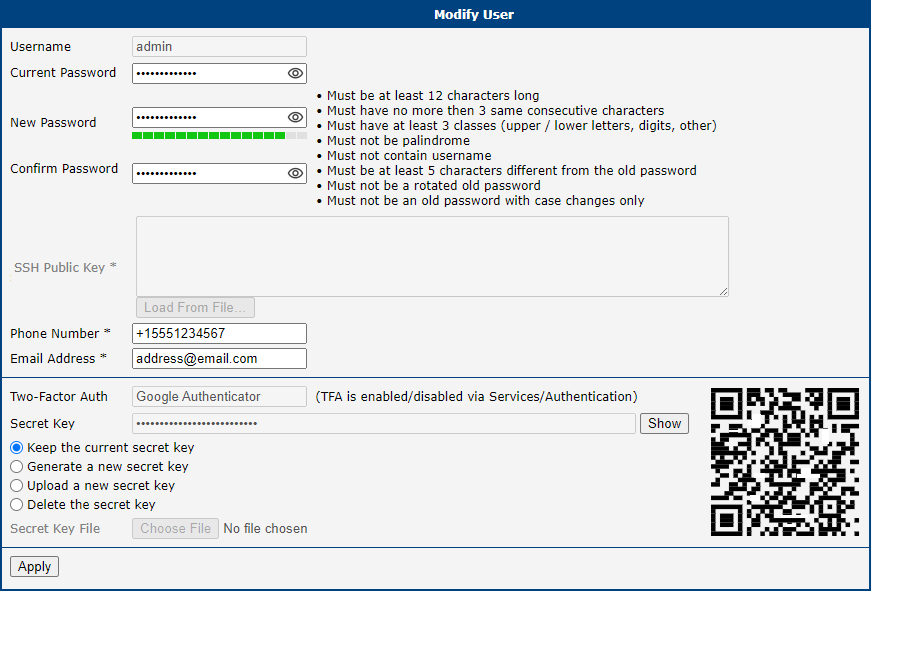
On this form, you can configure the user's password, SSH Public Key, contact information (Phone Number and Email Address), and the Secret Key for two-factor authentication. For a detailed description of these items, refer to Manage Users; the Secret Key is described in Two-Factor Authentication. In the figure, the SSH Public Key field is disabled because the edited account has the User role, and users with this role are not permitted to log in to the console via SSH.
To change a password:
- Enter the existing password in the Current Password field.
- Enter and confirm the new password. It must comply with the rules defined by Force Password Complexity (see Authentication).
- Ensure that it differs from the old password by at least 1 character at Very Weak or Weak complexity levels, or by at least 5 characters at Good or Strong levels. Changing only letter case or cyclically shifting the old password is not allowed.
- Click Apply to save the changes.
Two-Factor Authentication
When enabled, two-factor authentication (2FA) adds a second verification step to login. After entering a password, the user must also enter a time-based code from an authenticator application. This helps protect the router if a password is compromised.
Caution
- Correct time is crucial: Two-factor authentication is time-based. Ensure the router's clock is always accurate by enabling the NTP client; see NTP.
- Risk of lockout: An incorrect 2FA setup can lock you out of your account. Keep a separate admin account without 2FA as a backup during the setup process.
- Secret key is vital: Without the secret key, you cannot complete the setup or log in. A user with the Admin role can view another user's secret key using the Show button, or delete it; only generating or uploading a new secret key is restricted to the account owner.
- Secret key deletion: If a user is unable to log in using 2FA for any reason, a user with the Admin role can delete their secret key, thereby disabling 2FA for that user.
An administrator must first enable the desired two-factor authentication service in Authentication. The service name then appears in the Two-Factor Auth field when editing a user account.
The account owner must configure their own secret key. If you have the User role, open Administration → Modify User. If you have the Admin role, open Administration → Manage Users, select your own account, and click Modify. Select Generate a new secret key to create a key, or Upload a new secret key to upload one from a file. Click Apply to save it, then scan the displayed QR code with your authenticator application, or click Show to display the key and enter it manually.
| Item | Description |
|---|---|
| Two-Factor Auth | Read-only. Shows the two-factor authentication service enabled on the Authentication page (Google Authenticator or OATH), or disabled. |
| Secret Key | The user's current secret key. The key is hidden by default; click Show to display it and Hide to hide it again. If a secret key exists, a QR code for adding it to an authenticator application is shown next to this field. |
| Keep the current secret key | Leaves the secret key unchanged (default). |
| Delete the secret key | Deletes the secret key, which disables two-factor authentication for this user. Available only if a secret key exists. |
| Generate a new secret key | Generates a new random secret key. Available only to the account owner. |
| Upload a new secret key | Uploads a secret key from the file selected in Secret Key File. Available only to the account owner. |
| Secret Key File | The file with the secret key to upload (maximum 512 bytes). Enabled only when Upload a new secret key is selected. |
Supported 2FA Methods and Behavior
- The router supports these two authentication options:
- Two-factor authentication is supported for these login services:
- The router's web server login
- SSH login
- TELNET login
- Two-factor authentication is disabled by default
- Two-factor authentication data are included in user backups and restored when a backup is restored
- All private two-factor authentication data are removed when the corresponding user is deleted
- No internet or mobile connection is required to use two-factor authentication, but keep in mind the need to synchronize the system time
Authenticator
To log in with two-factor authentication, you need an Authenticator application. Both Google Authenticator and OATH use TOTP (Time-based One-Time Password, RFC 6238) mode by default. You can use any compatible authenticator. For information about authenticator usage, see the corresponding manual.
You can use the Google Authenticator application; see the figure below for the download links.
Authenticator-Extension is available as an extension for all popular browsers; see the figure below for the download links.
In an Authenticator application, you can create a new entry by entering the secret key you have noted down or by scanning the QR code shown for the user on the Modify User configuration page.
Router Web Login
When logging into the router's web interface, enter your username and password as usual.
The router then prompts you for a verification code from your authenticator. TOTP codes typically change every 30 seconds. Enter the current code promptly, and ensure that the router and authenticator clocks are synchronized.
After entering the correct code, you will be successfully logged in to the router's web interface.
SSH and Telnet Login
To log in to SSH or Telnet with two-factor authentication, enter your username, password, and the verification code from your authenticator.
SSH Key-Based Console Login
SSH public-key authentication lets an Admin user access the router's SSH console without entering the router account password. The router checks the public key stored in the user account against the matching private key kept on your Windows computer. This is useful when you connect regularly and want to avoid typing the router password each time.
A passphrase protects the private key on your computer; it is separate from the router account password and is never sent to the router. PuTTY asks for the passphrase when you use the key directly. If you want to avoid repeated passphrase prompts while keeping the key protected, use Pageant to unlock the key once and make it available to PuTTY while Pageant is running.
Installation Notes
- On Windows, this guide installs the standalone PuTTY executables in
C:\bininstead of using an.msiinstaller. - From the PuTTY download page, download the 64-bit x86 versions of
putty.exeandputtygen.exe. Save these files to theC:\bindirectory. Pageant keeps your unlocked private key available to PuTTY so you do not have to enter its passphrase for every connection. If you want to use Pageant, downloadpageant.exefrom the same page and save it there as well.
Generate Keys
- Run the downloaded
puttygen.exeapplication to create your SSH key, as shown in the figure below. - In the Type of key to generate section, select RSA.
- Click the Generate button. Move your mouse randomly within the window to generate the keys.
- Once complete, the key data will appear in the window.
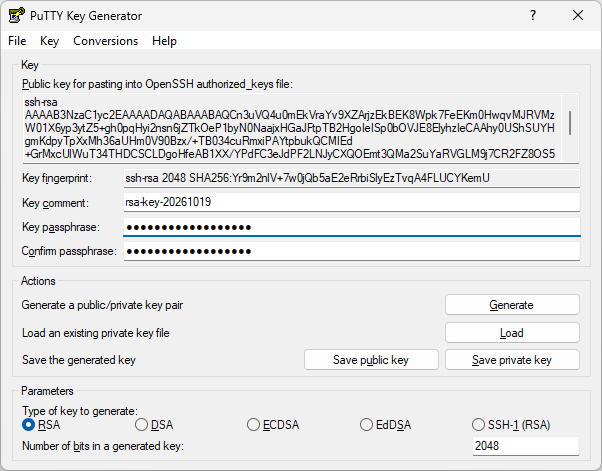
- For interactive use, enter a strong passphrase in the Key passphrase field and confirm it in the Confirm passphrase field. PuTTY will ask for this passphrase when the key is used directly. If a dedicated, secured system must use the key without anyone present, you can leave both fields empty; however, anyone who obtains that private-key file can then use it to access the Admin account.
- Click Save public key and Save private key to save the keys on your computer:
- Name the public key hostpublickey and the private key hostprivatekey. Do not manually add any file extensions.
- Leave the PuTTY Key Generator application open.
Uploading Public Key to the Router
- In the router web interface, open Administration → Manage Users and click Modify for the account that will use the key. The account must have the Admin role; users with the User role cannot log in through SSH.
- Enter the generated public key for the user:
- In the PuTTY Key Generator, select the entire public key (the data within the text box) and copy it to the clipboard.
- In the router web interface, paste the public key into the SSH Public Key field.
- The public key must be in OpenSSH format and begin with
ssh-rsa. If the router does not recognize it, SSH authentication will fail.
- Save the user settings by clicking the Apply button.
- You can now close the PuTTY Key Generator application.
Caution
Paste only the public key in OpenSSH authorized_keys format, beginning with ssh-rsa. Never paste or upload the .ppk private-key file. Keep the private key on your computer and protect it with its passphrase. To use an existing key, load it in PuTTY Key Generator and copy the text from the Public key for pasting into OpenSSH authorized_keys file box.
PuTTY Session Configuration
- Open the
c:\bin\putty.exeapplication. - In the configuration window, navigate to Connection -> Data and enter the username (the router's user to whom the public key was saved) in the Auto-login username field.
- If you will use the key directly, under Connection -> SSH -> Auth -> Credentials, click the Browse button near the Private key file for authentication field and select your hostprivatekey file. If you will use Pageant, leave this field empty; PuTTY will use the key loaded in Pageant.
- In the configuration window, navigate to the Session menu item and configure the following:
- Host Name: IP address of your router.
- Port: 22.
- Connection Type: SSH.
- Saved Session: Enter a name for this session.
- Click Save to store these session settings.
Reusing the Key with Pageant
Pageant is PuTTY's SSH authentication agent. It keeps a decrypted copy of a loaded key in memory so PuTTY can use it without asking for the key's passphrase for every connection. You still enter the passphrase when you load the key into Pageant.
- Run
c:\bin\pageant.exe. Its icon appears in the Windows notification area; if you do not see it, open the hidden-icons menu. - Open the Pageant window by right-clicking its icon and selecting View Keys, then click Add Key.
- Select your
hostprivatekeyfile. When prompted, enter its passphrase. The loaded key appears in the Pageant key list. - Open the saved PuTTY session. PuTTY will use the key from Pageant without asking for the passphrase again while Pageant is running and the key remains loaded.
- When you finish, remove the key in the Pageant window or right-click the Pageant icon and select Exit. On a shared computer, do not leave Pageant running after you finish.
Connecting to the Router
- Open the
c:\bin\putty.exeapplication. - Select your session and click the Load button.
- Click Open to establish the connection.
- If PuTTY displays a host key alert on the first connection, verify the fingerprint against a trusted source before accepting it. After successful authentication, an SSH console prompt opens with the user logged in.
Forced Password Change
If a user must change their password, the router prompts them at login, whether they use the web interface or the console. The user cannot continue until they set a new password. This is required in the following situations:
- When a user logs in for the first time after the router is set up.
- When the user's password has expired after the Expire Password After period; see Authentication.
- When an Admin changes a user's password in Manage Users. That user must set a new password at the next login.
- After a Configuration Reset or Emergency Reset; see Reset.
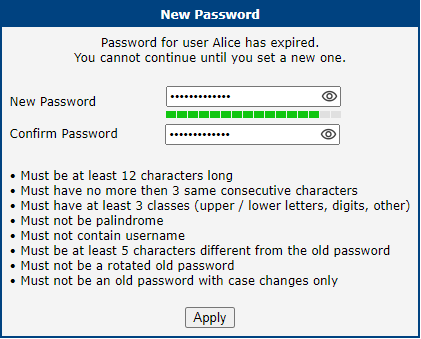
The password-change prompt is shown below. Users must enter and confirm a new password before they can continue. The password must comply with the rules shown in the GUI, which are determined by the Force Password Complexity level set in Configuration → System → Authentication; see Authentication.
Change Profile
Advantech routers allow you to store up to four complete sets of configurations, known as profiles: one Standard Profile and three Alternative Profiles (alt1, alt2, alt3). This feature is particularly useful for switching between different operational modes, such as changing mobile provider settings, activating different VPN tunnels, or modifying firewall rules based on location or time.
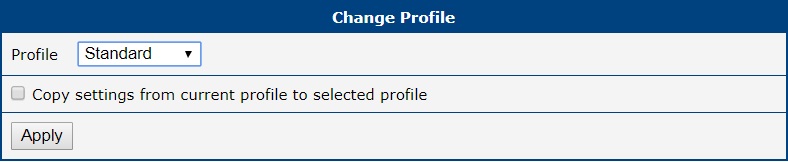
The Administration → Change Profile page lets you switch the router's active profile and, optionally, copy the current running configuration into the newly selected profile at the same time.
Item | Description |
|---|---|
| Profile | Chooses the configuration profile that the router will load and use after the next reboot. |
| Copy settings from current profile to selected profile | When this box is checked, clicking Apply additionally copies the router's current running configuration into the profile selected above. Selecting a different profile in the Profile field always switches the router to it on the next reboot, regardless of this checkbox — there is no way to copy settings into a profile without also switching to it. |
Warning
Any change made on this page, whether switching a profile or saving one, takes effect only after the router is rebooted.
You can switch the active profile using several methods:
- Web Interface: Select the desired profile from the Select profile to switch to dropdown and click Apply. Then, reboot the router.
- SMS Command: Send an SMS with the text
set profile [std|alt1|alt2|alt3]to the router. This change is permanent and will be used after the next reboot. This is configured on the Configuration → Services → SMS page.
Set Date and Time
Warning
This page is for a one-time manual setting of the router's clock. For continuous time synchronization, you must configure the NTP client. See NTP for details.
Info
Some of the options described below may not be available on all router models.
This page offers several methods for setting the system date and time.
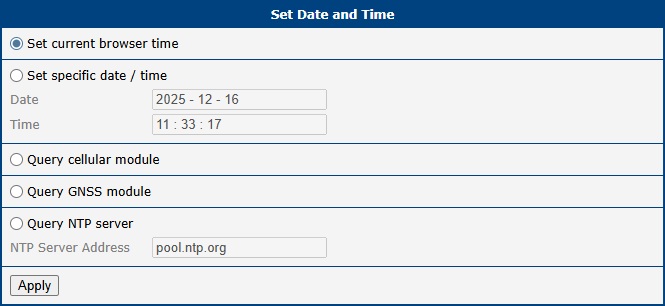
- Set current browser time: Synchronizes the router's clock with the time on your computer.
- Set specific date/time: Allows you to manually enter a specific date and time. Use the format
yyyy-mm-ddfor the date andHH:MM:SSfor the time. - Query cellular module: Retrieves the time from the mobile network using the NITZ standard. This requires an active cellular connection and support from both the mobile operator and the router's cellular module.
- Query GNSS module: On routers equipped with a GNSS module, this option sets the time based on satellite data. The GNSS receiver must be enabled and have a valid position fix.
- Query NTP server: Performs a one-time synchronization with a specified NTP server. You can enter the server's IP address (IPv4 or IPv6) or its domain name.
Manage SIM
The Administration → Manage SIM menu provides tools for managing the security and settings of your SIM cards.
Unlock SIM
If your SIM card is protected by a Personal Identification Number (PIN), you must first enter it on the Mobile WAN configuration page to establish a connection. This page, however, allows you to permanently remove the PIN protection from the SIM card so it will no longer be required upon startup.
To remove the PIN, navigate to Administration → Manage SIM → Unlock SIM. The page displays the SIM Card (1st or 2nd) that is currently active within the system, along with its unique IMSI number. This ensures you are unlocking the correct card. Note that this operation can only be performed on a SIM card that is currently detected by the system. To proceed, enter the correct 4–8 digit PIN into the SIM PIN field and click Apply.
Warning
The SIM card will be blocked after three incorrect PIN entry attempts. To unblock it, you will need the PUK code, as described in the next section.

Unblock SIM
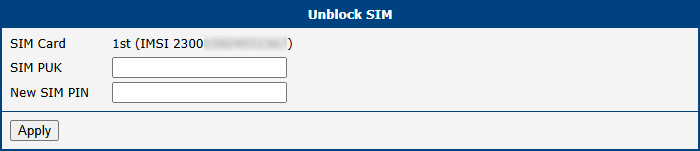
This page allows you to unblock a SIM card that has been locked due to three incorrect PIN attempts. You can also use this page to set a new PIN by utilizing the PUK code.
To unblock the card, navigate to Administration → Manage SIM → Unblock SIM. The page displays the SIM Card (1st or 2nd) that is currently active within the system, along with its unique IMSI number. This ensures you are unblocking the correct card. Note that this operation can only be performed on a SIM card that is currently detected by the system.
To proceed, enter the PUK (Personal Unblocking Key) code provided by your carrier into the SIM PUK field, and specify your desired new PIN in the New SIM PIN field. Click Apply to confirm the changes.
Warning
The SIM card will be permanently blocked if the PUK code is entered incorrectly too many times (typically ten attempts).
Set SMS Center
This page allows you to manually set the phone number for the SMS Service Center (SMSC), which is essential for sending SMS messages from the router. To access this page, navigate to Administration → Manage SIM → Set SMS Center.
The currently configured SMSC number can be viewed at any time on the Status → Mobile WAN page.
Info
In most cases, the SMSC number is automatically provisioned by the SIM card, and you do not need to change this setting. You should only set this value manually if you are experiencing issues sending SMS messages and your mobile network operator has provided a specific number to use. The number can be entered in a local format or with a full international prefix (e.g., +420123456789).

Switch SIM
Tips
The default SIM card and the rules for automatic SIM switching are configured on the Configuration → Mobile WAN page. For details, refer to SIM Card Switching.
The Switch SIM page lets you switch between SIM cards manually. This is primarily used for maintenance or testing purposes to force the router to a specific SIM slot, bypassing the automatic selection logic temporarily.
Info
To enable manual SIM switching, you must first deactivate the mobile connection. Navigate to Configuration → Mobile WAN and uncheck the Create connection to mobile network checkbox. If this is not done, the SIM Card selection will be disabled with a message "Disable connection to mobile network first" displayed.
To switch the active SIM card, navigate to Administration → Manage SIM → Switch SIM.

Select the desired SIM card from the SIM Card drop-down list and click Apply. Each option includes the slot number, and the currently active slot's entry also shows its IMSI for precise identification.
Warning
The manual selection made on this page is temporary and is not saved in the configuration. Once you re-enable the mobile connection in Configuration → Mobile WAN, the router selects the SIM card based on the rules defined in the Mobile WAN configuration (starting with the Default SIM Card), and your manual selection is overridden.
Send SMS
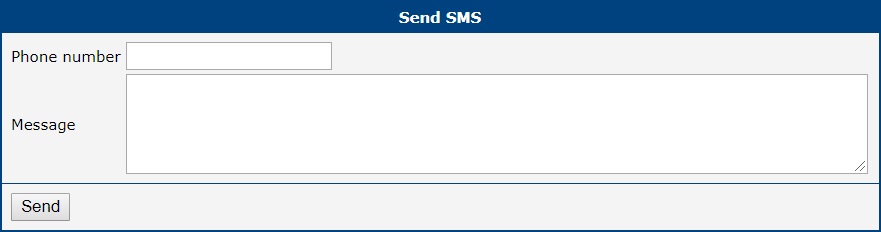
You can send an SMS message directly from the router to test cellular functionality or send a quick notification. To do so, use the Send SMS dialog in the Administration menu.
Enter the recipient's Phone number, type your message in the Message field, and click Send. By default, the router sends only the first 160 characters of a message, even if you enter and send more. To send longer messages in full, install the PDU SMS Router App.
You can also send SMS messages from a script using the sms command. For details, refer to the Shell Scripting chapter of the Extending Router Functionality application guide.
Backup Configuration
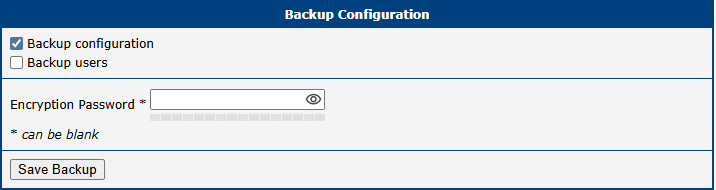
The Administration → Backup Configuration page allows you to save the router's current configuration settings to a file. This backup file can be used later to restore the router to a previous state or to clone the configuration to other devices.
| Item | Description |
|---|---|
| Backup Configuration | When checked, the backup will include all router configuration settings. |
| Backup Users | When checked, the backup will include all user accounts and their passwords. |
| Encryption Password | If you set a password here, the backup file will be encrypted. If left blank, the file will be saved unencrypted. |
Warning
Configuration backups can contain sensitive information, including user credentials. It is strongly recommended to always set an encryption password to protect the backup file. Also, ensure you are downloading the backup file over a secure (HTTPS) connection.
After selecting the desired options, click Save Backup. Your web browser will then prompt you to save the configuration file (with a .cfg extension). For instructions on how to use this file, see Restore Configuration.
Restore Configuration
The Restore Configuration menu contains options for reverting the router's settings to a previous state or resetting them entirely. It is divided into two sub-menus: Restore from File and Factory Reset.
Restore from File
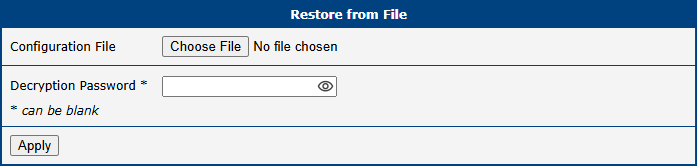
This page allows you to restore the router's settings from a previously created backup file. For instructions on creating a backup, please see Backup Configuration.
To restore a configuration, navigate to Administration → Restore Configuration → Restore from File. Click the Choose File button to select the .cfg backup file from your computer. If the file is encrypted, you must provide the correct password in the Decryption Password field. Click Apply to upload the file and apply the settings. The confirmation page reports that the configuration was successfully updated and provides a reboot link. Click this link to restart the router and apply the changes.
Warning
Restoring a configuration from firmware older than version 6.2.0 is not supported. While upgrading the firmware from an older version is possible, attempting to restore a configuration file from such versions will result in some settings being reset to their factory defaults.
Caution
Restoring a configuration file created on a non-S1 router to an S1 router (or vice versa) may result in the loss of some settings due to hardware and feature differences.
| Item | Description |
|---|---|
| Configuration File | Select the .cfg backup file from your local computer. |
| Decryption Password | The password required to decrypt an encrypted backup file. Leave blank if the file is not encrypted. |
Factory Reset
Warning
Factory reset is a destructive action that completely erases all configuration and restores the router to its original factory state. This action is irreversible and should be used with extreme caution.
Key consequences of performing a factory reset include:
- All custom configurations (including network, VPN, and firewall rules) will be permanently deleted.
- All user accounts will be erased, leaving only the default administrator account.
- The router's LAN IP address will revert to its factory default (typically
192.168.1.1), which will likely disconnect you from the web interface.
This software reset is equivalent to a hardware factory reset using the RST button, as detailed in Reset.
To reset the router to its default factory settings, navigate to Administration → Restore Configuration → Factory Reset.
Clicking the Reset and Reboot button will erase all custom configurations, apply the factory default settings, and automatically restart the device. The reboot process typically takes about 30 seconds to complete.

Update Firmware
Keeping your router's firmware up to date is crucial for security and access to the latest features. This page allows you to view the current firmware version and perform updates.
Info
The latest official firmware for your router is available on the Download Latest Versions by Model page.
Warning
- For security reasons, always use the latest firmware version. Do not downgrade to a version older than the one the router was manufactured with, and never upload firmware designed for a different router model, as this can cause irreversible damage.
- Do not turn off or disconnect the router from power during the firmware update process. Doing so may brick the device. The update may take several minutes to complete.
- Firmware updates can occasionally affect Router App compatibility. Update all Router Apps at the same time as the firmware.
- If you are using an unsecured HTTP connection, some firewalls may block the firmware upload. In such cases, switch to HTTPS or contact your network administrator.
The Administration → Update Firmware page is divided into sections for viewing the current version and performing manual or online updates.
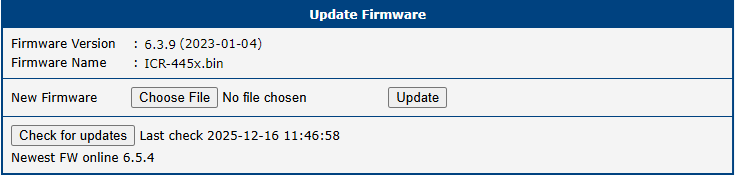
| Item | Description |
|---|---|
| Firmware Version | The version number and release date of the currently installed firmware. |
| Firmware Name | The name of the firmware file currently running on the router. |
| New Firmware | Allows you to manually upload a firmware file from your computer using the Choose File button. |
| Update | Starts the update process using the selected file. |
| Check for updates | Connects to the public server to check if a newer firmware version is available (supported since firmware version 6.4.0). The timestamp of the last check is displayed. |
| Download and Update | This button appears if a newer version is found. Clicking it will automatically download the new firmware and initiate the update process. |
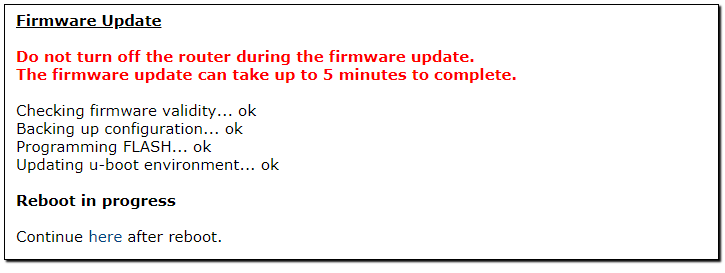
During the update, the router will display its progress, as shown in the figure below. Once the update is finished, the router will automatically reboot. After it comes back online, click the provided here link to return to the web interface.
Reboot
The Reboot menu provides two different options to restart or schedule automatic restarts of the router. To access these options, select the Reboot item in the Administration menu.
Info
- Starting with firmware version 6.6.0, the reboot functionality is integrated directly into the router's base firmware and replaces the legacy Daily Reboot Router App.
- To prevent conflicts, you must disable or uninstall the legacy Router App before using the integrated firmware feature.
Reboot Now
This submenu allows you to immediately reboot the router by clicking the Reboot button. A standard reboot takes approximately 30 seconds to complete.

Reboot Schedule
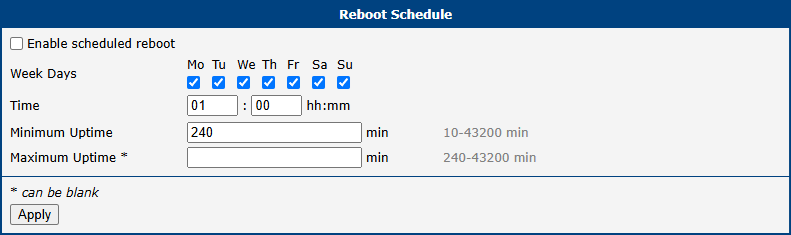
The Reboot Schedule submenu allows scheduled, automatic restarting of the router. The following parameters can be configured:
Item | Description |
|---|---|
| Enable scheduled reboot | Activates or deactivates periodic router restarts according to the selected schedule. |
| Week Days | Select specific days of the week (Monday–Sunday) for the scheduled reboot. Multiple days can be selected. |
| Time | Set the exact time for the reboot to occur on the chosen days (format: hh:mm). |
| Minimum Uptime | The minimum amount of time the router must be running before a scheduled reboot is permitted. This prevents reboot loops (e.g., during unstable power conditions). Range: 10–43,200 minutes. |
| Maximum Uptime | (Optional) Triggers an automatic reboot once the router's continuous uptime reaches this specified value. This is often used to ensure long-term system stability. If left blank, no reboot is triggered based on maximum uptime (range: 240–43,200 minutes). |
Logout
Clicking the Logout item in the main menu immediately terminates your session and logs you out of the router's web interface. You will be redirected to the login page.
Info
For security reasons, always log out when you have finished configuring the router, especially when accessing it from a shared or public computer.