
Hardware and Connectivity
Refer to the Hardware Components section for a detailed summary of the product's hardware.
SIM Card Slots
The router has two SIM card slots located beneath a metal cover. To communicate over a cellular network, insert an activated, data-provisioned SIM card into a SIM card slot. You can install two SIM cards simultaneously to use the SIM switching feature. You can configure each SIM card with a different APN (Access Point Name).
Tips
SIM card type: Micro SIM (3FF) — 15.0 × 12.0 × 0.76 mm.
Changing the SIM Card
- Always disconnect the router from the power supply before handling the SIM card.
- Unscrew the two screws on the SIM card cover and remove the cover.
- To remove an inserted SIM card, use the flat end of a spudger or your fingernail. Press the card slightly into its slot until you hear a click. Release the card; it will pop out of its slot.
- To insert a SIM card, push the card into the slot until it clicks into place.
- Replace the cover and tighten the two screws.
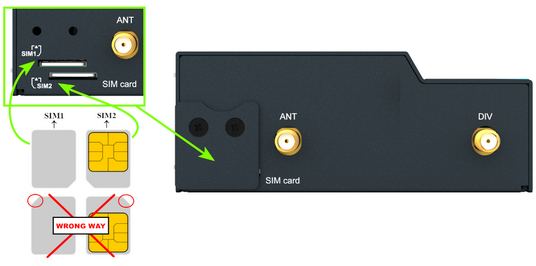
If the SIM card requires a PIN, enter it in the router's web interface under Administration → Unlock SIM Card.
Antenna Connections
Two SMA female connectors — ANT (main) and DIV (diversity) — are provided for connecting cellular antennas to the router. On models with Wi-Fi or GNSS support, an additional connector labeled AUX is located on the router: an RP-SMA female connector for the Wi-Fi antenna, or an SMA female connector for the GNSS antenna.
Warning
Always operate the router with a cellular antenna securely connected to the cellular antenna connector. Transmitting without an antenna attached causes RF energy to be reflected at the open connector, which can permanently damage the radio circuitry. Ensure the antenna is properly installed before powering on or transmitting.
Tips
The recommended tightening torque for the antenna SMA connectors is 0.9 Nm.
Ethernet Interfaces
Tips
Model ICR-1645 provides four switched ETH0 ports and one ETH1 port. All other models provide one ETH0 port and one ETH1 port.
All Ethernet interfaces are accessible via RJ45 panel sockets and support speeds up to 1 Gbps.
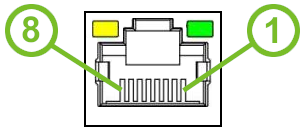
| Pin | 10BASE-T & 100BASE-T | 1000BASE-T |
|---|---|---|
| 1 | Tx+ (Transmit Data+) | BI_DA+ (BiDirectional pair A+) |
| 2 | Tx− (Transmit Data−) | BI_DA− (BiDirectional pair A−) |
| 3 | Rx+ (Receive Data+) | BI_DB+ (BiDirectional pair B+) |
| 4 | — | BI_DC+ (BiDirectional pair C+) |
| 5 | — | BI_DC− (BiDirectional pair C−) |
| 6 | Rx− (Receive Data−) | BI_DB− (BiDirectional pair B−) |
| 7 | — | BI_DD+ (BiDirectional pair D+) |
| 8 | — | BI_DD− (BiDirectional pair D−) |
Tips
The isolation barrier of the Ethernet ports from ground is 1500 V.
Power Supply
A two-pin terminal connector (pitch 3.5 mm) is used to power the router. The matching connector is included as a standard accessory.
| Pin | Signal | Description |
|---|---|---|
| 1 | VCC(+) | Positive pole of DC supply voltage (+9 to +48 V DC) |
| 2 | GND(−) | Negative pole of DC supply voltage |
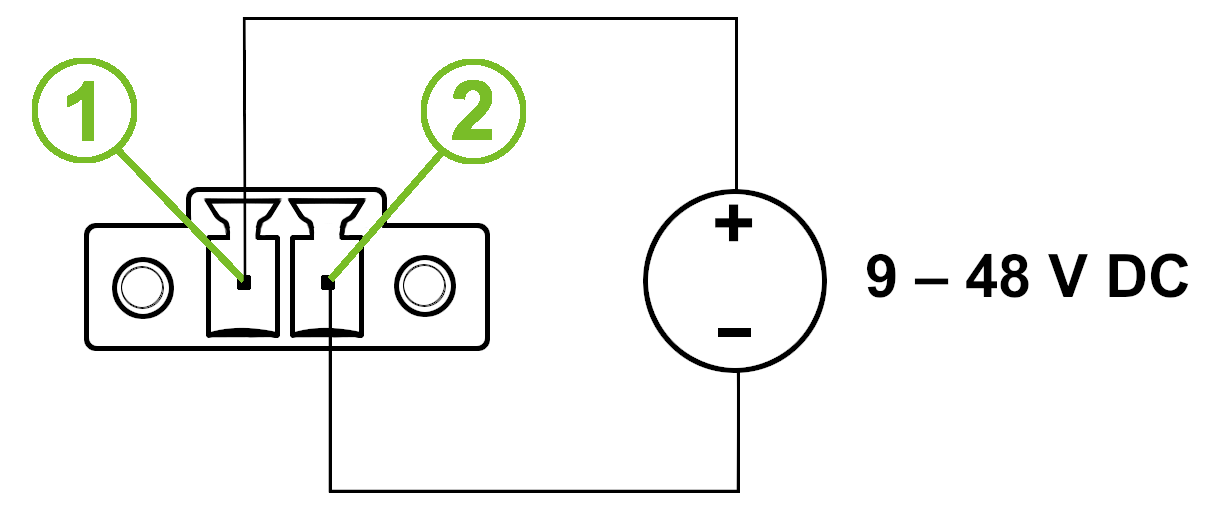
The required supply voltage is +9 to +48 V DC. The router has built-in protection against reversed polarity without signaling.
Warning
- Grounding the router using the grounding screw eliminates the protection against reversed polarity. Ensure the negative pole of the DC supply shares the same voltage reference as the grounding screw. A voltage difference between these points may damage the router; only an authorized service center can perform repairs.
- Use a power supply specified as a Limited Power Source (LPS) or a CEC/NEC Class 2 power supply.
Tips
The power supply common pole is not connected to the router's metal chassis or internal ground.
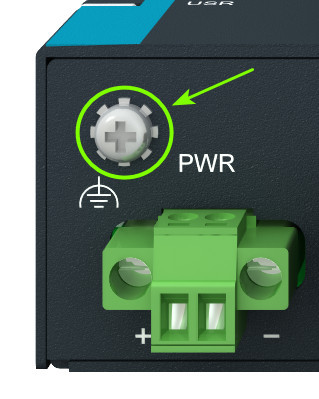
To protect the router, ground it using the grounding screw as shown below. The maximum tightening torque for the grounding screw is 0.6 Nm.
LED Indicators
Status LEDs are located on the top side of the router. The ETH0 and ETH1 connectors on the front panel each have two additional LEDs showing the port status.
| Symbol | Caption | Color | State | Description |
|---|---|---|---|---|
 | PWR | Green | On | The router is starting up. |
| Green | Blinking | The router is ready (heartbeat). | ||
| Off | Off | The router has no power. | ||
 | SIG | Green | On / Blinking | Good cellular signal. |
| Orange | On / Blinking | Fair cellular signal. | ||
| Red | On / Blinking | Poor cellular signal. | ||
| Off | Off | No cellular link. | ||
 | SIM | Green | Blinking | SIM1 is selected, waiting for a data connection. |
| Orange | Blinking | SIM2 is selected, waiting for a data connection. | ||
| Green | On | SIM1 is active for the cellular connection. | ||
| Orange | On | SIM2 is active for the cellular connection. | ||
| Red | Fast blinking | A SIM issue (missing card or PIN not entered). | ||
| Off | Off | No SIM card is selected. | ||
 | USR | Green | — | The function of this LED is user-defined. |
 | ETH0, ETH1 | Green | On | Selected 1 Gbps bit rate. |
| Green | Off | Selected 100/10 Mbps bit rate. | ||
| Yellow | On | Network cable connected. | ||
| Yellow | Brief off blinks | Data transmission. | ||
| Yellow | Off | Network cable not connected. |
The following describes the USR LED states when configured for Serial or Wi-Fi:
| Symbol | Caption | Color | State | Description |
|---|---|---|---|---|
| Serial/USR | Green Off | Blinking Off | Serial Port 1 TX/RX transmitting data. No RS232/RS485 data. |
| Wi-Fi/USR | Green Green Off | On Blinking Off | AP or STA mode is selected. Transmitting data. No AP or STA mode is selected. |
Reset Options
The RST button is located in a small opening on the router panel and has multiple functions. For details, refer to Initial Configuration → Reset.
Tips
Use a narrow screwdriver or a small tool to press the RST button.