
Router Apps
Info
- Users with the Admin role can install, manage, and view Router Apps. Users with the User role can only view the list of installed apps.
- To quickly check the operational state of all installed apps without entering their configuration, navigate to Status → Router Apps.
Router Apps (RA), formerly known as User Modules, are custom software packages that extend the router's capabilities in areas such as security, advanced networking, and custom services.
A wide variety of Router Apps are available for free on the Advantech Router Apps webpage.
Overview of the Router Apps Page
To manage apps, navigate to Customization → Router Apps. The page is divided into three main areas:
- Installed Apps: Lists all Router Apps currently installed on the device.
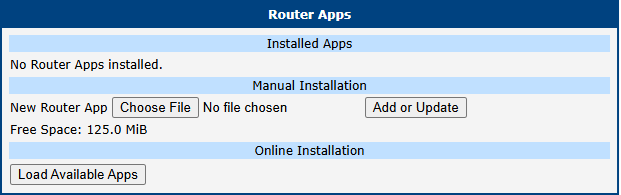
- Manual Installation: Allows for uploading and installing an app package from your computer.
- Online Installation: Allows for downloading and installing apps directly from a server.
The Free Space indicator shows how much storage is available for new applications.
Manual Installation
To install a Router App manually, click the Choose File button in the Manual Installation section to select the app package from your computer. The package must be a *.raw¹ file. Click the Add or Update button to begin the installation.
¹ *.tgz for FirstNet models.
Online Installation
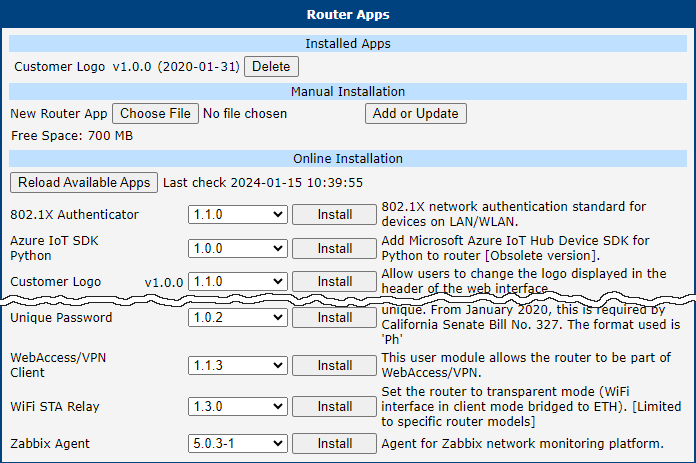
To install apps from a server, first click the Load Available Apps button in the Online Installation section. This action fetches and displays a list of all applications available on the configured server.
- An active internet connection with functional DNS name resolution is required. Without it, the router cannot find the server, which will result in a
Couldn't resolve host nameerror. - By default, the router is configured to use the public Advantech server. A custom server can be specified on the Settings page. Note that the Load Available Apps button is disabled if server communication is deactivated in the settings.
- The list of available apps is not stored permanently; it is cleared when the router reboots and must be reloaded. The timestamp of the last successful list update is shown next to the button.
- This online installation feature requires firmware version 6.4.0 or newer and is not available on v2 platform routers.
Managing Installed Apps
All installed apps are listed in the Installed Apps section.
- Accessing an App GUI: If an app has a web interface, its name is a clickable link that opens the app's GUI.
- Removing an App: To uninstall an app, click the corresponding Delete button.
Info
For information on creating your own Router Apps, refer to Programming of Router Apps.
Settings
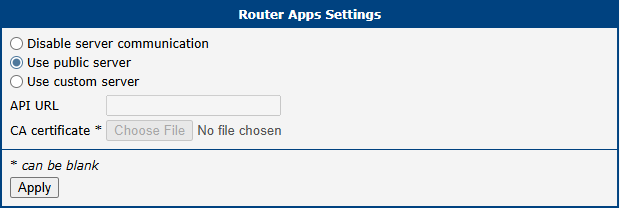
To configure the server connection for online installation, navigate to Customization → Router Apps → Settings.
| Item | Description |
|---|---|
| Disable server communication | Check this to disable all communication with the online app server. |
| Use public server | The default option. Uses the official Advantech server to download Router Apps. Requires an active internet connection. |
| Use custom server | Connect to a private, self-hosted server. This requires an on-premises installation of Advantech's WebAccess/DMP software. |
| API URL | The URL of your custom server. Must begin with https://. |
| CA certificate | Upload a CA certificate for your custom server if it uses a private or non-standard Certificate Authority. |