
Hardware and Connectivity
Refer to the Hardware Components section for a detailed summary of the product's hardware.
SIM Card Slots
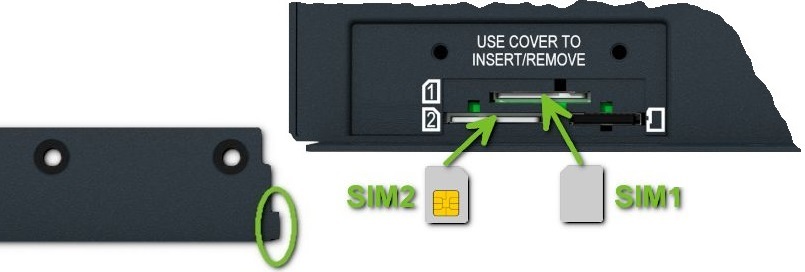
The router has two SIM card slots located on the rear panel under a metal cover. To communicate over a cellular network, insert an activated, data-provisioned SIM card into a SIM card slot. You can install two SIM cards simultaneously to use the SIM switching feature. You can configure each SIM card with a different APN (Access Point Name).
Tips
SIM card type: Mini SIM (2FF) — 25.0 × 15.0 × 0.76 mm.
Changing the SIM Card
- Always disconnect the router from the power supply before handling the SIM card.
- Unscrew the two screws on the rear panel SIM card cover and remove the cover.
- To remove an inserted SIM card, use the protrusion on the SIM card cover to gently press the card into its slot until you hear a click. Release the pressure; the card will pop out of its slot.
- To insert a SIM card, push the card into the slot until it clicks into place. Optionally, use the protrusion on the SIM card cover to assist with insertion.
- Replace the cover and tighten the two screws.
If the SIM card requires a PIN, enter it in the router's web interface under Administration → Unlock SIM Card.
Antenna Connections
The antenna connectors available depend on the router model:
- ICR-4133, ICR-4233 (LTE, 2×2 MIMO): Two SMA female connectors — ANT (main) and DIV (diversity) — for cellular antennas, a dedicated GNSS SMA female connector for the GNSS antenna, and RP-SMA female connectors (WIFI) for Wi-Fi antennas.
- ICR-4161, ICR-4261 (5G): Four SMA female connectors (ANT0, ANT1, ANT2, ANT3) for cellular antennas, plus WIFI RP-SMA connectors for Wi-Fi. The GNSS antenna connectors are shared with the cellular connectors: ANT3 for the L1 band and ANT1 for the L5 band.
- ICR-4171, ICR-4172, ICR-4271, ICR-4272 (5G): Four SMA female connectors (ANT0, ANT1, ANT2, ANT3) for cellular antennas, a dedicated GNSS SMA female connector for the GNSS antenna, and WIFI RP-SMA connectors for Wi-Fi antennas.
Warning
Always operate the router with a cellular antenna securely connected to the cellular antenna connector. Transmitting without an antenna attached causes RF energy to be reflected at the open connector, which can permanently damage the radio circuitry. Ensure the antenna is properly installed before powering on or transmitting.
Tips
The recommended tightening torque for the antenna SMA connectors is 0.9 Nm.
Bluetooth
The WIFI connector on the right-hand side of the router is also compatible with Bluetooth antennas. Bluetooth support in the router consists of three components:
- Kernel Support and Drivers: Included in the router firmware — no additional installation required.
- Bluetooth Router App: Uses the BlueZ Linux Bluetooth stack. The app is not pre-installed; download and install the Bluetooth Router App separately.
- Node-RED Applications: For advanced Bluetooth use, install Node-RED and the Node-RED Bluetooth node.
Ethernet Interfaces
The router provides one ETH0 and one ETH1 Gigabit Ethernet interfaces, both accessible via RJ45 panel sockets.
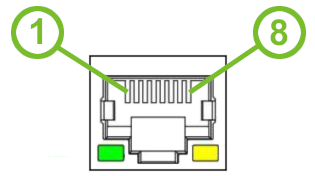
| Pin | 10BASE-T & 100BASE-T | 1000BASE-T |
|---|---|---|
| 1 | Tx+ (Transmit Data+) | BI_DA+ (BiDirectional pair A+) |
| 2 | Tx- (Transmit Data-) | BI_DA- (BiDirectional pair A-) |
| 3 | Rx+ (Receive Data+) | BI_DB+ (BiDirectional pair B+) |
| 4 | — | BI_DC+ (BiDirectional pair C+) |
| 5 | — | BI_DC- (BiDirectional pair C-) |
| 6 | Rx- (Receive Data-) | BI_DB- (BiDirectional pair 😎 |
| 7 | — | BI_DD+ (BiDirectional pair D+) |
| 8 | — | BI_DD- (BiDirectional pair D-) |
Tips
The isolation barrier of the Ethernet ports from ground is 1500 V.
Power Supply
A two-pin terminal connector (pitch 3.5 mm) is used to power the router. The matching connector is included as a standard accessory.
| Pin | Signal | Description |
|---|---|---|
| 1 | VCC(+) | Positive pole of DC supply voltage (+9 to +48 V DC) |
| 2 | GND(−) | Negative pole of DC supply voltage |
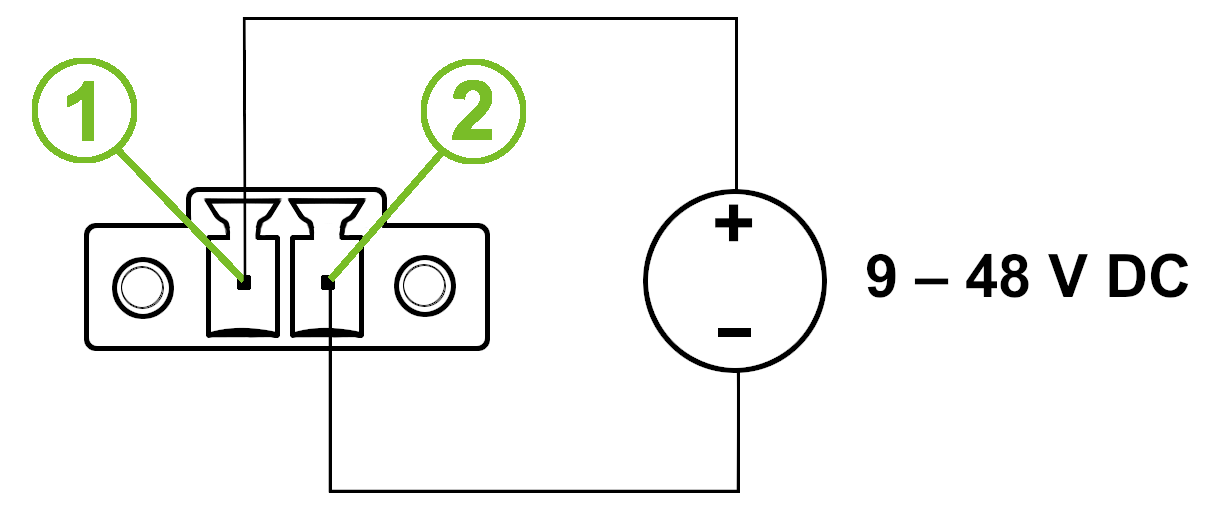
The required supply voltage is +9 to +48 V DC. The router includes built-in protection against reversed polarity without signaling.
Warning
- Grounding the router using the grounding screw eliminates the protection against reversed polarity. Ensure the negative pole of the DC supply shares the same voltage reference as the grounding screw. A voltage difference between these points may damage the router; only an authorized service center can perform repairs.
- Use a power supply specified as a Limited Power Source (LPS) or a CEC/NEC Class 2 power supply.
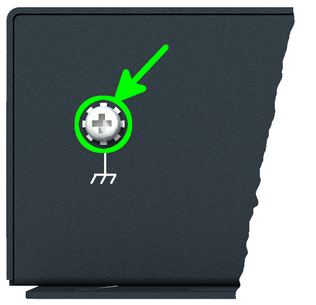
All metal parts, including the chassis, are connected to the negative pole of the power supply (common pole). To protect the router, ground it using the grounding screw as shown below. The maximum tightening torque for the grounding screw is 1 Nm.
Low Power Mode
Warning
In applications requiring low power consumption, such as solar-powered installations not operating 24/7, use Low Power Mode (LPM) before shutting down the entire router.
LPM (Low Power Mode) is a sleep state with minimal power consumption. The router wakes from LPM after a predefined period. On models with digital I/O (ICR-4233, ICR-4261, ICR-4271, ICR-4272), the router also wakes when the BIN1 input receives a signal. To enter LPM, use the lpm command. Refer to the Command Line Interface application note for details.
Serial and I/O Port
Tips
This section applies to models ICR-4233, ICR-4261, ICR-4271, and ICR-4272 only.
The digital I/O and two independently switchable serial interfaces share a single 16-pin terminal block panel socket. Neither the serial interfaces nor the I/O interface is electrically isolated from the router.
I/O Port
The I/O interface provides four digital inputs and two digital outputs.
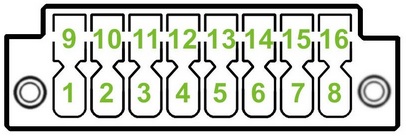
| Pin | Signal | Description |
|---|---|---|
| 14 | BIN0 | First digital input |
| 6 | BIN1 | Second digital input |
| 15 | BIN2 | Third digital input |
| 7 | BIN3 | Fourth digital input |
| 16 | BOUT0 | First digital output |
| 8 | BOUT1 | Second digital output |
| 5, 13 | GND | Ground (common negative pole) |
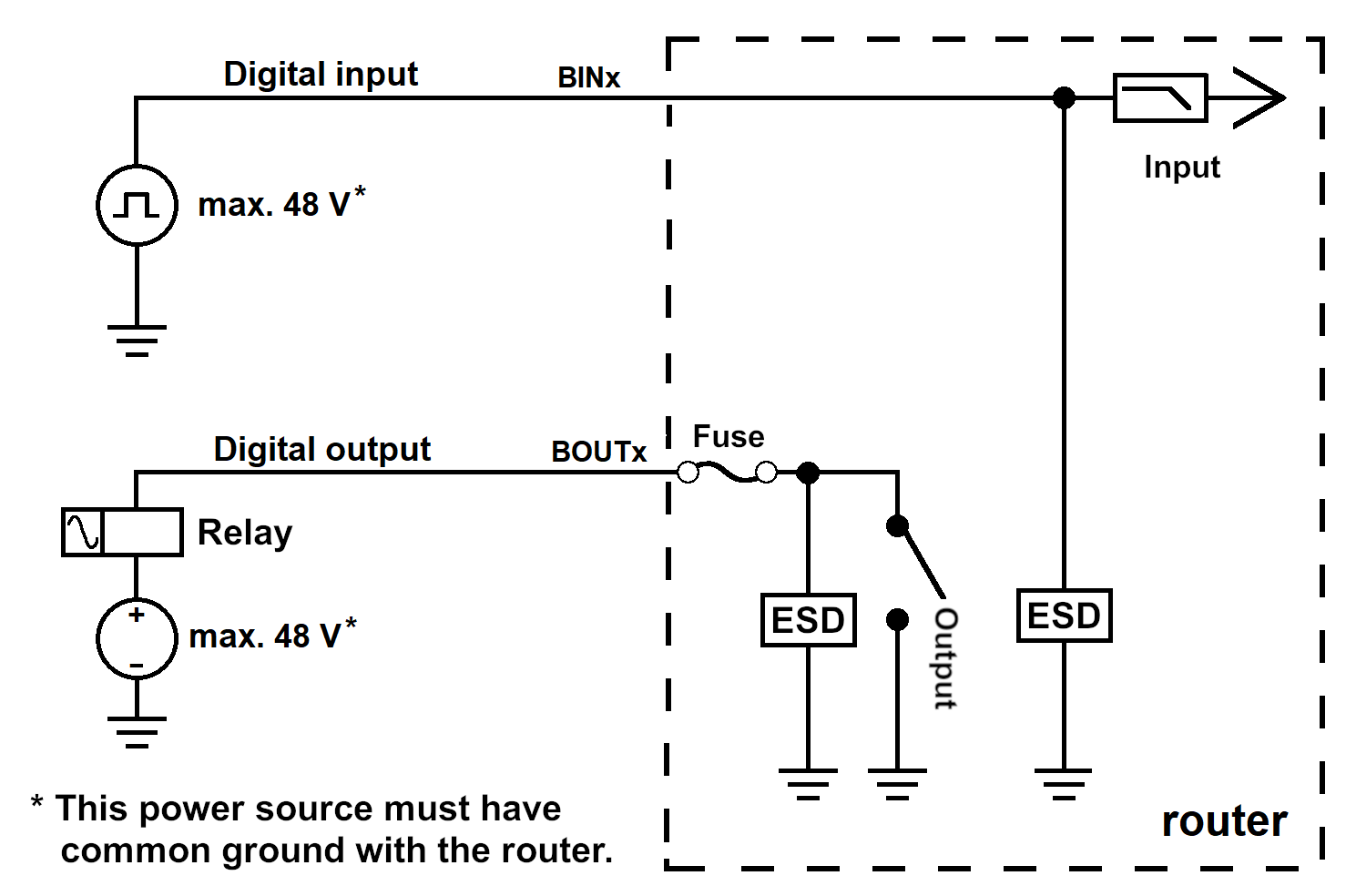
Serial Interfaces
Warning
Switch the serial interface only when the router is powered off.
Both serial interfaces connect to the 16-pin terminal block socket and can be independently switched between RS232 and RS485 using the DIP switch located beneath the SIM card cover. Setting a DIP switch to the up position configures the corresponding interface as RS232; setting it to the down position configures it as RS485.
RS232 Mode:
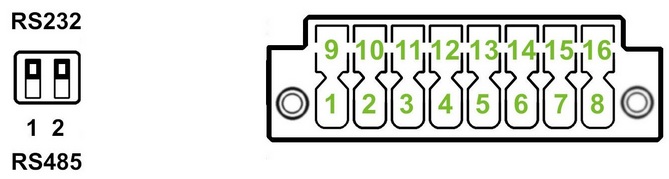
| Pin | Signal | Description |
|---|---|---|
| 1 | RXD | Received Data (interface 1) |
| 2 | TXD | Transmit Data (interface 1) |
| 3 | RTS | Request to Send (interface 1) |
| 4 | CTS | Clear to Send (interface 1) |
| 5 | GND | Ground (interface 1) |
| 9 | RXD | Received Data (interface 2) |
| 10 | TXD | Transmit Data (interface 2) |
| 11 | RTS | Request to Send (interface 2) |
| 12 | CTS | Clear to Send (interface 2) |
| 13 | GND | Ground (interface 2) |
RS485 Mode:
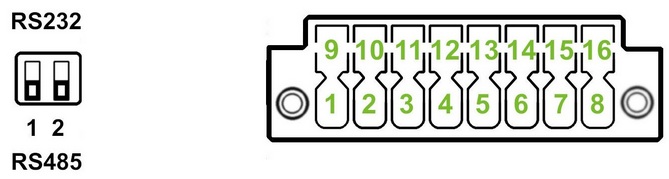
| Pin | Signal | Description |
|---|---|---|
| 2 | D (+) | In/Out (interface 1) |
| 1 | D (−) | In/Out (interface 1) |
| 5 | GND | Ground (interface 1) |
| 10 | D (+) | In/Out (interface 2) |
| 9 | D (−) | In/Out (interface 2) |
| 13 | GND | Ground (interface 2) |
USB Port
The router has a single USB 3.0 host port with a USB Type-A socket.
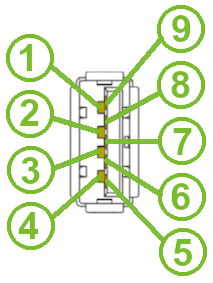
| Pin | Signal | Description |
|---|---|---|
| 1 | VBUS | 5 V DC power, 0.5 A |
| 2 | D− | USB 2.0 differential pair − |
| 3 | D+ | USB 2.0 differential pair + |
| 4 | GND | Ground for power return |
| 5 | StdA_SSRX− | SuperSpeed receiver differential pair − |
| 6 | StdA_SSRX+ | SuperSpeed receiver differential pair + |
| 7 | GND_DRAIN | Ground for signal return |
| 8 | StdA_SSTX− | SuperSpeed transmitter differential pair − |
| 9 | StdA_SSTX+ | SuperSpeed transmitter differential pair + |
microSD Card
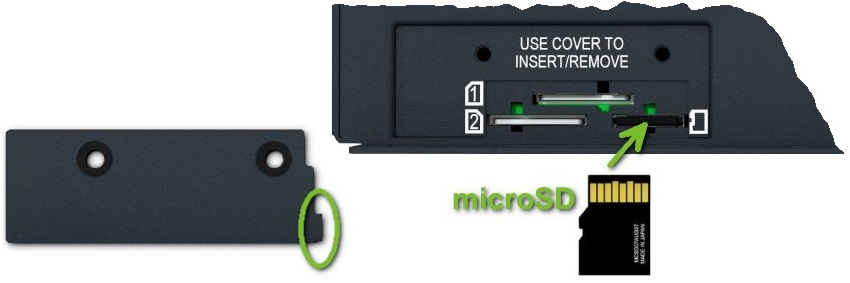
The microSD card reader is located under the SIM cover on the router.
| Specification | Value |
|---|---|
| Supported technologies | SD, SDHC, and SDXC |
| SDHC capacity | Up to 32 GB |
| SDXC capacity | 32 GB to 512 GB |
| Supported filesystems | vfat, ext2, ext3, and ext4 |
Inserting the microSD Card
- To remove an inserted microSD card, use the flat end of a spudger or your fingernail. Press the card slightly into its slot until you hear a click. Release the card; it will pop out of its slot.
- To insert a microSD card, push the card into the slot with the correct orientation as shown until it clicks into place.
Mounting the microSD Card
To access the microSD card in the router's system, mount it:
- Run
dmesgto view recently connected devices and identify the microSD card entry, for example:mmcblk0: p1. - Mount the card to the
/mntdirectory:
mount /dev/mmcblk0p1 /mntTips
For commands to create, mount, check, and unmount a filesystem on a microSD card, refer to the Ext4 Filesystem Utilities router app application note.
LED Indicators
Status LEDs are located on the top side of the router. The ETH0 and ETH1 connectors on the front panel each have two additional LEDs showing the port status.
| Symbol | Caption | Color | State | Description |
|---|---|---|---|---|
 | PWR | Green | On | The router is starting up. |
| Green | Blinking | The router is ready (heartbeat). | ||
| Green | Fast blinking | The router firmware is being updated. | ||
 | USR | Green | — | The function of this LED is user-defined. |
 | DAT | Green | Blinking | Cellular communication is in progress. |
 | SIG | Green | On | Good cellular signal. |
| Orange | On | Fair cellular signal. | ||
| Red | On | Poor cellular signal. | ||
 | TECH | Green | On | The active SIM uses 5G technology (4G on LTE models).¹ |
| Orange | On | The active SIM uses 4G technology (3G on LTE models).¹ | ||
| Red | On | The active SIM uses 3G technology (5G models only).¹ | ||
 | SIM1 | Green | On | SIM1 is active for the cellular connection. |
| Red | Fast blinking | A SIM1 issue (missing card or PIN not entered). | ||
 | SIM2 | Green | On | SIM2 is active for the cellular connection. |
| Red | Fast blinking | A SIM2 issue (missing card or PIN not entered). | ||
 | Wi-Fi | Green | On | AP or STA started successfully. |
| Green | Brief off blinks | Data transmission. | ||
| Green | Fast blinking | AP or STA error (configuration, hardware, or connection issue). | ||
| Green | Off | AP and STA disabled. | ||
 | ETH0, ETH1 | Green | On | 1 Gbps link. |
| Green | Off | 100/10 Mbps link. | ||
| Yellow | On | Network cable connected. | ||
| Yellow | Brief off blinks | Data transmission. | ||
| Yellow | Off | Network cable not connected. |
¹ On 5G models (ICR-4161, ICR-4171, ICR-4172, ICR-4261, ICR-4271, ICR-4272): Green = 5G, Orange = 4G, Red = 3G. On LTE models (ICR-4133, ICR-4233): Green = 4G, Orange = 3G; Red is not used.
Reset Options
The RST button is located in a small opening on the router panel and has multiple functions. For details, refer to Initial Configuration → Reset.
Tips
Use a narrow screwdriver to press the RST button.