Watchdog Concept
Watchdog Concept Introduction
This document explains the operation of watchdogs in Advantech cellular routers. Both hardware and software watchdog mechanisms are described to clarify the reasons for router reboots.
Continuous connectivity features are also described, detailing the available options for connection checks and monitoring in Advantech cellular routers.
System Watchdog
Tips
The watchdog concept, as described in this document, works for all Advantech routers except the v1 product family, which differs slightly, as there is no additional watchdog component on the PCB. This platform features a hardware watchdog integrated into the cellular module. When activated, it will restart only the cellular module.
Advantech routers are equipped with an internal hardware watchdog circuit. This extra component oversees the operation of the router's processor. The processor regularly sends a refresh signal to the watchdog, so the watchdog can verify that the processor is running. If the watchdog circuit does not receive a refresh signal (for example, if the processor is stuck), it reboots the router.
The watchdog in Advantech routers is an extra component on the PCB, not integrated into the router's processor. The watchdog has its own independent internal timer and does not share a clock with the processor or other peripherals. There is a refresh signal route from the processor to the watchdog circuit's WDI input (Watch Dog-In), and the watchdog responds to level changes (edges) of this signal. The router's processor sends the refresh signal very early after initialization—this is managed by a Linux kernel driver that waits for a prompt from one of the initialized programs. When the refresh signal is sent, it indicates that the system has been successfully initialized. The refresh signal from the processor is sent at a frequency greater than 1 Hz. If the watchdog circuit does not receive a refresh pulse within the expected time, it will reboot the entire router (equivalent to turning the router off and on). This global reset affects not only the processor but also all peripherals, including memory.
In Advantech routers, the watchdog operates in a single mode: it always waits 60 seconds after initialization and after each refresh pulse. If the processor becomes unresponsive, a reboot occurs within 60 seconds.
Supervision of Key Services
A supervisory process monitors the operation of critical services responsible for managing WAN connections, including establishing and maintaining connections and handling backup routes. This process also refreshes the hardware watchdog.
If any of these critical services become unresponsive, enter a loop, or terminate unexpectedly, they will stop refreshing the supervisory process. As a result, the supervisory process will stop refreshing the hardware watchdog, which will then trigger a router reboot.
These events are recorded in an internal reboot log, and a related message appears in the System Log:
process <name> timed out (<time> sec)(service stuck or terminated unexpectedly)
Other less critical services are also supervised by similar monitoring processes. Some services related to network interfaces do not have dedicated monitoring processes but are designed to recover from issues autonomously.
Continuous Connectivity Features
Supervision of Mobile Network Registration
The service responsible for mobile network registration also monitors the status of the cellular module and can trigger a module reboot if necessary. By default, it checks the registration status every 2 minutes. If the module is not registered, it is power-cycled. If this occurs three times in succession, the router itself will reboot.
Examples of cellular module reboot reasons recorded in the System Log include:
WARNING: module not respondingcannot kill child process(when disconnecting)WARNING: module not detectedprocess <name> timed out (<time> sec)(service stuck or terminated unexpectedly)- etc.
Check Connection to Mobile Network
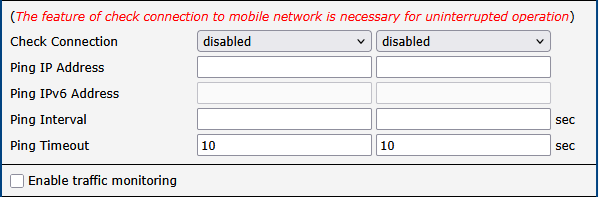
Continuous connectivity to the mobile network is maintained using ICMP ping requests. Pings are sent to a specified IP address at defined intervals. If three consecutive ping failures occur (no Echo Reply received), the router terminates the current connection and attempts to establish a new one. Connection checks can be configured separately for two SIM cards or two APNs. This feature is configured on the Mobile WAN page in the Configuration section of the router's web interface. See the table below for a description of the configuration items. Enabling this feature is recommended for uninterrupted and reliable mobile network connectivity.
| Item | Description |
|---|---|
| Check Connection | • disabled — Connection check is not performed. • enabled — Connection check is activated; the router automatically sends ping requests to the Ping IP Address at the specified Ping Interval. Pings are sent according to the routing table through any network interface. • enabled+bind — Pings are sent only via the same interface used to establish the connection. Necessary for use within the Backup Routes system. |
| Ping IP Address | Specifies the destination IPv4 address or domain name for ping queries. Available in IPv4 and IPv4/IPv6 IP Mode. |
| Ping IPv6 Address | Specifies the destination IPv6 address or domain name for ping queries. Available in IPv6 and IPv4/IPv6 IP Mode. |
| Ping Interval | Specifies the time interval between outgoing pings. |
| Ping Timeout | Time in seconds to wait for a ping response. |
| Enable traffic monitoring | If enabled, the router monitors Mobile WAN traffic without sending ping requests. If there is no traffic, the router starts sending pings. |
Items of Check Mobile Connection Configuration
Switching SIM Card
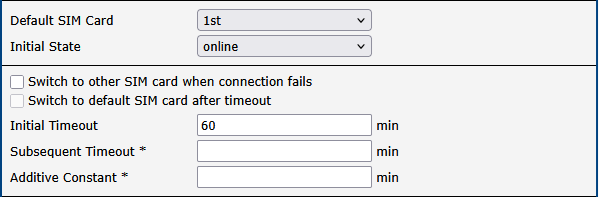
You can set up SIM card switching when the cellular connection on the active SIM card times out. This can be configured in the Mobile WAN configuration page, as described below.
| Item | Description |
|---|---|
| Default SIM Card | Specifies the module's default SIM card. The router will attempt to establish a mobile network connection using this default. • 1st — The 1st SIM card is the default. • 2nd — The 2nd SIM card is the default. |
| Initial State | Specifies the action of the cellular module after the SIM card has been selected. • online — Establish a connection to the mobile network after the SIM card is selected (default). • offline — Go to offline mode after the SIM card is selected. Note: If offline, you can change this initial state by SMS message only—see SMS Configuration. The cellular module will also go into offline mode if neither SIM card is selected. |
| Switch to other SIM card when connection fails | Applicable only when a connection is established on the default SIM card and then fails. If the connection failure is detected by the Check Connection feature above, the router switches to the backup SIM card. |
| Switch to default SIM card after timeout | If enabled, after a timeout, the router attempts to switch back to the default SIM card. This applies only when a default SIM card is defined and the backup SIM is selected because of a failure of the default one or if roaming settings cause the switch. This feature is available only when Switch to other SIM card when connection fails is enabled. |
| Initial Timeout | Specifies the length of time that the router waits before the first attempt to revert to the default SIM card. The range is from 1 to 10000 minutes. |
| Subsequent Timeout | Specifies the length of time that the router waits after an unsuccessful attempt to revert to the default SIM card. The range is from 0 to 10000 minutes. |
| Additive Constant | Specifies the length of time that the router waits for any further attempts to revert to the default SIM card. This time is the sum of the time specified in the Subsequent Timeout parameter and the time specified in this parameter. The range is from 0 to 1000 minutes. |
Items of SIM Card Switching Configuration
Backup Routes
You can set up priorities for multiple WAN connections in the Backup Routes item in the Configuration section of the router's web interface. See the configuration form in the figure below.
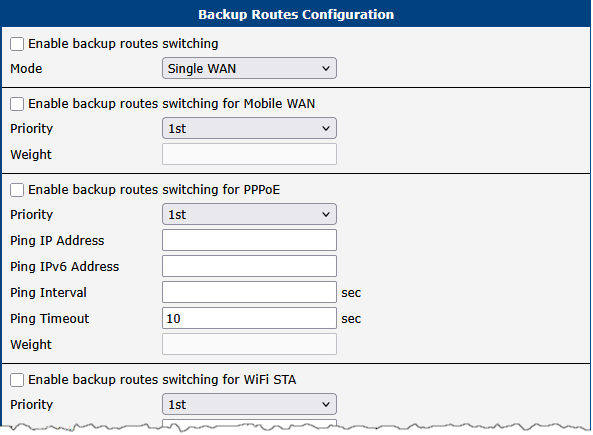
The backup routes system can be enabled, specific connections can be added to the backup routes system, and the priority can be defined for each connection. Ping IP Address and Ping Interval for every connection can be set. If the target is unreachable, the system uses another connection according to priorities.
Even if the backup routes system is disabled, the router uses the following implicit priority order for network interfaces:
- Mobile WAN (usb0 or usb1)
- PPPoE (pppoe0)
- WiFi STA (wlan0)
- ETH1 (eth1)
- ETH2 (eth2)
- ETH0 (eth0)
VRRP Check Connection
The router supports VRRP (Virtual Router Redundancy Protocol), allowing you to configure redundancy backup using two routers.
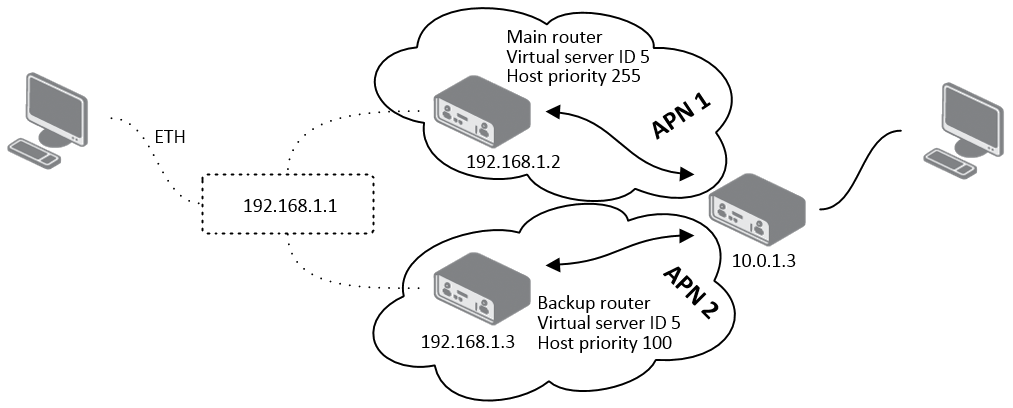
The VRRP configuration is accessible via the VRRP item in the Configuration section of the router's web interface. You can set standard VRRP parameters (Virtual Server IP Address, Virtual Server ID, Host Priority) and also enable the Check connection feature by ticking the Check connection checkbox. See the table below for parameter explanations:
| Item | Description |
|---|---|
| Ping IP Address | Destination IP address for ping queries. Cannot be specified as a domain name. |
| Ping Interval | Time interval between outgoing pings. |
| Ping Timeout | Time to wait for the reply. |
| Ping Probes | Number of failed ping requests after which the route is considered disconnected. |
| Enable traffic monitoring | Pings are not sent if there is traffic. If there is no traffic for the Ping Timeout period, pings are sent to check if the route is disconnected. |
VRRP Check Connection Parameters
OpenVPN Check Connection
There is a check connection feature in the OpenVPN tunnel configuration (OpenVPN item in the Configuration section of the router's web interface). In the middle of the configuration form, these optional parameters are available:
| Item | Description |
|---|---|
| Ping Interval | Time interval for checking the existence of the tunnel's opposite side. |
| Ping Timeout | Time to wait for a reply from the opposite side. For proper verification of the OpenVPN tunnel, Ping Timeout must be longer than Ping Interval. |
OpenVPN Check Connection Parameters
When the Check connection feature detects that the opposite side of the tunnel is unreachable by ping, it terminates the tunnel connection and attempts to re-establish it.
Serial Ports and USB Interface Keepalive
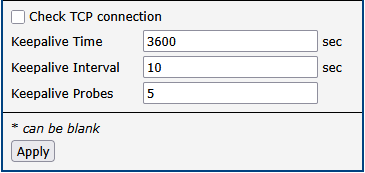
You can activate the TCP keepalive check in the serial port configurations (Configuration → Peripheral Ports → RS-232 Port, RS-485 Port, and USB Port). If access to the serial port (or USB serial converter) via TCP/IP is used, enable Check TCP connection. Explanation of the parameters is provided in the table below:
| Item | Description |
|---|---|
| Keepalive Time | Time interval between check transmissions. |
| Keepalive Interval | Time to wait for a reply after a check transmission is sent. |
| Keepalive Probes | Number of check retransmissions. These are sent if there is no reply within the Keepalive Interval. |
TCP Keepalive Parameters at Serial Ports and USB Interfaces
The TCP Keepalive mechanism is useful for detecting dead peers and preventing disconnection due to network inactivity. Check transmissions are empty data packets with the ACK (Acknowledge) flag set. The reply is also an empty ACK packet, according to the TCP/IP specification.
Daily Reboot
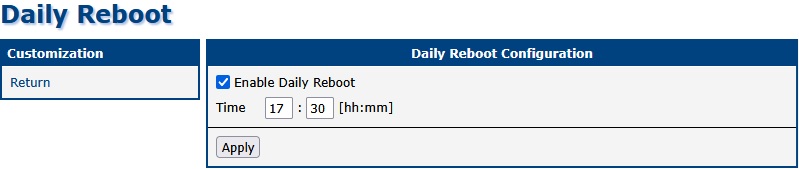
Starting with firmware version 6.6.0, a preventive scheduled reboot is a standard firmware feature, available in Administration → Reboot (Reboot Schedule). On older firmware, use the Daily Reboot Router App, where you can set the time of the reboot, as shown in the figure below.