
802.1X Authenticator
 Installation files
 Tips
This Router App is not installed on Advantech routers by default. See the manual of your router, section Customization Pages → Router Apps, for instructions on how to upload a Router App.
IEEE 802.1X Introduction
IEEE 802.1X is an IEEE Standard for port-based Network Access Control (PNAC). It is part of the IEEE 802.1 group of networking protocols. It provides an authentication mechanism for devices that want to attach to a LAN or WLAN. IEEE 802.1X defines the encapsulation of the Extensible Authentication Protocol (EAP) over IEEE 802, which is known as "EAP over LAN" or EAPoL.
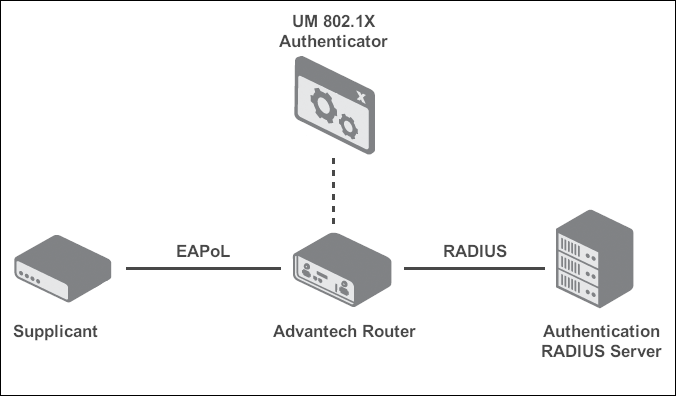
802.1X authentication involves three parties: a supplicant, an authenticator, and an authentication server. The supplicant is a client device (such as a laptop) that wishes to attach to the LAN/WLAN. The term 'supplicant' is also used interchangeably to refer to the software running on the client that provides credentials to the authenticator. The authenticator is a network device, such as an Ethernet switch or wireless access point, that provides a data link between the client and the network and can allow or block network traffic between the two. The authentication server is typically a trusted server that receives and responds to requests for network access and tells the authenticator whether to allow the connection and which settings apply to that client's connection. Authentication servers typically run software supporting the RADIUS and EAP protocols.
Module Description
The 802.1X Authenticator Router App enables the router to act as an EAPoL authenticator and authenticate other devices (supplicants) connecting over wired LAN interfaces. For the functional diagram of this authentication, see the figure below.
Tips
- The connecting device (a supplicant) can be another router, a managed switch, or any other device that supports IEEE 802.1X authentication.
- This Router App applies to wired interfaces only. For wireless (Wi-Fi) interfaces, this feature is part of the Wi-Fi Access Point (AP) configuration when Authentication is set to 802.1X.
Installation
In the router's web interface, navigate to Customization → Router Apps. Select the downloaded installation file and click Add or Update.
Once the installation is complete, open the Router App's web interface by clicking its name on the Router Apps page. The figure below shows the main menu of the module. It has the Status menu section, followed by the Configuration and Customization menu sections. To return to the router's web interface, click Return.

Module Configuration
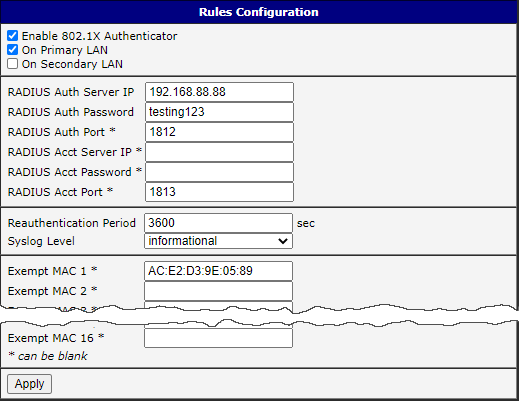
To configure the 802.1X Authenticator Router App installed on an Advantech router, go to the Rules page under the Configuration menu section of the Router App's web interface. On this page, select the Enable 802.1X Authenticator check box and the check box of the required LAN interface. Configure the RADIUS credentials and other settings, as shown in the figure and table below.
| Item | Description |
|---|---|
| Enable 802.1X Authenticator | Enables the 802.1X Authenticator. When it is enabled, also select the interfaces on which to activate it (see below). |
| On ... LAN | Activates the authentication for a given interface. When disabled, any MAC address can connect to that interface. When enabled, authentication is required before communication on that interface. |
| RADIUS Auth Server IP | IP address of the authentication server. |
| RADIUS Auth Password | Access password for the authentication server. |
| RADIUS Auth Port | Port for the authentication server. |
| RADIUS Acct Server IP | IP address of the (optional) accounting server. |
| RADIUS Acct Password | Access password for the (optional) accounting server. |
| RADIUS Acct Port | Port for the (optional) accounting server. |
| Reauthentication Period | Period in seconds after which the client must reauthenticate. To disable reauthentication, enter 0. |
| Syslog Level | Verbosity of the information sent to the syslog. |
| Exempt MAC x | MAC addresses exempt from authentication. Devices with these addresses do not need to authenticate, even when authentication is activated. |
Description of configuration items
Tips
If you want to configure another Advantech router to act as the supplicant, configure the appropriate LAN interface on the LAN configuration page. On this page, enable IEEE 802.1X Authentication and enter the Identity and Password of a user provisioned on the RADIUS server.
Module Status
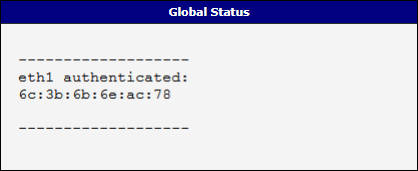
Status messages are listed on the Global page under the Status menu section, as shown in the figure below. The page shows which clients (MAC addresses) are authenticated on each interface.
Known Issues
Info
- This Router App requires firmware version 6.2.5 or later.
- The router firewall cannot block DHCP traffic. Therefore, an unauthorized device that connects still receives an IP address from the DHCP server, regardless of its authentication status. All further communication is blocked.