
WiFi SSID Switch
 Installation files
 Caution
- After updating the router firmware to a higher version, check whether a newer version of the Router App has also been released and update it accordingly for compatibility.
Description
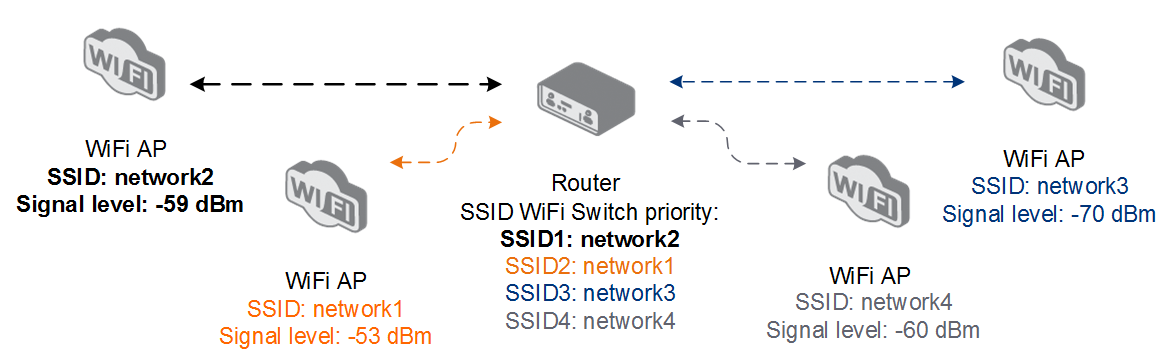
The WiFi SSID Switch Router App allows an Advantech router to automatically switch between up to four configured SSIDs (Wi-Fi networks). Each SSID can have its own authentication type, encryption, security keys or passwords, and DHCP client settings. This feature overrides the router's built-in Wi-Fi settings and switches between networks according to configured priorities. When the Wi-Fi signal is weak, switching is based on signal level. A typical use case is a mobile router that automatically connects to known Wi-Fi networks as it moves between locations.
After uploading and enabling the Router App, access its web interface by clicking the app name on the Router Apps page. The left menu provides access to Status (with a Global overview page) and Configuration (with a Global page followed by SSID1 to SSID4 pages). The Return button in the Administration section takes you back to the router's main web interface.

Configuration
Before configuring, make sure you know the following parameters for each target Wi-Fi access point: SSID, authentication type, encryption type, and the security key or password.
Global
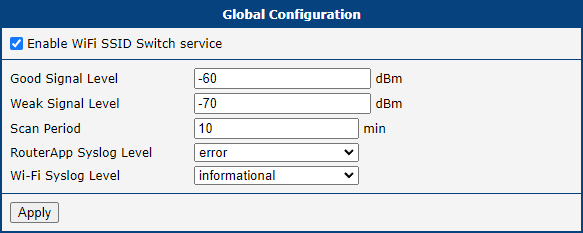
Navigate to the Global page in the Configuration section.
| Item | Description |
|---|---|
| Enable WiFi SSID Switch service | Enables the Router App. When enabled, the router's built-in Wi-Fi configuration is overridden by the SSID1–SSID4 settings configured in this Router App. |
| Good Signal Level | Signal threshold in dBm (negative value; default: -60 dBm). If a positive number is entered, it is treated as negative. Networks detected above this level are switched based on priority only. |
| Weak Signal Level | Signal threshold in dBm (negative value; default: -70 dBm). If a positive number is entered, it is treated as negative. Networks detected between the Good and Weak signal levels are switched based on signal strength only — the network with the strongest signal is chosen. Networks below the Weak level are also switched based on signal strength. |
| Scan period | How often Wi-Fi networks are scanned for signal strength, and how often switching is evaluated if required. Default: 10 minutes. Allowed range: 1–60 minutes. |
| Router App Syslog Level | Log detail level for the Router App. |
| Wi-Fi Syslog Level | System Wi-Fi information log level. This setting is also copied to the router's Wi-Fi configuration. |
Global configuration items
Click Apply to apply changes.
SSID1–SSID4 Configuration
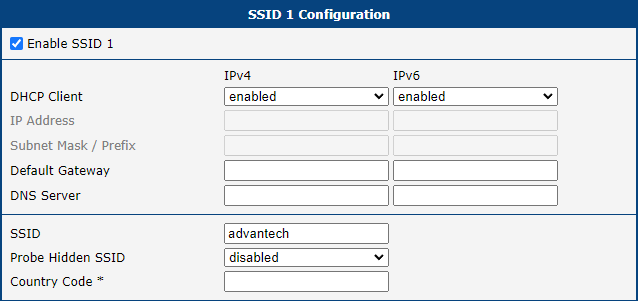
The Router App switches between the networks configured on the SSID1 to SSID4 pages. SSID1 has the highest priority and SSID4 the lowest. When the signal level is above the Good Signal Level, the network with the highest priority is selected. These settings override the configuration on the router's Wi-Fi/Station page.
| Item | Description |
|---|---|
| Enable SSID1 (SSID2, SSID3, SSID4) | Adds this SSID to the list of networks the Router App switches between. If not enabled, a disabled notice is shown for this entry on the Global status page. |
| DHCP Client | Enables or disables the DHCP client for this SSID. |
| IP Address | Fixed IP address of the Wi-Fi interface. Applicable only when DHCP Client is disabled. |
| Subnet Mask | Subnet mask for the IP address. Applicable only when DHCP Client is disabled. |
| Default Gateway | IP address of the default gateway. If set, packets with destinations not found in the routing table are forwarded here. |
| DNS Server | IP address of the DNS server used to resolve domain names. |
| SSID | Unique identifier (name) of the Wi-Fi network to connect to. |
| Probe Hidden SSID | When enabled, forces the station to probe for a specific SSID. Useful when connecting to an access point with a hidden (non-broadcast) SSID. Disable this option if no hidden SSID is expected, to avoid unnecessary radio transmissions. |
| Country Code | Country code in ISO 3166-1 alpha-2 format for the location where the router is installed. If not specified, US is used as the default. An incorrect or missing country code may cause the router to violate local regulations for Wi-Fi frequency bands. |
SSID1–SSID4 configuration items — Part 1
| Item | Description |
|---|---|
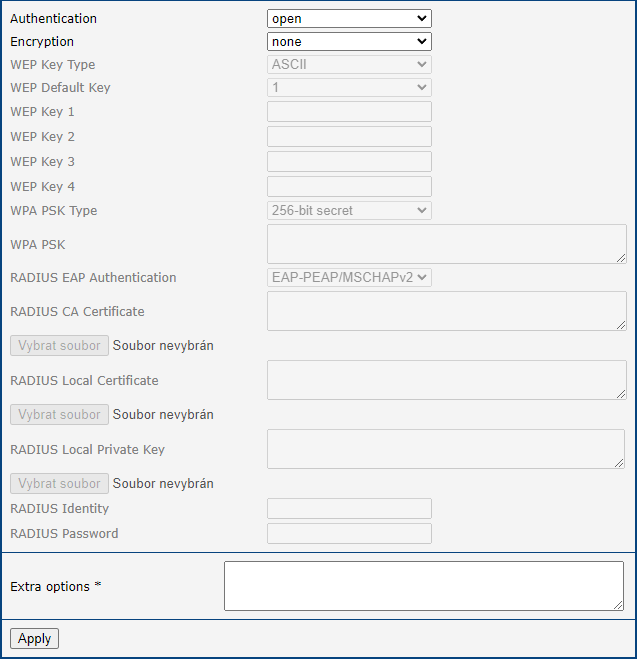
| Authentication | Access control method for the Wi-Fi network: • Open — No authentication required (open access point). • Shared — Pre-shared key authentication using WEP protocol (insecure). • WPA-PSK — Pre-shared key authentication using original WPA protocol (insecure). • WPA2-PSK — Pre-shared key authentication using WPA2 protocol. • WPA3-PSK — Pre-shared key authentication using WPA3 protocol. • WPA-Enterprise — RADIUS-based authentication using original WPA protocol (insecure). • WPA2-Enterprise — RADIUS-based authentication using WPA2 protocol. • WPA3-Enterprise — RADIUS-based authentication using WPA3 protocol. • 802.1X — RADIUS (802.1X standard) authentication using WEP protocol (insecure). |
| Encryption | Data encryption type: • None — No data encryption. • WEP — Static WEP key encryption; usable with Shared authentication. • TKIP — Older dynamic encryption key management; usable with WPA and WPA2 authentication. • AES — Newer dynamic encryption; usable with WPA2 and WPA3 authentication. |
| WEP Key Type | Format of the WEP key: • ASCII — WEP key in ASCII format. • HEX — WEP key in hexadecimal format. |
| WEP Default Key | Specifies which WEP key is the default. |
| WEP Key 1–4 | Up to four WEP keys. ASCII keys must be enclosed in quotes and can be 5 characters (40-bit), 13 characters (104-bit), or 16 characters (128-bit). Hexadecimal keys must be entered as hex digits: 10 digits (40-bit), 26 digits (104-bit), or 32 digits (128-bit). |
| WPA PSK Type | Key format for WPA-PSK authentication: • 256-bit secret • ASCII passphrase • PSK File |
| WPA PSK | Key for WPA-PSK authentication, entered according to the selected WPA PSK Type: • 256-bit secret — 64 hexadecimal digits. • ASCII passphrase — 8 to 63 characters. • PSK File — Absolute path to a file containing PSK key and MAC address pairs. |
| RADIUS EAP Authentication | EAP protocol used to protect authentication: • EAP-PEAP/MSCHAPv2 — Uses TLS only to protect legacy EAP authentication. • EAP-TLS — Mutual TLS authentication between client and server. |
| RADIUS CA Certificate | CA certificate used to verify the server certificate when EAP-TLS is selected. |
| RADIUS Local Certificate | Client certificate when EAP-TLS is selected. |
| RADIUS Local Private Key | Client private key when EAP-TLS is selected. |
| RADIUS Identity | Identity used to connect to the RADIUS server. |
| RADIUS Password | Password to authenticate the RADIUS Identity when EAP-PEAP/MSCHAPv2 is selected. |
| RADIUS Local Private Key Password | Password to access the RADIUS Local Private Key when EAP-TLS is selected. |
| Extra options | Additional parameters appended to the wpa_supplicant configuration file. Use only if you know what you are doing. Refer to the wpa_supplicant.conf Linux man page for details. |
SSID1–SSID4 configuration items — Part 2
Click Apply to apply changes.
Status
Overview and Behavior
Switching Behavior
If the signal level is above Good Signal Level, networks are switched according to priority only. If the signal level is between Good and Weak, networks are switched according to signal strength only. One exception applies: the router remains connected to the prioritized network when the signal drops from above Good into the Good/Weak interval — this prevents unnecessary frequent switching. The router switches away only when the signal drops below Weak Signal Level, at which point the network with the strongest signal is selected. Switching to another SSID takes approximately 3 seconds because the Wi-Fi service restarts.
To view the switching status, navigate to the Global page of the Router App (the Router App's home page).
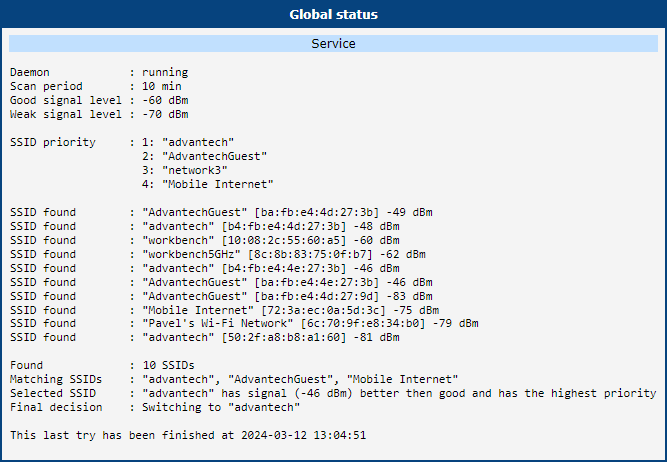
| Item | Description |
|---|---|
| Daemon | Status of the Router App daemon that schedules scanning and controls SSID switching. Either running or stopped. |
| Scan period | The scan period as configured on the Global page. |
| Good signal level | The Good Signal Level as configured on the Global page. |
| Weak signal level | The Weak Signal Level as configured on the Global page. |
| SSID priority | The priority order for configured networks, as set on the SSID1 to SSID4 pages (lower number = higher priority). A disabled notice is shown for networks that are not enabled. |
| SSID found | The list of SSIDs detected during the last scheduled scan, including signal strength and MAC address. An associated notice is shown for the currently connected network. |
| Found | Total count of SSIDs found during the last scan. |
| Matching SSIDs | SSIDs that match the configured priorities. |
| Selected SSID | The selected SSID and the reason it was chosen. |
| Final Decision | The action to be taken and the reason for it. |
Overview items