PPP Gateway
 Installation files
 Caution
- This Router App has been tested on a router with firmware version 6.3.10. After updating the router firmware to a higher version, check whether a newer version of the Router App has also been released and update it accordingly for compatibility.
Tips
This Router App is not compatible with the v4 router platform.
Description
The PPP Gateway Router App establishes a PPP connection (a data link protocol for direct connections between two networking nodes) between the router and a device connected via a serial line. This provides Internet access to older devices that lack built-in connectivity but support serial line communication.
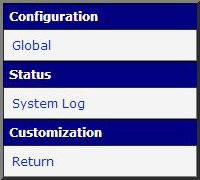
To access the web interface of the PPP Gateway Router App, click the Router App name on the Router Apps page of the router's web interface. The left pane contains menu sections for Configuration, Status, and Customization. The Customization section contains only the Return item, which returns to the router's main web configuration interface.
Configuration
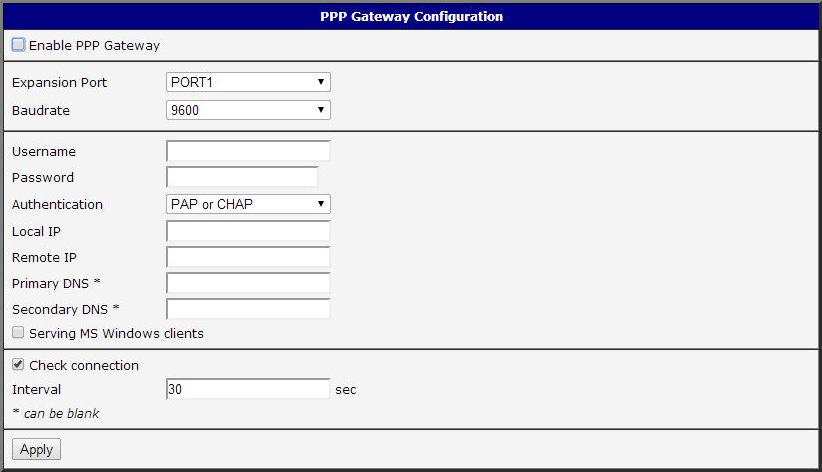
Configure the PPP Gateway Router App using the form on the Global page in the Configuration section. The first item — Enable PPP Gateway — activates the Router App. The table below describes the remaining items.
| Item | Description |
|---|---|
| Expansion Port | Port to which the device is connected. |
| Baudrate | Communication speed. |
| Username | Username for logging into the network. |
| Password | Password for logging into the network. |
| Authentication | Authentication protocol: • PAP or CHAP — the router selects one of these two methods automatically. • PAP — PAP authentication is used. • CHAP — CHAP authentication is used. |
| Local IP | IP address of the local side. |
| Remote IP | IP address of the remote side. |
| Primary DNS | Primary DNS server address. |
| Secondary DNS | Secondary DNS server address. |
| Serving MS Windows clients | Enable when the connected device runs MS Windows. |
Configuration form items
To activate connection checking, select the Check connection checkbox at the bottom of the form. This check monitors route throughput. Set the interval between outgoing requests in the Interval field.
Click Apply to save any changes.
System Log
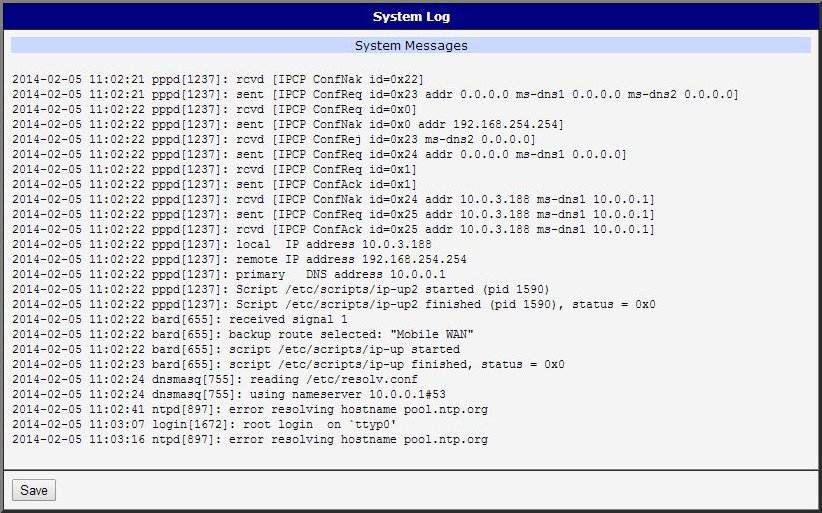
If problems occur, view the system log by clicking the System Log menu item. It displays detailed reports from all applications running on the router, including messages related to the PPP Gateway Router App.