
MQTT Broker
 Installation files
 MQTT Introduction
What is MQTT and MQTT Broker
MQTT (Message Queuing Telemetry Transport) is a lightweight messaging protocol designed for efficient communication between devices in IoT (Internet of Things) and mobile environments. It enables devices to publish messages to topics and subscribe to receive messages on those topics, facilitating real-time, reliable, and scalable data exchange with minimal bandwidth and power consumption requirements.
What does MQTT Broker do?
An MQTT Broker is a server or middleware that acts as a central hub for facilitating communication between devices and applications in an MQTT-based IoT architecture.
- Message Routing — Routes messages between publishers (devices or applications that send data) and subscribers (devices or applications that receive data). When a device publishes a message to a specific topic, the broker ensures that the message is delivered to all subscribers interested in that topic.
- Protocol Translation — Handles the MQTT protocol, allowing devices and applications using MQTT to communicate with each other regardless of the underlying network protocols they use.
- QoS Management — MQTT supports three Quality of Service levels: QoS 0 (At most once), QoS 1 (At least once), and QoS 2 (Exactly once). The broker manages message delivery based on the QoS level specified by publishers and subscribers.
- Session Management — Manages client sessions, ensuring that clients remain connected and handling client reconnections seamlessly. This is essential for maintaining continuous communication in unreliable network conditions.
- Security — MQTT brokers typically provide authentication, access control, and encryption to protect exchanged data, ensuring that only authorized clients can publish or subscribe to specific topics.
Overall, an MQTT broker enables scalable, efficient, and secure communication in IoT ecosystems by facilitating data exchange between connected devices and applications.
What does MQTT Bridge do?
An MQTT bridge connects two MQTT brokers. Messages published on specified topics on one broker can be forwarded to the other broker, and vice versa. This is useful for linking separate MQTT networks, aggregating data from multiple sites, or creating hierarchical MQTT architectures. The direction (in, out, or both) and the topic patterns for message forwarding are configurable for each bridge connection.
Router App Description
Router App Introduction
The MQTT Broker Router App extends Advantech routers with an integrated MQTT broker service based on the open-source Eclipse Mosquitto™ project. This allows the router to act as a central communication hub for MQTT-enabled devices on the local network, facilitating IoT messaging without requiring an external broker server.
Key features include support for standard MQTT operations, TLS encryption (PSK and certificate-based), client authentication (username/password and certificate CN), and MQTT bridging to connect with other brokers.
Web Interface
After installing the Router App, access its web interface by clicking the Router App name on the Router Apps page of the router's web interface.
The left panel of the web interface contains a menu with the following sections: Information → Status, Configuration → Broker, Configuration → Bridge 1–3, and Administration → Return. The menu is shown in the figure below.
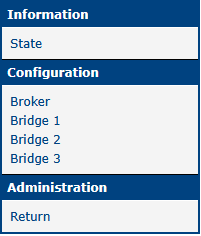
- The Information → Status page displays the current MQTT service state.
- The Configuration → Broker and Configuration → Bridge 1–3 pages contain the settings described in the sections below.
- Administration → Return exits the Router App interface and returns to the main Router Apps page.
Broker Configuration
The broker is configured on the Broker page under the Configuration menu. The configuration page is shown below, and the table describes all items.
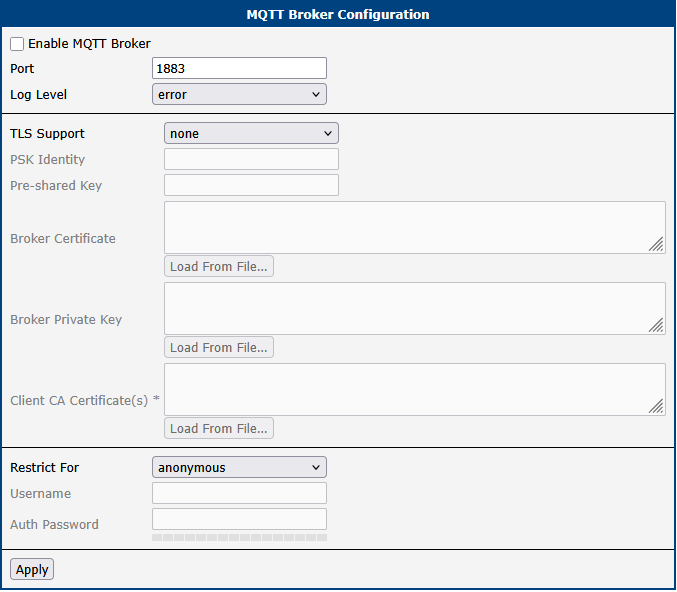
| Item | Description |
|---|---|
| Enable MQTT Broker | Enables the MQTT broker on the router. |
| Port | TCP port number where the broker listens for incoming client connections. Default: 1883 for unencrypted MQTT, 8883 for MQTT/TLS. |
| Log Level | Level of detail for log information generated by the broker (None, Error, Warning, Information, Debug). |
| TLS Support | Options for Transport Layer Security (TLS) encryption: • none — No TLS encryption. Communication is unencrypted. • PSK based — TLS encryption using a Pre-Shared Key. Requires PSK Identity and Pre-shared Key fields. • certificate based — TLS encryption using X.509 certificates. Requires Broker Certificate and Broker Private Key fields. |
| PSK Identity | When PSK based TLS is selected, the identity string associated with the pre-shared key. Sent by the client to identify which key to use. |
| Pre-shared Key | When PSK based TLS is selected, the pre-shared key as a hexadecimal string. This key must be securely shared with clients. |
| Broker Certificate | When certificate based TLS is selected, the broker's public certificate in PEM format. Presented to clients to verify the broker's identity. |
| Broker Private Key | When certificate based TLS is selected, the broker's private key in PEM format. Must be kept secret. |
| Client CA Certificate(s) | When certificate based TLS is selected, the CA certificate(s) in PEM format. If specified, clients must present a certificate, which is verified against these CAs. |
| Restrict For | Options for client authentication: • anonymous — No authentication or access control. Any client can connect, publish, and subscribe. • username/password — Connection is restricted to the user in the Username field, who must authenticate with the password in Auth Password. • certificate CN — Publishing and subscribing are restricted to the user in the Username field; the client provides the username as subject CN in its certificate. Requires certificate based TLS with Client CA Certificate(s) configured. |
| Username | Required username for restricting operations. Used for both username/password and certificate CN options. |
| Auth Password | When username/password is selected, the required authentication password. |
Broker configuration items
Broker Configuration Example
This example shows how to configure the local MQTT broker on the standard unencrypted port (1883) with username/password authentication.
Scenario:
- Enable the broker service by ticking Enable MQTT Broker.
- Listen on TCP port 1883.
- No TLS encryption.
- Require clients to authenticate with username "advantech" and password "password123".
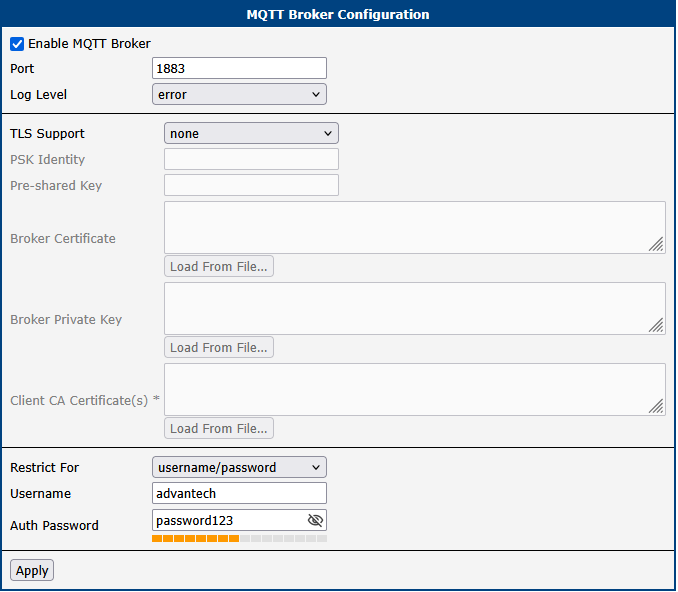
After applying these settings, MQTT clients can connect to the router's IP address on port 1883, but must provide the username "advantech" and password "password123" during the connection handshake.
Bridge Configuration
Up to three MQTT bridges (Bridge 1–3) can be configured. An MQTT bridge connects the local broker to a remote MQTT broker, allowing messages to be shared between them based on specified topic patterns.
Other brokers can also connect as a bridge to this broker using the connection options defined on the Broker page. When Enable MQTT Broker is unchecked, you can define two or three bridges so the router forwards messages between bridged brokers without having its own clients.
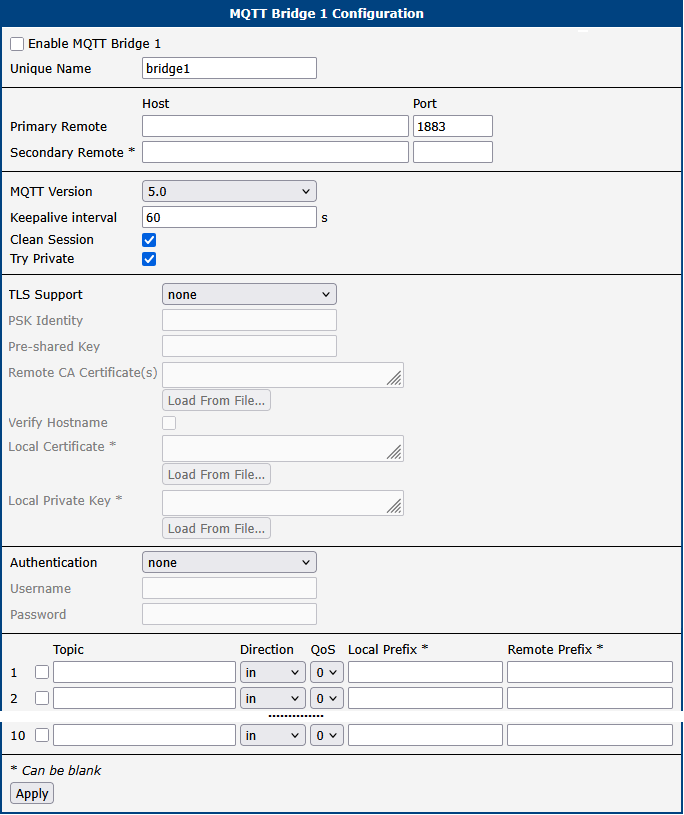
| Item | Description |
|---|---|
| Enable MQTT Bridge x | Enables MQTT Bridge number x. |
| Unique Name | A user-defined name to identify this bridge. Used as the connection name and as the client ID to identify the local broker to the remote broker. |
| Primary Remote Host | Hostname or IP address of the remote MQTT broker. |
| Primary Remote Port | TCP port number of the remote MQTT broker (e.g., 1883 or 8883). |
| Secondary Remote | Optional second remote MQTT broker using the same credentials as the primary. Used as backup when the primary broker is unavailable. |
| MQTT Version | MQTT protocol version for the connection to the remote broker (3.1.1 or 5.0). |
| Keepalive Interval | Maximum interval, in seconds, between messages exchanged by the brokers. If no messages are flowing, a PING message is sent. When no response is received, the remote broker is considered disconnected. |
| Clean Session | When enabled, all messages and subscriptions are cleaned up on the remote broker on bridge disconnection. When disabled, subscriptions and messages are kept and delivered on reconnection. |
| Try Private | When enabled, the local broker attempts to indicate to the remote broker that the connection is a bridge rather than an ordinary client, enabling more efficient bridging. Not all brokers support this feature. |
| TLS Support | Options for TLS encryption for the bridge connection: • none — No TLS encryption for the bridge. • PSK based — TLS with a Pre-Shared Key. Requires PSK Identity and Pre-shared Key. • certificate based — TLS with X.509 certificates. Requires Remote CA Certificate(s). If the remote broker verifies client certificates, Local Certificate and Local Private Key must also be filled in. |
| PSK Identity | Identity string to identify the pre-shared key to the remote broker (used if TLS is PSK based). |
| Pre-shared Key | Pre-shared key as a hexadecimal string (used if TLS is PSK based). |
| Remote CA Certificate(s) | CA certificate(s) in PEM format used to verify the remote broker's certificate (used if TLS is certificate based). |
| Verify Hostname | Enables or disables checking whether the remote broker's hostname matches the hostname in its certificate. |
| Local Certificate | Client certificate in PEM format for this broker to present to the remote broker (optional; used if TLS is certificate based and the remote broker verifies client certificates). |
| Local Private Key | Private key in PEM format corresponding to the Local Certificate (optional; used if TLS is certificate based and the remote broker verifies client certificates). |
| Authentication | Options for authenticating to the remote broker: • none — No authentication sent to the remote broker. • username/password — Authenticate using a username and password. |
| Username | Username for authenticating to the remote broker (used if Authentication is username/password). |
| Password | Password for authenticating to the remote broker (used if Authentication is username/password). |
| Topic / Local Prefix / Remote Prefix | Filters and rewrites shared messages. Messages from the local broker with the topic Local Prefix/Topic are forwarded; messages from the remote broker with the topic Remote Prefix/Topic are forwarded locally. When forwarded, Local Prefix is replaced by Remote Prefix and vice versa. A Topic must be provided; Local Prefix and Remote Prefix are optional. Prefixes must end with a slash when used alongside a Topic. Alternatively, leave Topic empty and fill both prefixes without trailing slashes to use them as full topics. |
| Direction | Filters shared messages by direction: • in — Receive messages from the remote broker matching the topic pattern and publish them locally. • out — Send messages from the local broker matching the topic pattern to the remote broker. • both — Both send and receive messages based on the topic pattern. |
| QoS | Quality of Service level for shared messages (0: At most once, 1: At least once, 2: Exactly once). |
Bridge configuration items
Bridge Configuration Example
This example demonstrates how to configure an MQTT bridge to forward messages published locally on topics starting with local/sensor/ to a public remote broker (test.mosquitto.org) under a different topic structure (remote/office1/sensor/).
Scenario:
- Enable bridge 1 by ticking Enable MQTT Bridge 1.
- Connect to
test.mosquitto.orgon port 1883. - Use MQTT version 3.1.1 without TLS or authentication.
- Forward messages out from the local broker to the remote broker.
- Local messages published to
local/sensor/<specific_sensor>should appear on the remote broker asremote/office1/sensor/<specific_sensor>. - Use QoS level 1 for forwarded messages.
- Enable and configure the broker to allow sensors to publish messages to it.
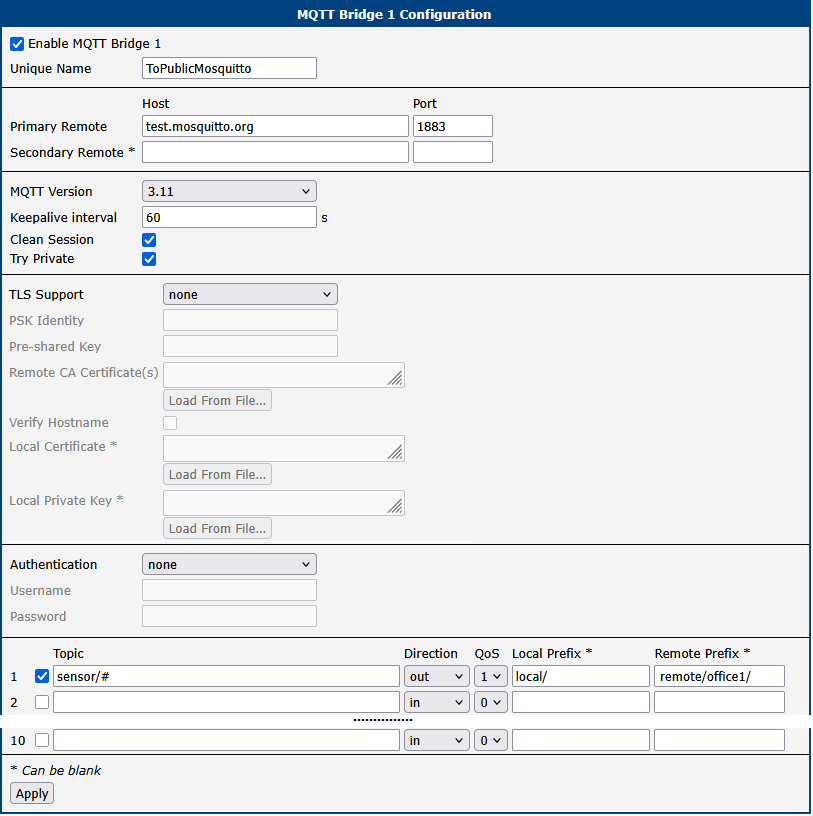
Once applied, any message published locally to a topic like local/sensor/temperature is automatically forwarded and published to remote/office1/sensor/temperature on test.mosquitto.org.
How it works:
- A message with topic
local/sensor/temperaturearrives at the broker. - The message is published locally to all relevant subscribers.
- The bridge checks its rules with Direction set to
outand finds the configured rule. - It checks whether the topic
local/sensor/temperaturestarts with the Local Prefix (local/). It does. - It removes the Local Prefix, leaving
sensor/temperature. - It checks whether the remaining part (
sensor/temperature) matches the Topic pattern (sensor/#). It does. - It prepends the Remote Prefix (
remote/office1/), resulting in the topicremote/office1/sensor/temperature. - It publishes the message to the remote broker with topic
remote/office1/sensor/temperatureat QoS level1.
Security
The MQTT protocol itself does not mandate encryption, but security is added using TLS at the transport layer. This section details how to configure encryption and authentication for the MQTT Broker Router App.
Encryption
Encryption is not applied at the MQTT protocol level but at the TCP/IP level using TLS. Without encryption enabled, all transmitted data, including passwords, is visible in plain text to network listeners. The Router App provides two options: PSK based and Certificate based.
PSK based encryption uses a Pre-Shared Key (symmetric encryption). Both the broker and the client must possess the same secret key, which must be exchanged securely beforehand. A hexadecimal string is used as the key. You can generate one with OpenSSL:
openssl rand -hex 32This generates a 32-byte (256-bit) key. Enter this key into the Pre-shared Key field in the Router App settings and configure it on MQTT clients as well. A PSK Identity string must also be provided in both the Router App settings and the client configuration.
Certificate based encryption uses asymmetric cryptography with X.509 certificates. You can use commercial certificates or generate self-signed certificates. The following procedure creates a simple CA and a broker certificate using OpenSSL:
- Generate a private key for your Certificate Authority (CA):
openssl genpkey -algorithm RSA -out ca.key - Create the self-signed root CA certificate:OpenSSL prompts you for CA details such as Country and Organization Name.
openssl req -new -x509 -days 1826 -key ca.key -out ca.crt - Generate a private key for the MQTT Broker:
openssl genpkey -algorithm RSA -out broker.key - Create a certificate signing request (CSR) for the broker. Set the Common Name (CN) to the hostname or IP address clients use to connect:Replace
openssl req -new -out broker.csr -key broker.key -subj "/CN=router.local"router.localwith the actual hostname or IP address of your router. - Sign the broker's CSR using your CA key and certificate:
openssl x509 -req -in broker.csr -CA ca.crt -CAkey ca.key -CAcreateserial -out broker.crt -days 360 - Paste the contents of
broker.crtandbroker.keyinto the Broker Certificate and Broker Private Key fields in the Broker Configuration section. Leave the Client CA Certificate(s) field empty; if you fill it in, every client must present its own certificate (see the Authentication section). Distributeca.crtto all clients so they can verify the broker's certificate.
Caution
- Various cryptographic algorithms can be used during certificate generation. Ensure compatibility with your clients. The broker's private key (
broker.key) must not be password-protected; otherwise, the broker service cannot load it. - The Common Name (CN) or Subject Alternative Name (SAN) in the broker's certificate (
broker.crt) must match the address clients use to connect. A mismatch causes most MQTT clients to refuse the connection due to failed hostname verification.
Authentication
Authentication verifies the identity of clients connecting to the broker. This Router App supports authentication via username/password or client certificates.
For username/password authentication, enter the desired username and password in the Username and Auth Password fields in the Broker Configuration. All clients using this method must provide these exact credentials when connecting.
For certificate CN authentication, clients are authenticated based on their X.509 certificate. This method requires certificate based TLS encryption to be enabled first. The client must present a valid certificate signed by a CA listed in the broker's Client CA Certificate(s) field. The broker extracts the Common Name (CN) from the certificate and compares it to the value in the Username field. If they match, authentication succeeds.
The following procedure creates a client certificate using OpenSSL, signed by the CA created in the Encryption section:
- Generate the client's private key:
openssl genpkey -algorithm RSA -out client.key - Generate a CSR for the client. The CN here is used for authentication:Replace
openssl req -new -out client.csr -key client.key -subj "/CN=client_device_001"client_device_001with the desired unique name for the client. - Sign the client's CSR using your CA certificate and key:
openssl x509 -req -in client.csr -CA ca.crt -CAkey ca.key -CAcreateserial -out client.crt -days 360 - Enter the exact CN used in step 2 (e.g.,
client_device_001) into the Username field in Broker Configuration and select certificate CN as the authentication method. - Securely distribute
client.crt,client.key, andca.crtto the client device and configure the MQTT client software to use them.
Command Line Tools
The MQTT Broker Router App includes two command-line utilities from Eclipse Mosquitto™: mosquitto_pub and mosquitto_sub. These are available in the router's command line (e.g., over SSH) and are useful for testing, debugging, and scripting MQTT interactions directly on the router.
mosquitto_pub Command
The mosquitto_pub command publishes a single message to a specific topic on an MQTT broker.
Command Example
Scenario:
- Publish the payload "54" to the topic
SENSOR/ROOM8/TEMPERATURE. - The target broker is on the same router at IPv6 address
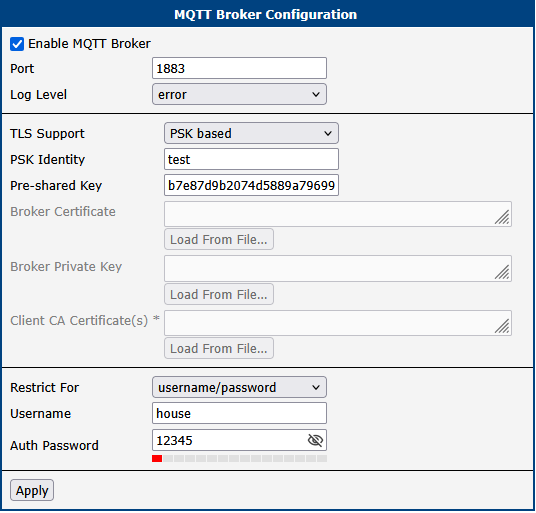
fc00:202::254, port 1883. - PSK-based TLS encryption with identity "test" and a hexadecimal key.
- Username/password authentication with username "house" and password "12345".
Command:
mosquitto_pub --host fc00:202::254 --port 1883 \
    --psk b7e87d9b2074d5889a7969985d9fc3f04e4e5b8cb57956a812b2c52b6411abd8 \
    --psk-identity test -u house -P 12345 -t SENSOR/ROOM8/TEMPERATURE -m 54
Broker configuration for this example:
mosquitto_sub Command
The mosquitto_sub command subscribes to one or more topics (using wildcards if needed) and prints any messages received.
Command Example
Scenario:
- Subscribe to all topics starting with
factory/sensor/#(wildcard#). - Connect to a broker at hostname "router" on port 1883.
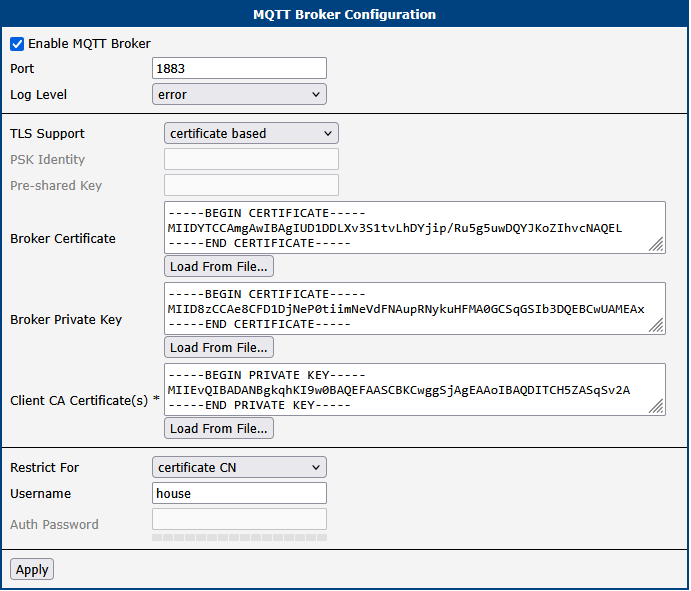
- Certificate-based TLS; the client verifies the broker's certificate using
ca.crt. - The client authenticates itself using
client.crtandclient.key. - Exit after receiving exactly one message (
-C 1).
Command:
mosquitto_sub -C 1 --host router --port 1883 --cafile ca.crt \
    --cert client.crt --key client.key -t factory/sensor/#
Broker configuration for this example:
Use mosquitto_pub --help or mosquitto_sub --help for a full list of available options.