
MQTT Manager
 Installation files
 Description
The MQTT Manager Router App controls and monitors Advantech routers via the MQTT protocol. You can issue commands through specific MQTT messages to, for example, modify binary outputs. Additionally, you can track the status of the router by subscribing to a specific topic.
Web Interface
After installing the Router App, access its web interface by clicking the Router App name on the Router Apps page of the router's web interface.
The left panel of the web interface contains a menu with the Configuration and Administration sections. The Return item in the Administration section switches back from the Router App's web page to the router's web configuration pages. The menu is shown in the figure below.

Global Configuration
Configure the Router App on the Global page under the Configuration menu section. The table below describes all configuration items.
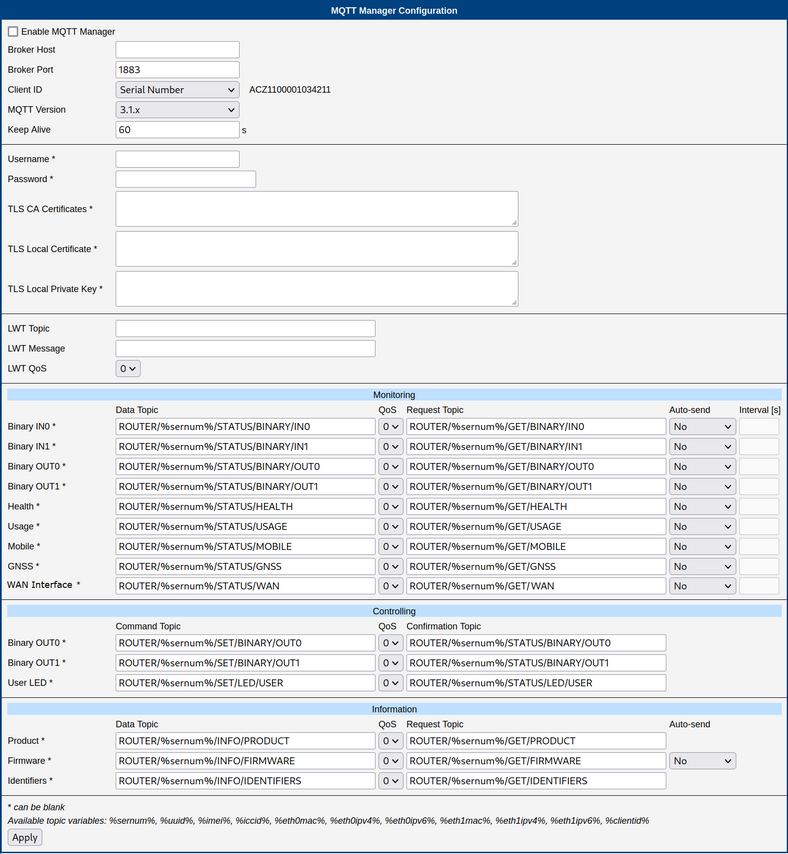
| Item | Description |
|---|---|
| Enable MQTT Manager | Enables the MQTT Manager. |
| Broker Host | IP address or domain name of the MQTT broker. |
| Broker Port | Broker server port number (1–65535). |
| Client ID | String used as the client identifier to the broker. Choose from the router's unique IDs or enter a custom value. |
| MQTT Version | MQTT protocol version. |
| Keep Alive | MQTT Keep-Alive interval in seconds (1–3600). |
| Username | Username to connect to the broker, if required. |
| Password | Password to connect to the broker, if required. |
| TLS CA Certificates | CA certificate for TLS connection, if used. |
| TLS Local Certificate | Router's local certificate for TLS connection, if used. |
| TLS Local Private Key | Router's local private key for TLS connection, if used. |
| LWT Topic | Topic of the Last Will and Testament (LWT) message — sent by the broker to connected subscribers when the router disconnects or stops communicating. |
| LWT Message | Content of the LWT message. |
| LWT QoS | Quality of Service level for the LWT message. |
| Monitoring | See the Monitoring section below. |
| Controlling | See the Controlling section below. |
| Information | See the Information section below. |
Configuration items
Monitoring
Monitoring messages encapsulate the value of a data change. The router sends such a message on request (see the Format of Messages section), on any change in value, or at predetermined intervals. For messages triggered by a data change, note that the state is sampled at a specific frequency, so very rapid changes may go undetected. You can customize both the topic of the outgoing message (Data Topic) and the topic of the request message (Request Topic) for each piece of monitored data.
To receive all data sent by the MQTT Manager (when connected to the local broker):
mosquitto_sub -t "ROUTER/#"Info
On routers equipped with a GNSS module and with the GNSS service enabled, the router's location (latitude, longitude, altitude) is also available among the monitored data. See the manual of your router, section Services → GNSS, for details on enabling GNSS.
Controlling
Controlling messages enable you to control the router. For example, you can switch the user LED on or off by sending the appropriate message. Command Topic is the topic of the message you send to the router; Confirmation Topic is the topic of the confirmation message the router sends back.
Information
Information messages are similar to Monitoring messages but pertain to static data that does not change (e.g., product name), eliminating the need for repeated transmission. They are dispatched only upon request, except for the firmware version, which can be configured to be sent automatically on change. A request is an empty MQTT message sent to the configured Request Topic.
Topics can be disabled by leaving the topic field empty. For example, if the Data Topic field for "Binary IN0" is left blank, that information is neither transmitted nor requestable. Similarly, if Confirmation Topic is empty in the Controlling section, commands are executed, but no confirmation is returned.
To retrieve the value of IN0 (the first binary input) on a router:
mosquitto_pub -t "ROUTER/ACZ1100001019000/GET/BINARY/IN0" -m ""You can use the following variables in topic and message fields; they are substituted at runtime:
| Variable | Example |
|---|---|
%sernum% | ACZ1199000000652 — router serial number |
%suuid% | a13cf7db-810f-4cec-afa8-bcbda3c285a8 — router UUID |
%imei% | 861536030196001 — IMEI number |
%iccid% | 8944200102388043468 — SIM card identification number |
%eth0mac% | 02:AD:FF:00:00:65 — eth0 MAC address |
%eth0ipv4% | 192.168.1.1 — eth0 IPv4 address |
%eth0ipv6% | fd00:a40::65 — eth0 IPv6 address |
%eth1mac% | 02:AD:FF:01:00:65 — eth1 MAC address |
%eth1ipv4% | 192.168.1.2 — eth1 IPv4 address |
%eth1ipv6% | fd00:a41::65 — eth1 IPv6 address |
%clientid% | client ID of the router |
Topic and message variables
Format of Messages
This section describes and provides examples of the MQTT messages used in communication between the MQTT Manager and an MQTT client.
Monitoring Examples
Binary IN0
Data message:
{"binary": {"in0": B}}Where B is the binary value 0 or 1. Example: {"binary": {"in0": 1}}
Request message: Empty message sent to the configured Request Topic.
Binary IN1
Data message:
{"binary": {"in1": B}}Where B is the binary value 0 or 1. Example: {"binary": {"in1": 1}}
Request message: Empty message sent to the configured Request Topic.
Binary OUT0
Data message:
{"binary": {"out0": B}}Where B is the binary value 0 or 1. Example: {"binary": {"out0": 1}}
Request message: Empty message sent to the configured Request Topic.
Binary OUT1
Data message:
{"binary": {"out1": B}}Where B is the binary value 0 or 1. Example: {"binary": {"out1": 1}}
Request message: Empty message sent to the configured Request Topic.
Health
Data message:
{"health": {"temperature": T, "voltage": V, "battery": B}}Where T is the temperature in degrees Celsius (integer), V is the supply voltage in volts (decimal), and B is the RTC battery status ("OK" or "Empty"). Not all routers provide all fields — for example, v2i routers do not report temperature, in which case that field is omitted.
Example: {"health": {"temperature": 36, "voltage": 11.7, "battery": "OK"}}
Request message: Empty message sent to the configured Request Topic.
Usage
Data message:
{"usage": {"cpu": C, "ram": {"total": T, "used": U, "percentage": P}}}Where C is CPU usage in percent (decimal), T is total RAM in bytes (integer), U is used RAM in bytes (integer), and P is used RAM in percent (decimal).
Example:
{"usage": {"cpu": 10.3, "ram": {"total": 521654272, "used": 28209152, "percentage": 5.4}}}Request message: Empty message sent to the configured Request Topic.
Mobile
Data message:
{"mobile": [{"sim": S, "technology": T, "operator": O, "plmn": P,
  "cell": C, "lac": L, "channel": H, "signal": {"strength": R, "quality": Q},
  "uptime": U, "ipv4": I4, "ipv6": I6}, …]}
Where S is the selected SIM card number (1 or 2), T is the mobile technology (string), O is the operator (string), P is the PLMN (integer), C is the cell number (integer), L is the location area code (LAC, integer), H is the channel number (integer), R is signal strength in dBm (integer), Q is signal quality in dB (integer), U is the connection uptime (string), I4 is the IPv4 address (string), and I6 is the IPv6 address (string). The mobile field is an array to support routers with multiple cellular modules. The sim field is always present; other fields appear only when the connection is active. The IPv4 and IPv6 addresses do not have to be present at the same time.
Example:
{"mobile": [{"sim": 1, "technology": "LTE", "operator": "T-Mobile",
  "plmn": 23003, "cell": 10804, "lac": 947, "channel": 1849,
  "signal": {"strength": -91, "quality": -6},
  "uptime": "0 days, 11 hours, 18 minutes", "ipv4": "10.80.0.27"}]}
Request message: Empty message sent to the configured Request Topic.
Controlling Examples
Binary OUT0
Controlling message:
{"binary": {"out0": B}}Where B is the binary value 0 or 1. Example: {"binary": {"out0": 1}}
Confirmation message: Same format, sent on a different (confirmation) topic.
Binary OUT1
Controlling message:
{"binary": {"out1": B}}Where B is the binary value 0 or 1. Example: {"binary": {"out1": 1}}
Confirmation message: Same format, sent on a different (confirmation) topic.
User LED
Controlling message:
{"led": {"user": B}}Where B is the binary value 0 or 1. Example: {"led": {"user": 1}}
Confirmation message: Same format, sent on a different (confirmation) topic.
Information Examples
Product
Data message:
{"info": {"series": S, "partnum": P}}Where S is the model line (string) and P is the product number (string).
Example: {"info": {"series": "ICR-324x", "partnum": "ICR-3241W"}}
Request message: Empty message sent to the configured Request Topic.
Firmware
Data message:
{"info": {"firmware": F}}Where F is the firmware version string. Example: {"info": {"firmware": "6.3.2 (2021-09-30)"}}
Request message: Empty message sent to the configured Request Topic.
Identifiers
Data message:
{"info": {"sernum": S, "uuid": U,
  "module": [{"imei": I, "iccid": C, "esn": E, "meid": M}, …]}}
Where S is the serial number and U is the universally unique identifier. I, C, E, and M are identifiers used in mobile networks. All values are strings. If the router has two cellular modules, the module array contains two entries; if it has no cellular module, module information is omitted. Some models do not report the UUID.
Example:
{"info": {"sernum": "ACZ1199000000736",
  "module": [{"imei": "863305040213851", "iccid": "8942031020122122779"}]}}
Request message: Empty message sent to the configured Request Topic.