
AT Modem Emulator
 Installation files
 Router App Description
Warning
- This Router App has been tested with router firmware version 6.3.10. After updating the router firmware, check whether a newer version of the Router App is available and update it if necessary to maintain compatibility.
- This Router App is not installed on Advantech routers by default. See your router's manual, section Customization Pages → Router Apps, for instructions on uploading a Router App.
- This Router App requires an RS-232 serial expansion port to be installed in the router.
The AT Modem Emulator Router App emulates the behavior of a dial-up modem. It receives AT commands through the router's serial port and translates dialing requests into TCP connections.
A device connected to the router's RS-232 interface can communicate with the router as if it were connected to a Hayes-compatible modem. The device can use standard AT commands to establish connections, configure modem parameters, and terminate sessions.
The Router App can establish connections with another AT Modem Emulator instance or with a TCP server listening on the configured TCP port. For a list of supported AT commands and their behavior, see AT Modem Emulator Protocol.
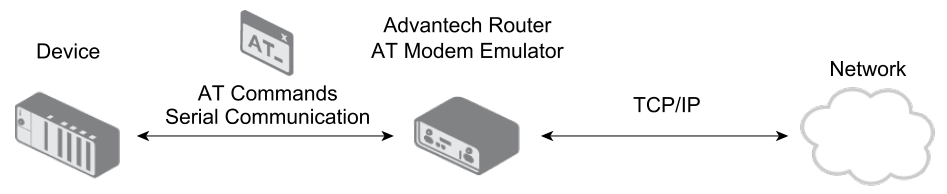
The Router App enables legacy equipment with an RS-232 interface to communicate over TCP/IP without requiring software modifications. Typical applications include water treatment systems, remote data collection, and database updates.
To access the Router App's web interface:
- Click Router Apps in the router's web interface.
- Select AT Modem Emulator.
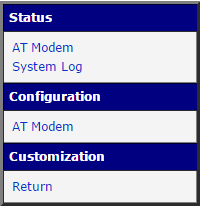
The web interface contains the following sections:
- Status — Displays the current status and system logs. See Status.
- Configuration — Allows you to configure serial and TCP communication parameters, S-registers, DTR actions, and substitution rules. See Configuration and Configuration Script.
- Customization — Provides a Return item for navigating back to the router's web interface.
Status
AT Modem Emulator Status
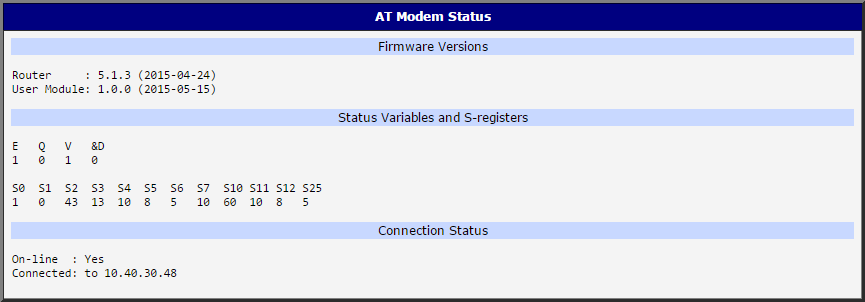
The Status page displays the following information.
Firmware Versions
- Router firmware version, available through the
ATI2command. - Router App version, available through the
ATI3command.
Status Variables and S-Registers
The page displays the current values of the following status variables:
E— Command echo.Q— Quiet mode.V— Response format.&D— Action on DTR signal loss.
It also displays the values of the supported S-registers. Some registers can be configured through the web interface or by using AT commands.
Connection Status
The page displays two connection indicators:
Online:
- No — The Router App is in Command mode. No data is currently being transferred between the serial interface and the TCP connection.
- Yes — The Router App is in Online mode, and data communication is enabled.
Connected:
- No — No TCP connection is established.
- An IP address — A TCP connection is established with the displayed peer.
The Online and Connected indicators describe different aspects of the connection. A TCP connection can remain established while the Router App is in Command mode.
When the Router App starts, it is in Command mode and has no active TCP connection. After a connection is established, the Router App enters Online mode and transfers data between the serial interface and the TCP connection.
The following figure shows how the operating modes change, including the AT commands that switch between them and the corresponding status indicators.
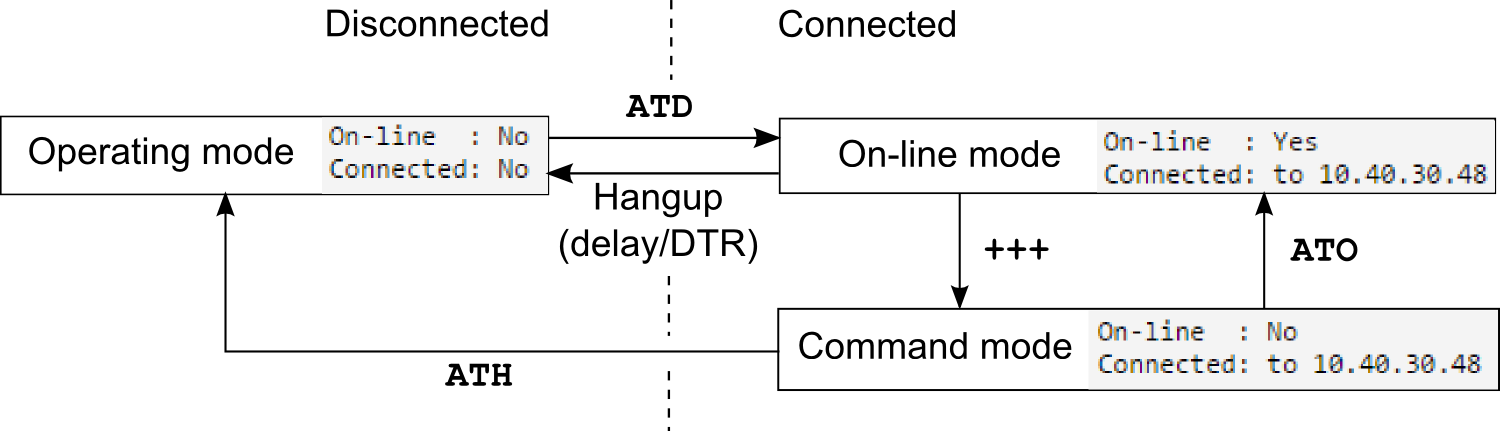
For details about the commands, see AT Modem Emulator Protocol.
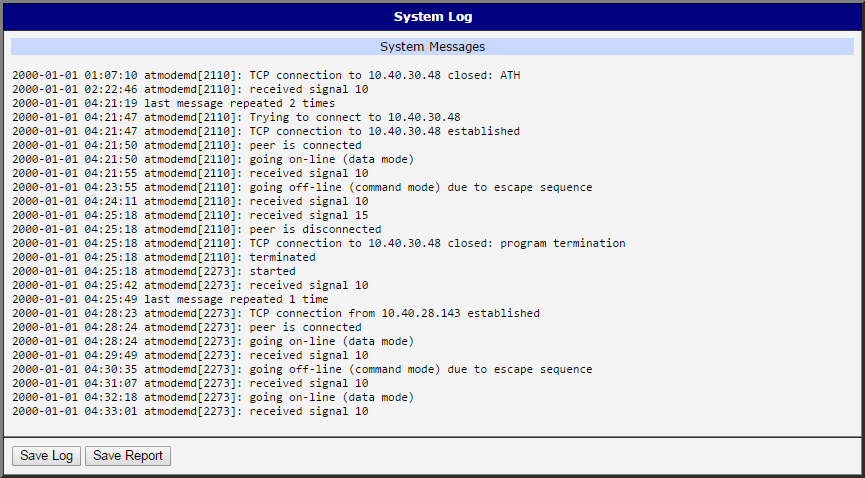
System Log
The System Log page displays messages generated by the router and its Router Apps. It provides the same system log as the router's main web interface.
Messages generated by the AT Modem Emulator are identified by the atmodemd process name.
Use the log to monitor the Router App's operation and troubleshoot configuration or communication problems.
You can download the log as a text file (.log) by clicking Save Log. To prepare a detailed report for technical support, click Save Report to download a report file (.txt).
Configuration
Open the AT Modem page in the Configuration section to enable and configure the AT Modem Emulator.
To enable the Router App:
- Select the Enable AT Modem checkbox at the top of the page.
- Configure the required parameters.
- Click Apply at the bottom of the page.
The configuration changes take effect after you click Apply.
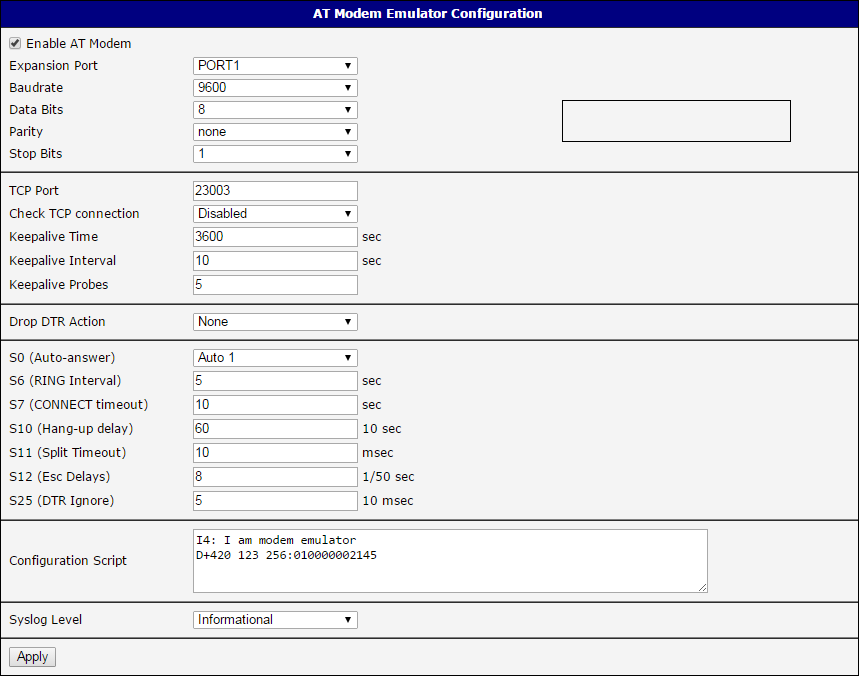
The available configuration items are described in the following table.
| Item | Description |
|---|---|
| Expansion Port | Select the serial expansion port: PORT1 or PORT2 (RS-232). |
| Baudrate | Serial communication speed, from 300 to 115200 baud. |
| Data Bits | Number of data bits: 7 or 8. |
| Parity | Parity setting: None, Even, or Odd. |
| Stop Bits | Number of stop bits: 1 or 2. |
| TCP Port | TCP port used for communication. |
| Check TCP Connection | Enables TCP Keepalive for checking the connection. |
| Keepalive Time | Time before the first TCP Keepalive probe is sent. |
| Keepalive Interval | Interval between subsequent TCP Keepalive probes. |
| Keepalive Probes | Number of unsuccessful TCP Keepalive probes allowed before the connection is considered unavailable. |
| Drop DTR Action | Action taken when the DTR signal becomes inactive: None, Off-line, or Disconnect. |
| S0 (Auto-answer) | Number of incoming RING signals required before automatically answering. Select Manual or Auto 1–Auto 5. |
| S6 (RING Interval) | Interval between consecutive RING messages, in seconds. |
| S7 (CONNECT timeout) | Maximum time allowed to establish an outgoing TCP connection, in seconds. |
| S10 (Hang-up delay) | Maximum period of inactivity before an established connection is automatically terminated, in 10-second units. |
| S11 (Split Timeout) | Maximum interval between characters before buffered serial data is sent, in milliseconds. |
| S12 (Esc Delays) | Time delay before and after the +++ escape sequence, in 20 ms units. |
| S25 (DTR Ignore) | Interval during which DTR signal changes are ignored, in 10 ms units. |
| Configuration Script | Defines substitution rules for AT commands. See Configuration Script. |
| Syslog Level | Sets the logging detail level: Warning, Notification, Informational, Debugging, or Verbose. |
The S-register values can also be configured through AT commands. The supported commands and their behavior are described in AT Modem Emulator Protocol.
Configuration Script
The Configuration Script allows you to modify the responses to AT commands received from the device connected to the AT Modem Emulator.
This feature is useful when the connected device cannot be reconfigured to work with the Router App. For example, if the device cannot dial an IP address directly, you can define a substitution rule that maps a telephone number to an IP address.
Each non-empty line in the configuration script defines one substitution rule. The Router App supports two types of rules.
Information Response Substitution
Format:
Ii:text
Where:
iis an index from 0 to 9.textis the response returned by the Router App when it receives the correspondingATIicommand. It includes all characters following the colon up to the end of the line.
Example:
- Rule:
I4:I am modem emulator - Input:
ATI4 - Output:
I am modem emulator
The substitution rule takes precedence over the standard behavior of the ATI command.
Dial Substitution
Format:
Dpn:IP
Where:
pnis the telephone number to match. Spaces and other nonnumeric characters are ignored when the number is normalized. Alphabetic characters are not allowed.IPis the destination IPv4 address represented by 12 decimal digits. Each octet must be represented by three digits, including leading zeros.
Example:
- Rule:
D+420 123 256:010000002145 - Input:
ATD+420123256 - Result: The Router App attempts to establish a TCP connection to
10.0.2.145.
The destination address in a dial substitution rule must contain exactly 12 digits.
General Notes
- Substitution rules take precedence over the standard behavior of the corresponding AT commands.
- Whitespace is ignored when processing AT commands and substitution patterns. Whitespace in an information response is preserved.
- A maximum of 100 substitution rules is supported.
- Each rule must contain a colon separating the pattern from the substitution.
- Empty substitution values are not allowed.
Examples of substitution priority:
Example 1: Information response
The standard ATI3 command returns the version of the AT Modem Emulator Router App. However, if the configuration script contains the following rule:
I3:a b c
the ATI3 command returns:
a b c
Example 2: Dial substitution
The standard command ATD010000002145 attempts to establish a connection to 10.0.2.145.
If the configuration script contains the following rule:
D010000002145:010000002146
the Router App instead attempts to establish a connection to 10.0.2.146.
AT Modem Emulator Protocol
This section describes the supported AT commands, the connection establishment process, the available operating modes, and connection termination.
AT Commands Overview
Tips
Some commands are supported primarily for compatibility with standard modem software. They may be accepted without performing the action normally associated with a physical modem.
The Router App also supports setting S-register values through AT commands. The values accepted by the AT command parser are not necessarily limited to the ranges shown in the web interface.
| Command | Description | Example |
|---|---|---|
AT | Attention command. Introduces an AT command sequence. It is not required for the +++ escape sequence or the A/ command. | AT |
A | Answers an incoming connection when the Router App is waiting for an answer. | ATA |
A/ | Repeats the previous AT command without requiring a carriage return. | A/ |
D | Dials a destination represented by a 12-digit IPv4 address or a telephone number defined in a dial substitution rule. | ATD010000002145 |
E0 | Disables command echo. Characters received from the connected device are not echoed back. | ATE0 |
E1 | Enables command echo. Characters received from the connected device are echoed back. This is the default setting. | ATE1 |
H | Terminates the established connection. The command is valid when a connection is established. | ATH |
I2 | Returns the router firmware version. | ATI2 |
I3 | Returns the version of the AT Modem Emulator Router App. | ATI3 |
O | Returns to Online mode from Command mode without terminating the established connection. | ATO |
Q0 | Disables Quiet mode. Result codes are returned. This is the default setting. | ATQ0 |
Q1 | Enables Quiet mode. Result codes are suppressed. | ATQ1 |
V0 | Selects numeric result codes. | ATV0 |
V1 | Selects verbose text result codes, such as CONNECT, BUSY, and NO CARRIER. This is the default setting. | ATV1 |
Sr=n | Sets the value of S-register r to n. | ATS0=1 |
Sr? | Returns the current value of S-register r. | ATS10? |
Z | Reloads the saved Router App configuration. This does not reboot the router. | ATZ |
+++ | Escape sequence. Switches from Online mode to Command mode without terminating the established connection. The required delays before and after the sequence are defined by S12. | +++ |
&Dn | Configures the action taken when the DTR signal becomes inactive: 0 — Ignore; 1 — Switch to Command mode; 2 — Terminate the connection; 3 — Reset (not implemented). | AT&D1 |
&V | Displays the current status variables and S-register values, corresponding to the information available on the Status page. | AT&V |
&W | Saves the current configuration to the router's configuration file. The saved configuration is used when the Router App starts or when ATZ is executed. | AT&W |
S0 | Configures automatic answering of incoming connections: 0 — Manual answering with ATA; 1–5 — Automatically answer after the specified number of RING messages. | ATS0=1 |
S1 | Ring counter. Counts the RING messages generated for the current incoming connection. | ATS1? |
S2 | Escape character. The default value is 43 (+, ASCII). | ATS2=43 |
S3 | Carriage return character. The default value is 13 (CR). | ATS3=13 |
S4 | Line feed character. The default value is 10 (LF). | ATS4=10 |
S5 | Backspace character. The default value is 8. | ATS5=8 |
S6 | Interval between consecutive RING messages, in seconds. | ATS6=5 |
S7 | Timeout for establishing an outgoing TCP connection, in seconds. If the connection cannot be established within this period, the Router App returns NO ANSWER. | ATS7=10 |
S10 | Inactivity timeout for an established connection, in 10-second units. A value of 60 corresponds to 600 seconds (10 minutes). | ATS10=60 |
S11 | Maximum interval between characters in a serial data block, in milliseconds. | ATS11=10 |
S12 | Delay before and after the +++ escape sequence, in 20 ms units. A value of 50 corresponds to 1 second. | ATS12=50 |
S25 | Interval during which DTR signal changes are ignored, in 10 ms units. | ATS25=5 |
Notes on S-registers
- S1 is a counter, not a timer. The interval between consecutive
RINGmessages is controlled by S6. - S7 applies to outgoing connection establishment. It does not determine how long the Router App waits for an incoming connection to be answered.
- S10 determines how long an established connection may remain inactive before it is terminated.
- S12 defines the required delays before and after the
+++escape sequence. The configured value is multiplied by 20 ms. - S25 defines the interval during which DTR signal changes are ignored.
Initial Status and Connection Establishment
After the AT Modem Emulator Router App is enabled, it listens for AT commands on the configured serial port and accepts incoming TCP connections on the configured TCP port.
The typical connection establishment process is illustrated below.
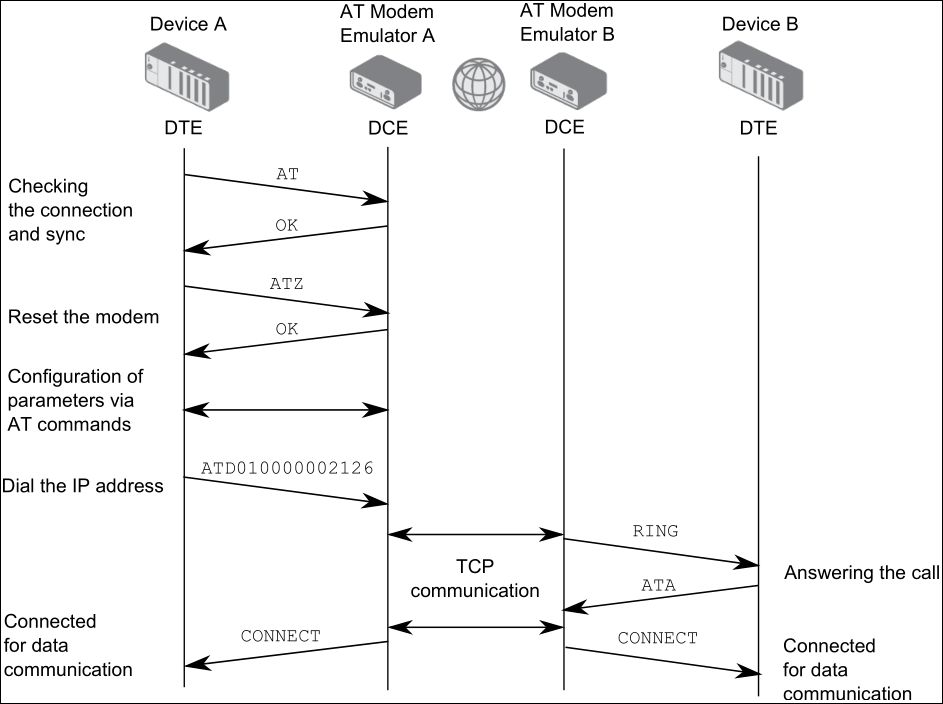
The Router App supports both outgoing and incoming TCP connections.
Outgoing connection
- The connected device sends an
ATDcommand containing the destination address or a telephone number defined by a substitution rule. - The Router App attempts to establish a TCP connection with the specified destination.
- If the connection is established successfully, the Router App returns a
CONNECTresult code and enters Online mode. - If the connection cannot be established within the S7 timeout, the Router App terminates the attempt and returns
NO ANSWER.
The Router App may return BUSY if the connection attempt cannot be initiated because of the current connection state or an immediate connection error.
Incoming connection
- A remote TCP client connects to the Router App.
- The Router App generates a
RINGresult code. - If automatic answering is disabled, the Router App waits for the connected device to send
ATA. - If automatic answering is enabled, the Router App answers after receiving the number of
RINGnotifications specified by S0. - When the incoming connection is accepted, the Router App returns a
CONNECTresult code and enters Online mode.
While an incoming connection is waiting to be answered, the Router App repeats the RING notification at intervals defined by S6. S1 counts the generated RING notifications.
The S7 timeout applies to outgoing connection attempts, not to incoming connections waiting for an ATA command.
Communication and Modes
The Router App uses two operating modes:
- Command mode — The Router App processes AT commands received through the serial interface. An established TCP connection can remain active, but user data is not transferred between the serial interface and the TCP connection.
- Online mode — The Router App transfers data between the serial interface and the established TCP connection.
When a connection is established, the Router App enters Online mode.
To switch from Online mode to Command mode without terminating the TCP connection, send the +++ escape sequence. The required delays before and after the sequence are controlled by S12.
To return to Online mode, send ATO.
To terminate the established connection, switch to Command mode and send ATH.
The Online and Connected status indicators reflect these states:
- Online is Yes when data communication is enabled.
- Connected displays the IP address of the remote peer while the TCP connection is established.
Consequently, the Router App can be in Command mode while Connected still displays an IP address.
Connection Termination
An established TCP connection can be terminated in several ways.
Using the ATH command
- If the Router App is in Online mode, send
+++to switch to Command mode. - Send
ATHto terminate the TCP connection.
The Router App closes the connection and returns to the disconnected state.
Using the DTR signal
The &D command configures the action taken when the DTR signal becomes inactive:
AT&D0— Ignore DTR signal changes.AT&D1— Switch to Command mode.AT&D2— Terminate the TCP connection.AT&D3— Reset the Router App. This action is not implemented in the current version.
S25 defines the interval during which DTR signal changes are ignored (for example, to filter out short DTR drops).
Automatic termination after inactivity
The Router App automatically terminates an established connection when no data communication occurs for the period specified by S10.
The S10 value is expressed in 10-second units. For example, ATS10=60 configures an inactivity timeout of 600 seconds (10 minutes).
Remote peer disconnects
If the remote TCP peer closes the connection, the Router App terminates the local session and returns the NO CARRIER result code, unless result codes are suppressed by Quiet mode.