GPSD
 Installation files
 Warning
History, Differences, and Purpose of GPS and GPSD Router Apps
- GPS Router App: The GPS Router App, up to version 1.17.1, included features for activating the GNSS receiver and distributing its data, together with support for the
gpsdservice. This Router App is intended only for firmware versions older than 6.6.0. - GPSD Router App: In version 3.25.0, the app was renamed from GPS to GPSD, and most of the core GNSS features were moved directly into the firmware (version 6.6.0 and later). The native features are now available via Configuration → Services → GNSS and partially through Configuration → Services → SNMP. At the same time, the
cgpsandgpsmontools were added to this Router App, providing on-device diagnostics and monitoring of GNSS data. Use this Router App only for firmware versions 6.6.0 and later.
Tips
The GNSS service is provided by the cellular module. You can verify its name in the web interface under Status → Mobile WAN → Mobile Network Information → Model (click >> More Information << to view the module details).
The GPS (Global Positioning System) feature lets the router provide location and time information in all weather conditions, anywhere on or near the Earth, provided there is an unobstructed line of sight to four or more GPS satellites.
The GPSD Router App enables the activation and configuration of the GPSD service, which manages the collection and distribution of GNSS data. Use this service to make GNSS data available to other applications or network clients; see the GPSD section below. Additionally, this Router App provides support for the cgps and gpsmon command-line tools; see the Tools section below.
Web Interface
The left sidebar of the web interface contains the menu with pages for monitoring (Status), Configuration, and Administration of the router. The Administration section allows you to return to the main router interface by clicking Return.
System Log
If any issues occur, view the system log by selecting the System Log menu item. This log displays detailed reports related to this Router App.
GPSD
gpsd is a service daemon that monitors the GPS receiver attached to the router and makes the location, course, and velocity data from the sensors available for queries on a TCP port of the router.
With gpsd, multiple location-aware client applications can share access to supported sensors without contention or loss of data. Also, gpsd responds to queries in a format that is substantially easier to parse than the NMEA 0183 sentences emitted by most GPS receivers.
Warning
Before enabling the GPSD daemon, you must activate the GNSS service in Configuration → Services → GNSS → Enable GNSS service. Otherwise, the router shows an Error during configuration update message.
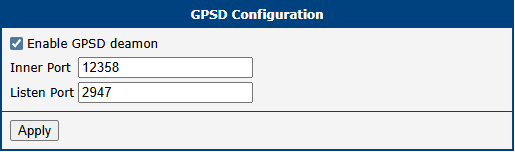
To activate the service, check the Enable GPSD daemon option. Once enabled, the router automatically starts listening on the ports specified below. Enabling GPSD also automatically adds a new remote destination to the GNSS configuration (Configuration → Services → GNSS → Forward NMEA to Remote). If an error is reported when enabling GPSD, check the system log for a detailed error message.
| Item | Description |
|---|---|
| Enable GPSD daemon | Activates the GPSD service. Do not forget to activate the GNSS service first, as described above. |
| Inner Port | The internal UDP port on the router dedicated to GPS data communication (default is 12358). |
| Listen Port | The TCP/IP port on which the service listens for incoming connections from GPSD clients (default is 2947). |
GPSD configuration
Tools
This section describes the command-line tools provided by the GPSD Router App. Use these tools for diagnostics and monitoring of GNSS data directly from the router's console (via SSH or Telnet).
cgps Tool
Tips
The cgps tool requires the GPSD service to be active for proper operation; see the GPSD section above.
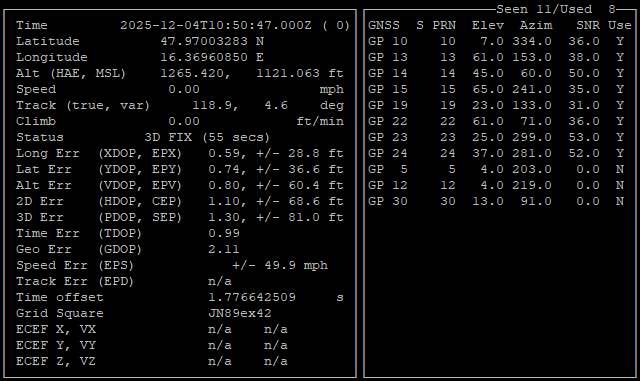
The cgps utility is a client for the GPSD daemon. It provides a text-based interface to monitor the status of the GNSS receiver, displaying satellite data, position, time, and signal quality in real time.
The syntax for this command is shown below:
cgps [-h] [-l {d|m|s}] [-m] [-s] [-V] [server[:port:[device]]]Options for this command are described in the table below.
| Option | Description |
|---|---|
-? | Show this help, then exit |
--debug DEBUG | Set debug level |
--help | Show this help, then exit |
--imu | Display IMU data, not GNSS data |
--llfmt FMT | Select lat/lon format, same as -l |
--magtrack | Display track as estimated magnetic track |
--rtk | Display RTK data, not GNSS data |
--silent | Be silent, do not print raw gpsd JSON |
--units U | Select distance and speed units, same as -u |
--version | Show version, then exit |
-D DEBUG | Set debug level |
-h | Show this help, then exit |
-i | Display IMU data, not GNSS data |
-l {d|m|s} | Select lat/lon format d = DD.ddddddd' m = DD MM.mmmmmm s = DD MM' SS.sssss" |
-m | Display track as the estimated magnetic track |
-r | Display RTK data, not GNSS data |
-s | Be silent, do not print raw gpsd JSON |
-u {i|m|n} | Select distance and speed units i = imperial m = metric n = nautical |
-V | Show version, then exit |
cgps options
Tips
For detailed documentation, refer to the official cgps manual.
The following figure shows an example of the cgps command output. To exit the program, press q or Ctrl+c.
gpsmon Tool
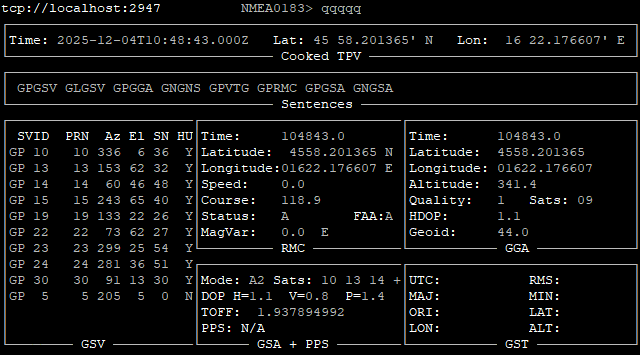
The gpsmon utility is a real-time monitor and control tool for GPS packets. It displays the raw data streams coming from the GNSS receiver and interprets them into a readable format. It is useful for low-level diagnostics and verifying the raw output from the hardware.
The syntax for this command is shown below:
gpsmon [OPTIONS] [server[:port:[device]]]Options for this command are described in the table below.
| Option | Description |
|---|---|
--debug DEBUGLEVEL | Set DEBUGLEVEL |
--help | Show this help, then exit |
--list | List known device types, then exit |
--logfile FILE | Log to LOGFILE |
--nocurses | No curses. Data only. |
--nmea | Force NMEA mode |
--type TYPE | Set receiver TYPE |
--version | Show version, then exit |
-a | No curses. Data only. |
-? | Show this help, then exit |
-D DEBUGLEVEL | Set DEBUGLEVEL |
-h | Show this help, then exit |
-L | List known device types, then exit |
-l FILE | Log to LOGFILE |
-n | Force NMEA mode |
-t TYPE | Set receiver TYPE |
-V | Show version, then exit |
gpsmon options
Tips
For detailed documentation, refer to the official gpsmon manual.
The following figure shows an example of the gpsmon command output. To exit the program, press q or Ctrl+c.