
USR LED Management
 Installation files
 Introduction
Warning
Important Notice Regarding Firmware Version 6.6.0 and Above
- Feature Integration: As of router firmware version 6.6.0, the features of this Router App are included in the standard firmware, accessible via Configuration → Peripheral Ports → Inputs/Outputs.
- Recommendation: On routers running firmware version 6.6.0 or newer, we strongly recommend using the native firmware feature and uninstalling this Router App to prevent potential conflicts.
- Migration Advisory: When transitioning from this Router App to the integrated firmware feature, review the new settings carefully. Default values and available options may differ, and failing to adjust them could cause unexpected behavior.
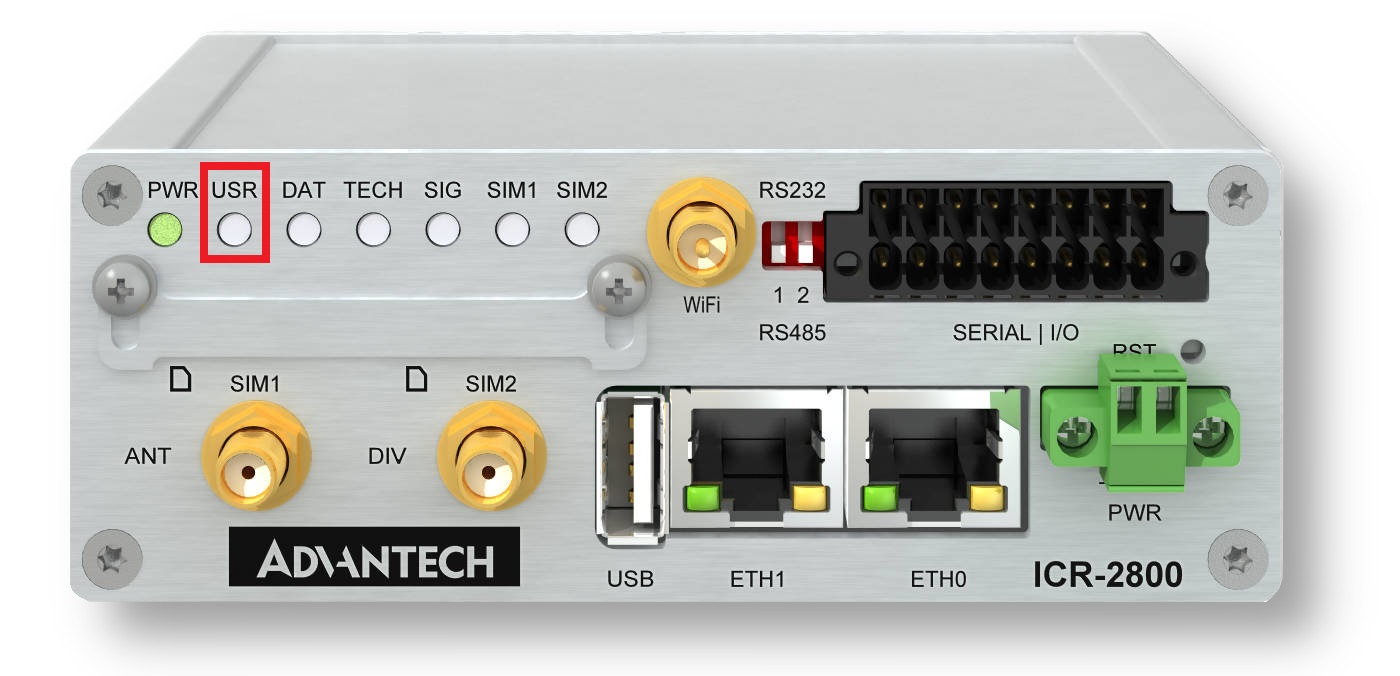
The USR LED Management Router App controls the behavior of the USR LED on supported routers. The figure below shows the USR LED location on the ICR-2800 router.
The Router App web interface is accessible by clicking the Router App name on the Router Apps page. The left menu contains only the Return item, which navigates back to the router's web configuration pages.
Configuration
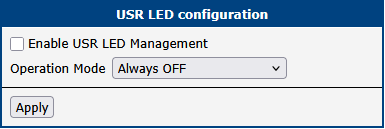
All settings are configured directly in the main form of the Router App web interface.
Warning
- The character x in the table below represents the port or input number. The specific number available depends on the router model.
- Some items in this list may not be available on all router models.
- USR LED signaling is indicative only; its timing may not correspond exactly to when an activity starts or finishes.
| Item | Description |
|---|---|
| Enable USR LED Management | Enables LED management using the Operation Mode configured below. |
| Operation mode | Controls the LED behavior. Available modes: • Always OFF — The LED is permanently off. • Always ON — The LED is permanently on. Useful for locating a specific router among many. • Binary IN x — The LED lights when binary input x is in the active (on) state. Updated every 100 ms. • Binary OUT x — The LED lights when binary output x is in the active (on) state. Updated every 100 ms. • Portx Rx activity — The LED lights when the serial expansion port x is receiving data. • Portx Tx activity — The LED lights when the serial expansion port x is transmitting data. • Portx Rx and Tx activity — The LED lights when the serial expansion port x is receiving or transmitting data. • WiFi AP activity — The LED lights when a client is connected to the router's Wi-Fi AP and flashes during communication. • WiFi STA activity — The LED lights when the router is connected to a Wi-Fi AP and flashes during communication. • OpenVPN active — The LED lights when an OpenVPN tunnel is established and has received data. • IPsec active — The LED lights when an IPsec tunnel is established. • WebAccess/DMP active — The LED lights when the router is connected to a WebAccess/DMP server. • WebAccess/VPN active — The LED lights when the router is connected to a WebAccess/VPN server. |
Configuration options