
URL Blocker
 Installation files
 Caution
- This Router App has been tested on a router with firmware version 6.3.10. After updating the router firmware to a higher version, check whether a newer version of the Router App has also been released and update it accordingly for compatibility.
Description
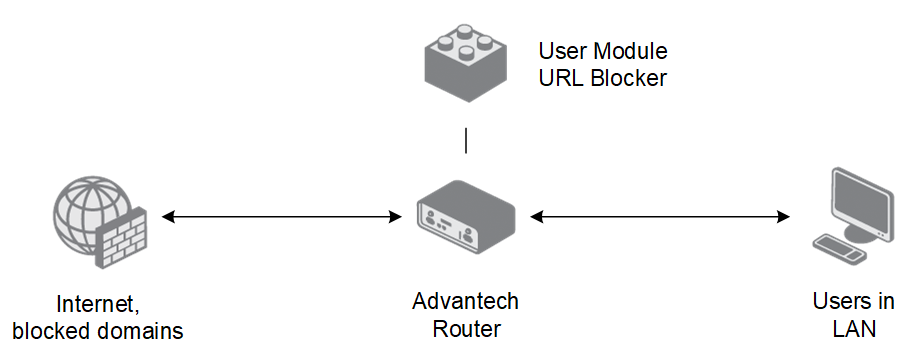
The URL Blocker Router App blocks specific domain names so that users connected to the router cannot access them. Blocking is based on one of two modes: Blocking mode uses iptables rules to drop traffic to the specified domains, while Redirecting mode sends intentionally forged DNS responses to redirect users to a custom blocked page. The configuration form supports up to 16 domain entries. Note that blocking does not apply to traffic within encrypted tunnels, as the domain name cannot be extracted from the packets.
To access the Router App web interface, click the Router App name on the Router Apps page. The left menu contains a Status section (with a Global status overview), a Configuration section (with the URL Blocker configuration page and the Welcome/Banned Page upload form), and a Customization section with a Return link to the router's web interface.

Configuration
After installation, the Global page in the Status section displays the current blocking state:

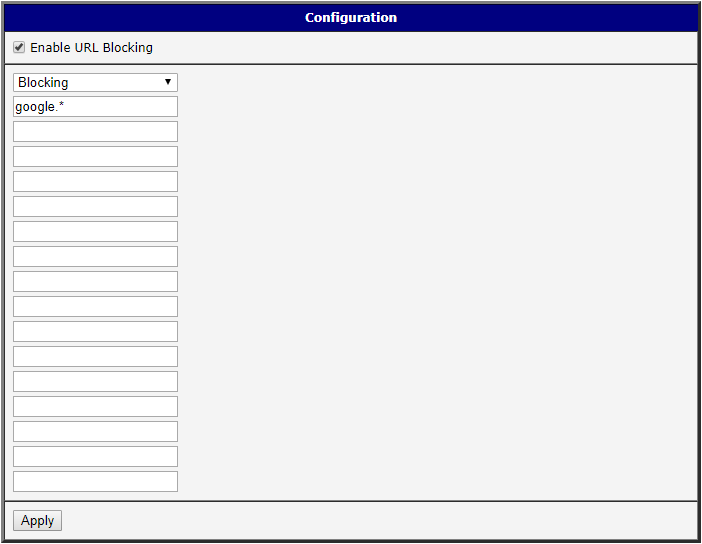
To enable blocking, navigate to URL Blocker in the Configuration section and check the Enable URL Blocking checkbox. Select the desired mode — Blocking (browser shows a DNS error) or Redirecting (a custom information page is shown) — fill in the domains to block, and click Apply.
Once enabled, the Global status page confirms that URL blocking is active:

Tips
In Blocking mode, you can use the asterisk (*) as a wildcard for the top-level domain (e.g., example.*), blocking all TLD variants of the same domain name. The wildcard does not work in Redirecting mode. Redirection applies to HTTP only — for HTTPS, blocking is used instead, and the Welcome/Banned page does not appear. All subdomains (www., mail., etc.) of listed domains are blocked by default in both modes.
When testing the configuration, remember to clear the browser cache or restart the browser — most browsers cache DNS records independently.
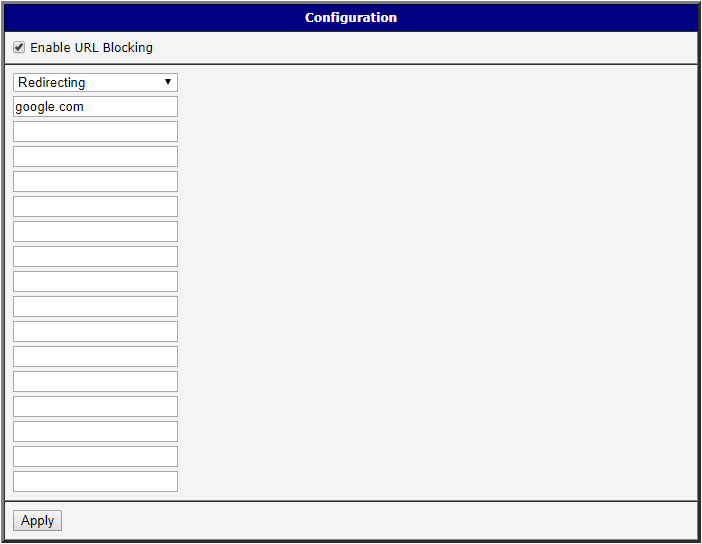
To use Redirecting mode, select it in the mode field and enter the domains to redirect:
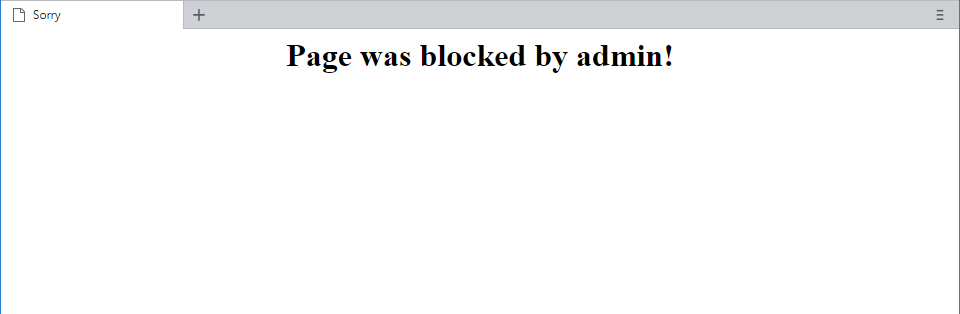
In this mode, the default Welcome/Banned page informs the user that the requested page is blocked:
Welcome/Banned Page
You can upload a custom Welcome/Banned page to replace the default one. Navigate to Welcome/Banned Page in the Configuration section. The uploaded file must meet the following requirements:
- The file must be an archive in
*.tgzor*.tar.gzformat. On Linux, use native utilities; on Windows, use a tool such as 7-Zip (two steps: tar, then gzip). - The archive must contain an
index.htmlfile at its root (no subdirectory). - The archive size must be 15 kB or less.
Select the prepared file and click Update:

After a successful upload, a confirmation is shown. The uploaded page is then displayed to users when a domain is blocked in Redirecting mode:

Licenses
This section summarizes the Open-Source Software (OSS) licenses used by this Router App.
