
Report Sender
 Installation files
 Tips
This Router App is not compatible with the v4 platform.
Description
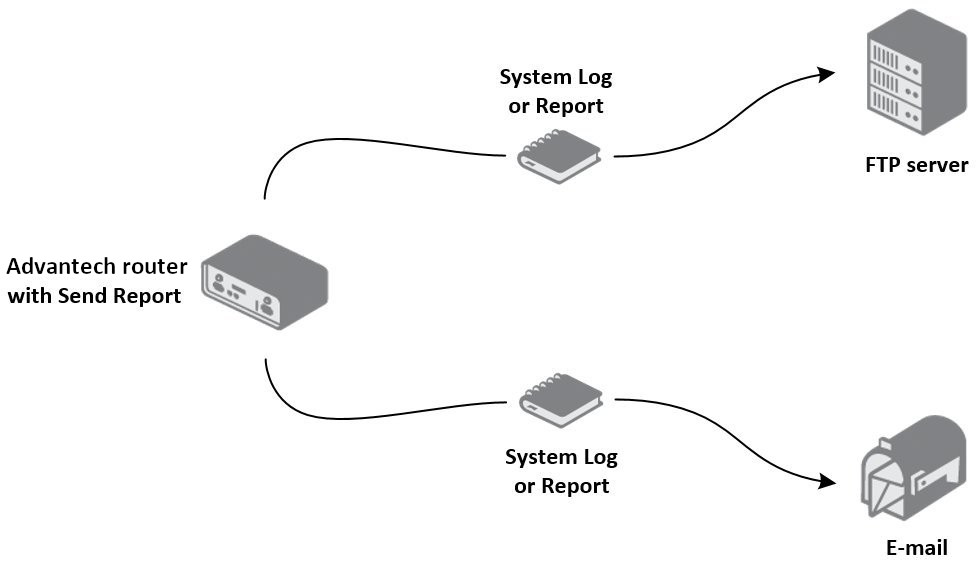
This Router App regularly sends System Log and Report files to a specified email address or FTP server.
The System Log file contains the system log output — the same file obtained by clicking Save Log on the System Log page of the router's web interface. The Report file contains comprehensive system information (firmware version, serial number, CPU usage, mobile module information, peripheral port details, network information, routing table, system log, current router configuration, and more) — the same file obtained by clicking Save Report on the System Log page.
Web Interface
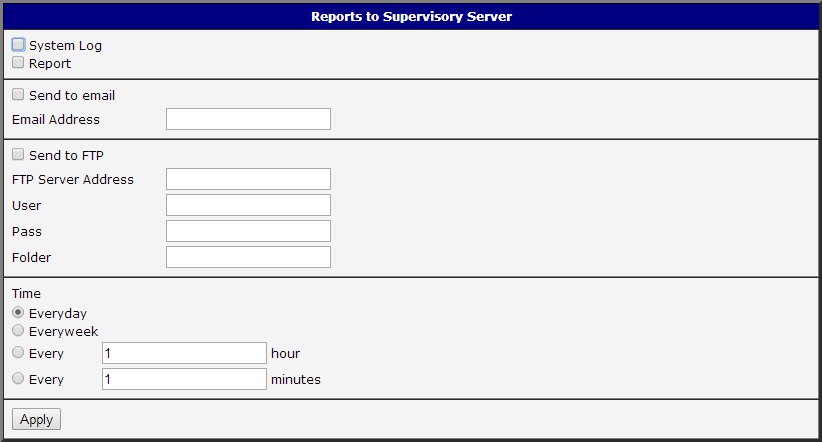
The Router App web interface is accessible by clicking the Router App name on the Router Apps page of the router's web interface. The left menu contains only the Return item, which switches back to the router's main interface. Configure the Router App using the Reports to Supervisory Server form.
The first part of the configuration form contains the System Log and Report checkboxes. Enable System Log to send the system log file regularly; enable Report to send the detailed report file.
To send files by email, enable the Send to email checkbox and enter the recipient address in the Email Address field. To send files to an FTP server, enable the Send to FTP checkbox and fill in the FTP Server Address, username (User), password (Pass), and optionally the destination directory (Folder).
The last part of the form specifies how often System Log or Report files are sent:
| Item | Description |
|---|---|
| Everyday | Once a day (always at 8:00 AM). |
| Everyweek | Once a week (always on Monday). |
| Every ___ hour | Every X hours (X equals the configured value). |
| Every ___ minutes | Every X minutes (X equals the configured value). |
Sending frequency options
Click Apply to apply all configuration changes.
Licenses
This section summarizes the open-source software (OSS) licenses used by this Router App.
