Transparent Mode
 Installation files
 Caution
- This Router App has been tested on a router with firmware version 6.3.10. After updating the router firmware to a higher version, check whether a newer version of the Router App has also been released and update it accordingly for compatibility.
- This Router App works with the ETH0 interface only.
- The device connected to the router must have the DHCP client enabled.
Introduction
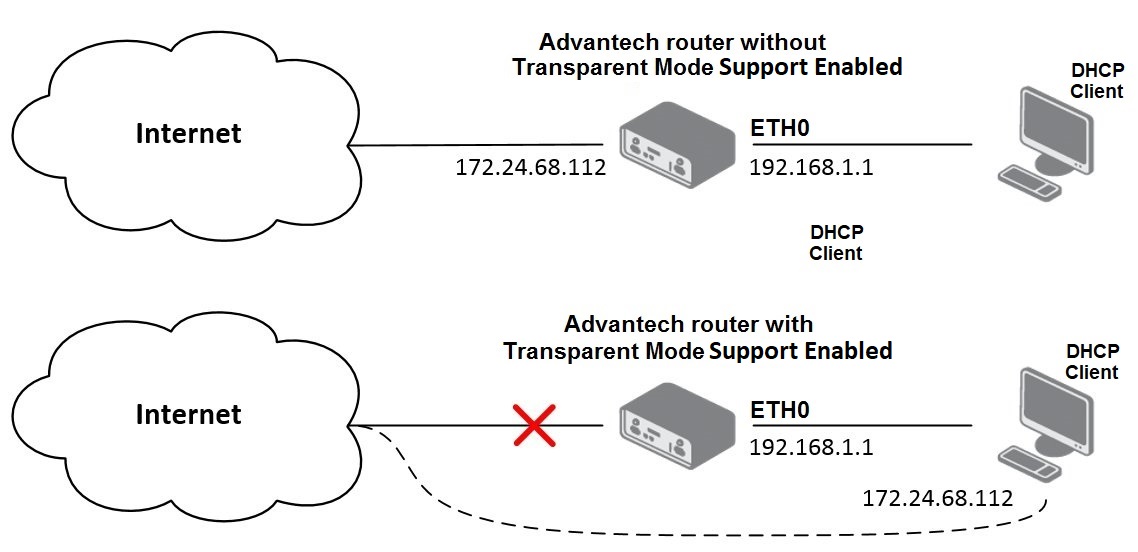
After installing the Router App and enabling Transparent Mode support, the router becomes "invisible" to remote devices — all communication is handled by the device located behind the router. The default IP address of the ETH0 interface is 192.168.1.1. All communication directed to the SIM IP address is forwarded directly to the device behind the router.
Web Interface
Once the Router App is installed, the web interface is accessible by clicking the Router App name on the Router Apps page. The left menu contains Status, Configuration, and Administration (with Return to go back to the router's web interface).

Configuration
Status
The Status section displays the current state of Transparent Mode.

Enabling Transparent Mode Support

After enabling Transparent Mode support in the Configuration section, the DHCP server (dynamic IP address assignment) is disabled. An IP address is allocated only when a cellular connection is established. If no cellular connection is available, configure a static IP address on the device behind the router.
When the Router App is uninstalled or Transparent Mode support is disabled, the router reverts to its original configuration. If the DHCP server was enabled before installing the Router App, it is re-enabled after the Router App is uninstalled or the feature is disabled.
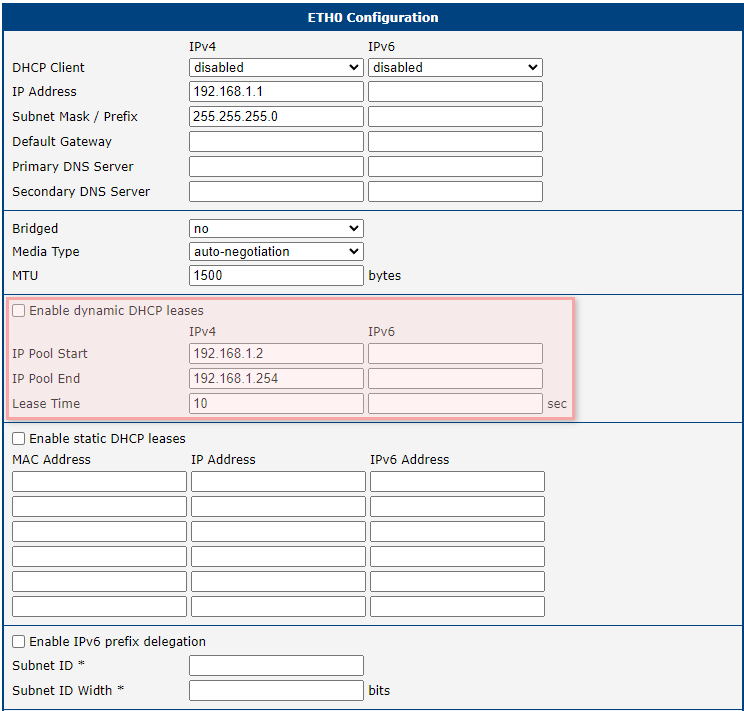
Enabling Transparent Mode support disables Enable dynamic DHCP leases on the router's ETH0 page (see the figure below). When the cellular connection is established, the Router App runs its own DHCP server on ETH0. This server assigns exactly one address, the SIM card's IP address, to the device behind the router (default lease time 60 seconds). The router's ETH0 address is set to an adjacent address, and 192.168.1.1/24 is kept as a secondary address for access to the router.
Caution
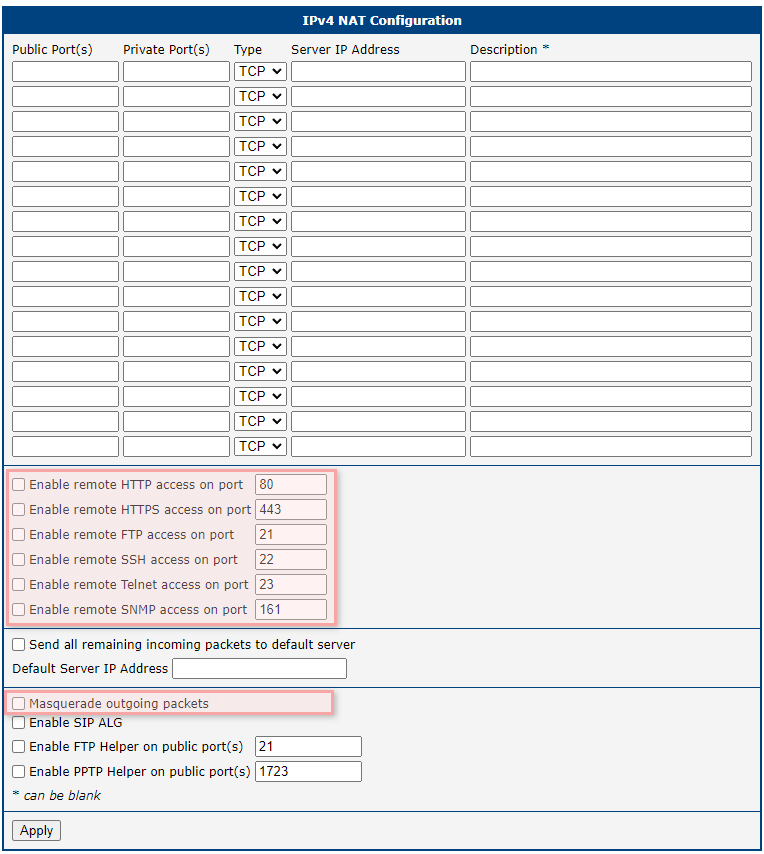
After enabling Transparent Mode support, the Masquerade outgoing packets option (on the NAT page of the router web interface) is disabled. This option must never be enabled.
Automatic Forwarding from the Router
To enable automatic forwarding from the router to the device behind it, enable each protocol through which access is allowed. Use the form on the NAT page of the router's web interface. By default, access via each protocol is disabled.
Access to the Router
A router with Transparent Mode support enabled is normally accessible only from the device located directly behind it. Use the default router IP address 192.168.1.1 (login credentials are root for both username and password by default).
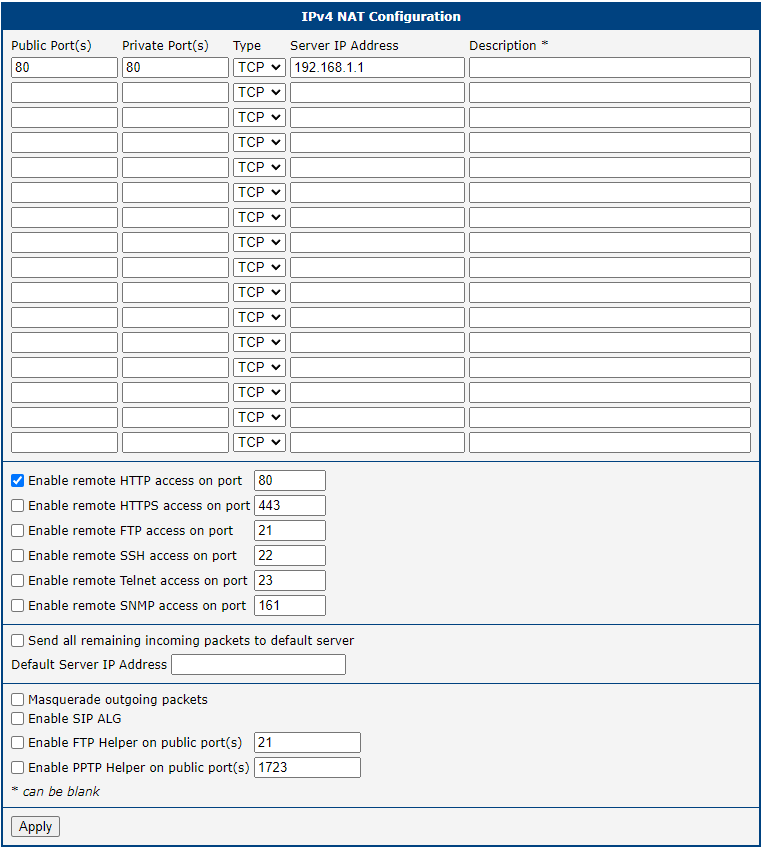
You can also access the router from outside for a selected protocol. In that case, traffic on that protocol is not forwarded to the device behind the router. Configure this using the form on the NAT page of the router's web interface — set values for Public Port and Private Port, select the protocol, and enter 192.168.1.1 in the Server IP address field.