NTRIP Client
 Installation files
 Caution
- This Router App has been tested on a router with firmware version 6.3.10. After updating the router firmware to a higher version, check whether a newer version of the Router App has also been released and update it accordingly for compatibility.
- Internal GPS in Advantech routers does not support corrections. An external GPS is required to use NTRIP.
Description
This Router App is used to obtain a more accurate location via the NTRIP protocol — a general stateless protocol based on HTTP/1.1. Each router with this Router App enabled acts as an NTRIP Client. The NTRIP Client connects to an NTRIP Caster (server) and requests data from a selected MountPoint, and the Caster then begins forwarding GNSS corrections. If the client does not know which MountPoint to connect to, it can request a list of active MountPoints from the Caster; this list describes the corrections available from each MountPoint. Communication between the NTRIP Client and NTRIP Caster is similar to communication between a web browser and a web server, as shown in the figure below.
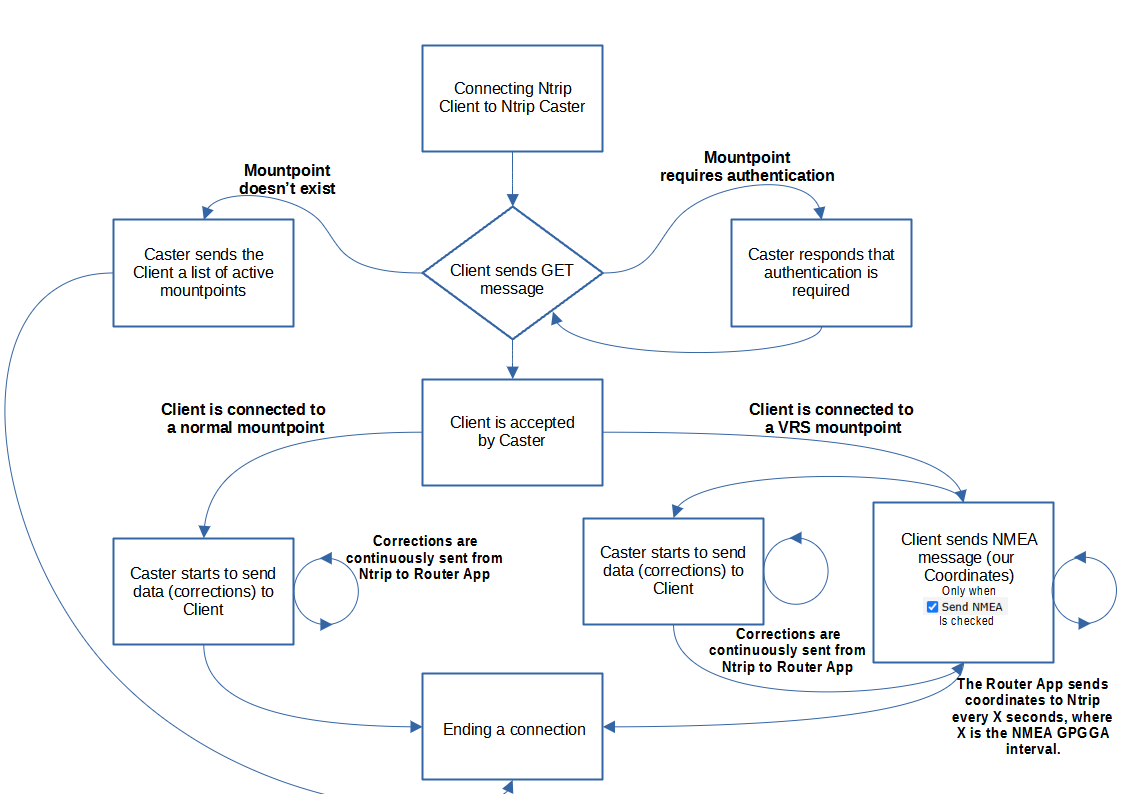
Note: VRS MountPoint represents a virtual reference station.
The web interface of the Ntrip Client Router App is accessible by clicking the Router App name on the Router Apps page of the router's web interface. The left pane contains menu sections for Configuration, Status, and Customization. The Customization section contains only the Return item, which returns to the router's main web configuration interface.

Configuration
Configure the Ntrip Client Router App using the form on the Global page in the Configuration section of the Router App's web interface. The first item — Enable Ntrip Client — activates the Router App. The remaining items are described in the sections below.
Connection Settings
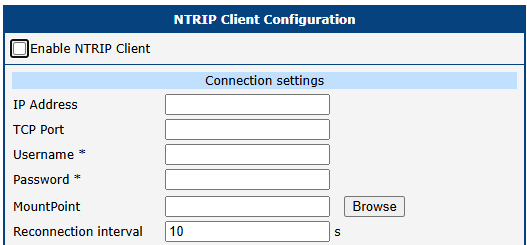
Enter the IP address of the NTRIP server and the TCP port on which it runs (2101 is the standard). Use the Browse button to select the most appropriate MountPoint (the list may take a few seconds to load). If you know the exact name of the required MountPoint, you can enter it directly into the MountPoint field. Username and password are optional — some servers require credentials; others do not. Finally, set the reconnection interval in seconds.
| Item | Description |
|---|---|
| IP Address | IP address (or domain name) of the NTRIP Caster. |
| TCP Port | TCP port on which the NTRIP Caster runs (2101 is the standard). |
| Username | Username for logging in to the selected MountPoint. |
| Password | Password for logging in to the selected MountPoint. |
| MountPoint | Name of the selected MountPoint. Use the Browse button to select a MountPoint from the list of active MountPoints on the NTRIP Caster. Each entry in the list shows the MountPoint name followed by its identifier in parentheses, in the format mountpoint (identifier). |
| Reconnection Interval | Time interval (in seconds) after which this Router App retries connecting to the NTRIP Caster if the previous connection failed. |
Connection settings items
Target Settings

The Target Settings define the GPS destination to which corrections are sent. Advantech routers support only external GPS, so the available options are PORT1, PORT2, or a virtual port (ROUTER APP). The ROUTER APP option requires a custom Router App to create this port and manage data transmission.
| Item | Description |
|---|---|
| Target | Destination for sending corrections. Options: PORT1, PORT2, ROUTER APP. |
| Baudrate | Communication speed. |
| Data Bits | Number of data bits. |
| Parity | Parity bit setting: • none — No parity bit is sent. • even — Even parity is sent. • odd — Odd parity is sent. |
| Stop Bits | Number of stop bits (one or two). |
Target settings items
Source Settings and NMEA Generator
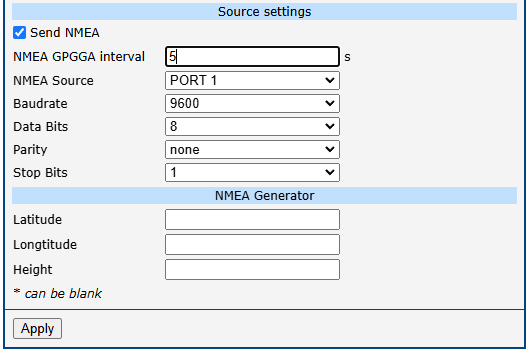
Some NTRIP servers support receiving your coordinates so they can provide corrections tailored to your exact location. When Send NMEA is enabled, the router's coordinates are sent to the NTRIP server. The NMEA GPGGA Interval sets how frequently the Router App sends coordinates to the NTRIP server. Setting this to 0 sends coordinates immediately as they arrive from GPS, without any interval.
The coordinate source can be an external GPS connected to PORT1 or PORT2, a ROUTER APP (a custom port via a user-developed Router App), or the router's INTERNAL GPS. Alternatively, enter fixed coordinates manually in the NMEA Generator section. This section is required only when the NMEA GEN source is selected.
Status
Global
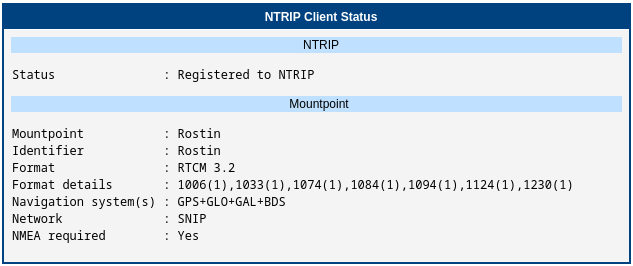
The Global section of the Status menu displays details about the NTRIP connection status and the selected MountPoint.
System Log
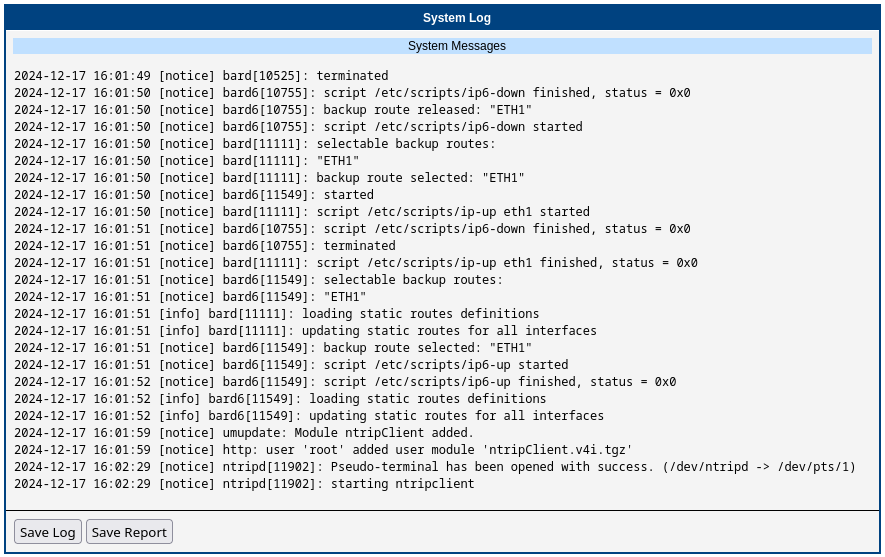
To troubleshoot problems, view the system log by clicking the System Log menu item. The log displays detailed reports from all applications running on the router. Reports related to the Ntrip Client Router App are marked with ntripd.