
Backup APN
 Installation files
 Caution
This Router App has been tested on a router with firmware version 6.3.10. After updating the router firmware to a higher version, check whether a newer version of the Router App has also been released and update it accordingly for compatibility.
Backup APN Introduction
Tips
This Router App is not installed on Advantech routers by default. See the manual of your router, section Customization Pages → Router Apps, for instructions on how to upload a Router App.
The Backup APN Router App allows you to set a backup (secondary) APN for each available SIM slot. This Router App handles APN connection failures.
Web Interface
Access the Router App's web interface by clicking the Router App name on the Router Apps page of the router's web interface.
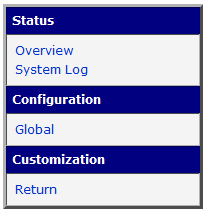
The left side of the web interface contains a menu with the following sections:
- Status
- Configuration
- Information
- Customization (which includes only the Return item to switch back to the router's web configuration pages).
The main menu of the Router App's web interface is shown in the figure below.
Status
Overview
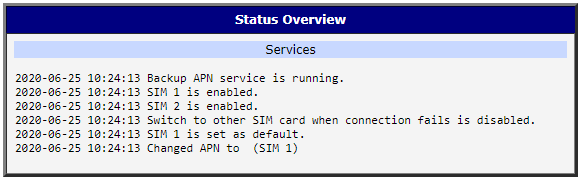
To view the current status, click the Overview item in the main menu. The page displays a list of services and their activation status.
System Log
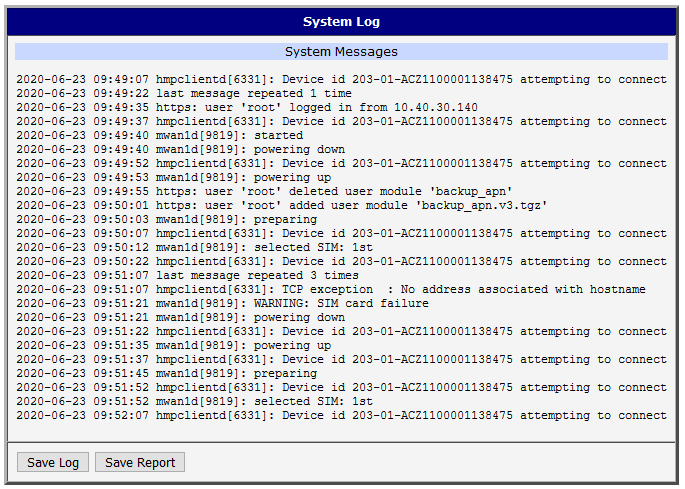
For troubleshooting connection issues, select System Log to view the system log. The page displays detailed reports from applications running on the router.
- Use the Save Log button to save the system log to a connected computer (saved as a
.logfile). - Use the Save Report button to generate a detailed report (includes statistical data, routing tables, process tables, system log, and configuration, saved as a
.txtfile).
The system log defaults to 1000 lines. Once this limit is reached, a new file is created. When the second file is full, the first file is overwritten.
Configuration
Global
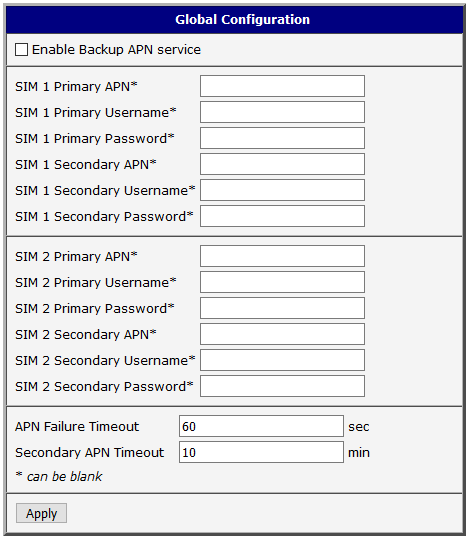
Configure the Router App on the Global page under the Configuration menu. Each SIM slot has its own section in the global configuration. For example, a router with two SIM card slots displays two sections.
| Item | Description |
|---|---|
| Enable Backup APN service | Enables the Backup APN service. |
| SIM 1 Primary APN | Enter the primary APN for SIM 1. |
| SIM 1 Primary Username | Enter the username for the primary APN of SIM 1. |
| SIM 1 Primary Password | Enter the password for the primary APN of SIM 1. |
| SIM 1 Secondary APN | Enter the secondary (backup) APN for SIM 1. |
| SIM 1 Secondary Username | Enter the username for the secondary (backup) APN of SIM 1. |
| SIM 1 Secondary Password | Enter the password for the secondary (backup) APN of SIM 1. |
| SIM 2 Primary APN | Enter the primary APN for SIM 2. |
| SIM 2 Primary Username | Enter the username for the primary APN of SIM 2. |
| SIM 2 Primary Password | Enter the password for the primary APN of SIM 2. |
| SIM 2 Secondary APN | Enter the secondary (backup) APN for SIM 2. |
| SIM 2 Secondary Username | Enter the username for the secondary (backup) APN of SIM 2. |
| SIM 2 Secondary Password | Enter the password for the secondary (backup) APN of SIM 2. |
| APN Failure Timeout | Enter the timeout in seconds before switching from a failed primary APN to the secondary (backup) APN. |
| Secondary APN Timeout | Enter the timeout in minutes before attempting to switch back to the primary APN. |
Configuration items
Caution
When the Router App is enabled, the Mobile WAN settings in the router configuration are ignored, and the credentials from the Router App's Global configuration table are used. For proper operation, disable the Switch to other SIM card when connection fails option in the Mobile WAN settings.