
GPS
 Installation files
 Warning
Important Notice Regarding Firmware Version 6.6.0 and above
- Feature Integration: Starting with router firmware version 6.6.0, the features of this Router App are included in the firmware as standard. You can access them via Configuration → Services → GNSS and partially through Configuration → Services → SNMP.
- Recommendation: On routers running version 6.6.0 or newer, use the native firmware feature and uninstall this app to prevent potential conflicts.
- Migration Advisory: When transitioning from this Router App to the integrated firmware feature, review the new settings carefully. Default values and available options may differ, and failing to adjust them could cause unexpected behavior.
The GPS (Global Positioning System) Router App allows your router to provide location and time information in all weather conditions, anywhere on or near the Earth where there is an unobstructed line of sight to four or more GPS satellites.
This Router App is compatible with all Advantech routers with GNSS support. You can find the type of GSM/GNSS module installed in the router in the web interface at Status → Mobile WAN → Mobile Network Information → Model.
Tips
For routers that share a cellular connector with the GNSS connection, diversity cellular reception is not supported when the GNSS antenna is connected.
Web Interface
The left part of the web interface contains the menu with pages for monitoring (Status), Configuration, Information, and Customization of the router. The Information block contains the Licenses item, which displays the licenses used. The Customization block contains only the Return item, which switches the GPS web interface to the main router interface.
Location
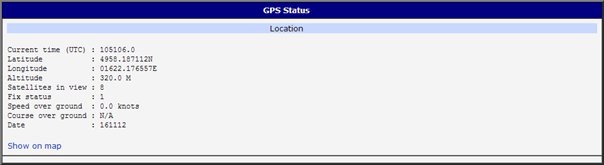
If the router has an unobstructed line of sight to four or more GPS satellites, detailed information about its exact location is available.
| Item | Description |
|---|---|
| Current time (UTC) | Current time in hhmmss.0 format (Coordinated Universal Time) |
| Latitude | Geographic coordinate specifying the north-south position (in ddmm.mmmmmmG format where d stands for degrees, m for minutes, and G for geographical direction [N, S]) |
| Longitude | Geographic coordinate specifying the east-west position (in dddmm.mmmmmmG format where d stands for degrees, m for minutes, and G for geographical direction [E, W]) |
| Altitude | Height above sea level of a location (in meters) |
| Satellites in view | Number of satellites directly visible to the router |
| Fix status | Indicates data availability and quality. 0 indicates no data. A non-zero value indicates the presence of data. |
| Speed over ground | Current speed of the router relative to Earth's surface (in knots) |
| Course over ground | Current course of the router relative to Earth's surface (in degrees) |
| Date | Current date in ddmmyy format |
Location information
Click Show on map at the bottom of the page to display the exact location of the router on Google Maps in a new tab.
System Log
If any problems occur, view the system log by clicking the System Log menu item. It displays detailed reports from individual applications running on the router. Use the Save button to save the system log to the computer.
The default size of the system log is 1000 lines. When the log reaches 1000 lines, a new file is created for storing the system log. After the second file reaches 1000 lines, the first file is deleted and a new one is created.
Global
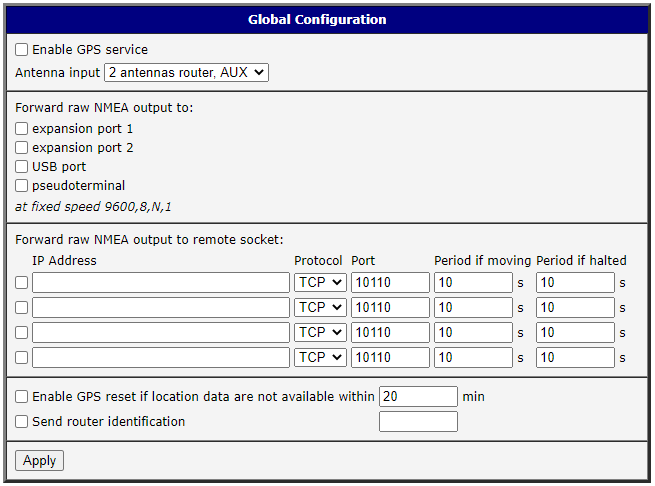
Click the Global item in the configuration part of the menu to open a form where you can activate the GPS service by checking the Enable GPS service item. In the next part of this form, you can choose the port used for sending data from the GPS. You can select from the following options: expansion port 1, expansion port 2, USB port, and pseudoterminal /dev/nmea. Expansion port 1 and expansion port 2 are optional ports of the router. Data is stored in raw NMEA format.
The configuration form also allows the router to forward raw NMEA output to a remote socket (up to four destinations). To do so, in the Forward raw NMEA output to remote socket section, select the check box at the beginning of a row and define the following information:
| Item | Description |
|---|---|
| IP Address | IP address to which the raw NMEA output is forwarded |
| Protocol | Protocol used to send the raw NMEA output |
| Port | Port used for the communication |
| Period if moving | Forwarding period when moving |
| Period if halted | Forwarding period when halted |
Forwarding data to a remote socket
At the bottom of the form, you can enable the automatic reset of GPS. The GPS is reset when location data is unavailable for a set number of minutes.
The last item configures the router's identification. When switched on, the identification string $GPFID, RouterIdentificationString is sent in every NMEA batch. RouterIdentificationString is the string configured in the web interface.
GPSD
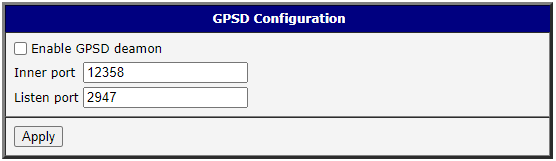
To display the GPSD form, select the GPSD item in the configuration part of the menu. If the Enable GPSD daemon option is checked, the router automatically starts listening on the port specified below.
| Item | Description |
|---|---|
| Inner port | Port in the router dedicated to GPS |
| Listen port | TCP/IP port on which to listen for GPSD clients (default is 2947) |
GPSD configuration
SNMP
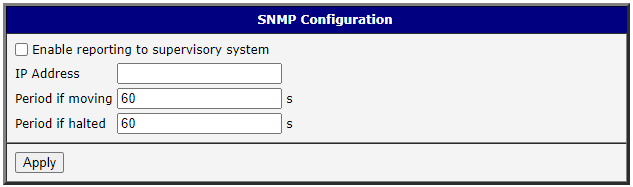
To display the SNMP form, select the SNMP item in the configuration part of the menu. If the Enable reporting to supervisory system option is checked, the router automatically sends messages to the supervisory system at the specified periods.
| Item | Description |
|---|---|
| IP Address | Destination IP address |
| Period if moving | Interval for sending messages to the supervisory system (in seconds) while in motion |
| Period if halted | Interval for sending messages to the supervisory system (in seconds) when not moving (velocity is 0) |
SNMP configuration
The following OIDs are used to send GPS messages. The meaning of the individual items is described in the Location information table above.
| OID | Designation |
|---|---|
| .1.3.6.1.4.1.30140.7.1.0 | gpsTimeUTC |
| .1.3.6.1.4.1.30140.7.2.0 | gpsLatitude |
| .1.3.6.1.4.1.30140.7.3.0 | gpsLongitude |
| .1.3.6.1.4.1.30140.7.4.0 | gpsAltitude |
| .1.3.6.1.4.1.30140.7.5.0 | gpsSatellites |
| .1.3.6.1.4.1.30140.7.6.0 | gpsFixStatus |
| .1.3.6.1.4.1.30140.7.7.0 | gpsSpeedOverGround |
| .1.3.6.1.4.1.30140.7.8.0 | gpsCourseOverGround |
| .1.3.6.1.4.1.30140.7.9.0 | gpsDate |
GPS OIDs
Time Synchronization
To open the system time synchronization form, click the Time Synchronization item in the configuration part of the menu. Select the Enable system time synchronization check box to activate automatic time synchronization, and define the synchronization interval (in hours) in the box below.

Licenses
This section lists the Open-Source Software (OSS) licenses used by this Router App.
