
EdgeLink
 Installation files
 EdgeLink Introduction
EdgeLink is a software system developed for Advantech gateways, designed to serve as a central hub in IoT architectures. In typical application scenarios, a gateway connects to various smart devices through the southbound interface and to cloud or enterprise platforms via the northbound interface. Positioned in the middle layer, the gateway handles data collection, processing, and forwarding — playing a crucial role in IoT-based business operations.
Warning
The version of the Router App should be identical to the version of EdgeLink Studio.
Caution
EdgeLink is supported only on ICR-32xx-EL models that have a valid license. You can install it on a standard ICR-32xx, but it runs with a trial license limited to 2 hours. Only ICR-32xx models on the v3 platform are supported.
EdgeLink consists of two main components:
- EdgeLink Studio — an offline configuration tool for setting up communication and network interfaces, supporting one-click deployment and real-time device monitoring.
- EdgeLink Runtime — the runtime service on the gateway that executes the configurations defined in EdgeLink Studio. The EdgeLink Router App serves as the runtime itself.
You can download the EdgeLink Studio and its manual from the Advantech website.
EdgeLink on ICR-3231
The EdgeLink Router App does not have its own web interface. Download and install it on your router from the Router Apps page. The Trial version expires after 2 hours of use.
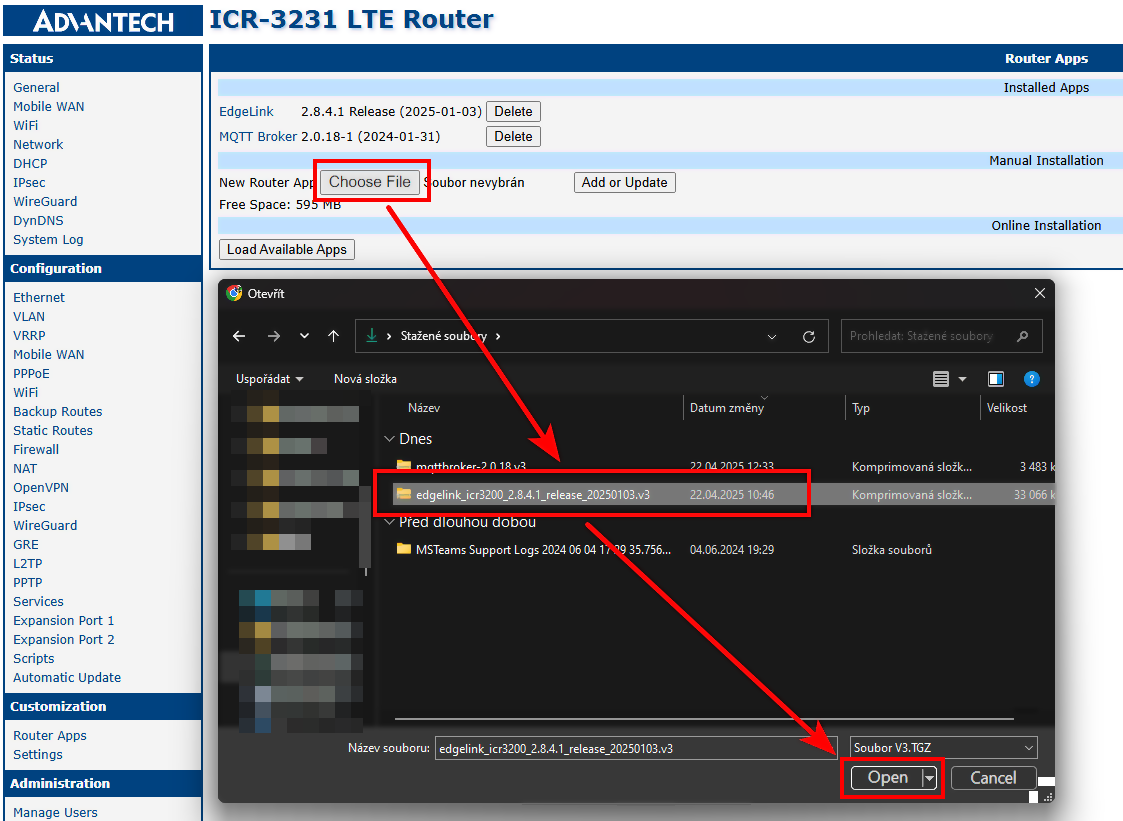
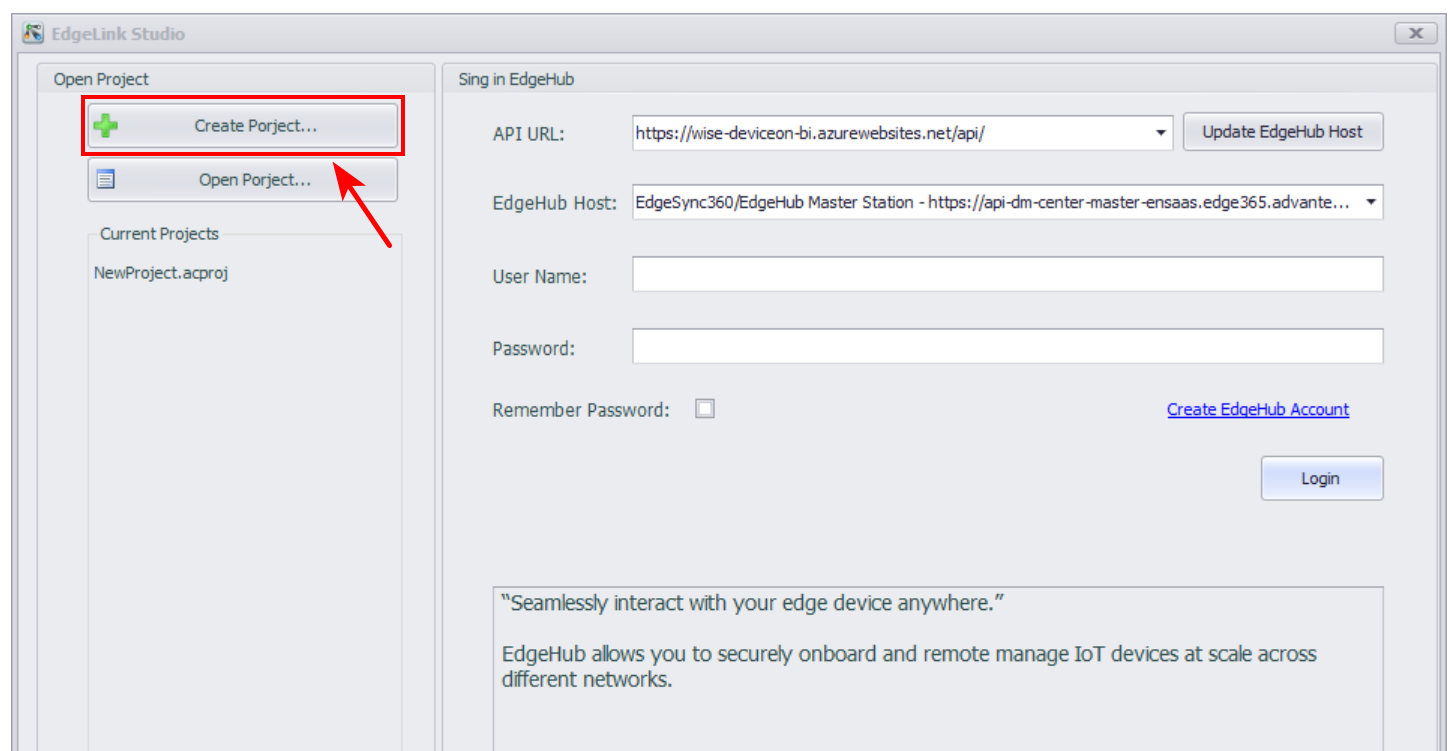
Router App Open Advantech EdgeLink Studio and click the Create Project button.
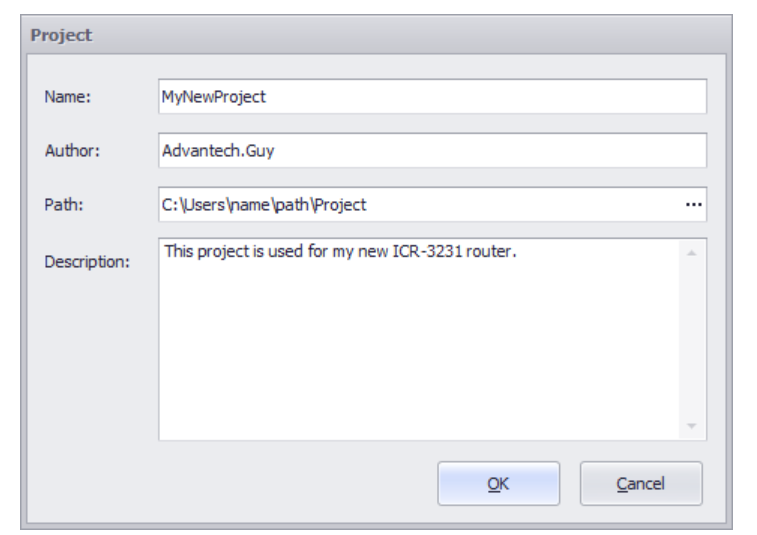
Create Project Fill in the fields with your desired project credentials, then click OK.
Project credentials Right-click your newly created project and select Add Device. Fill in your device credentials and click Apply. Details for each field are described in the table below.
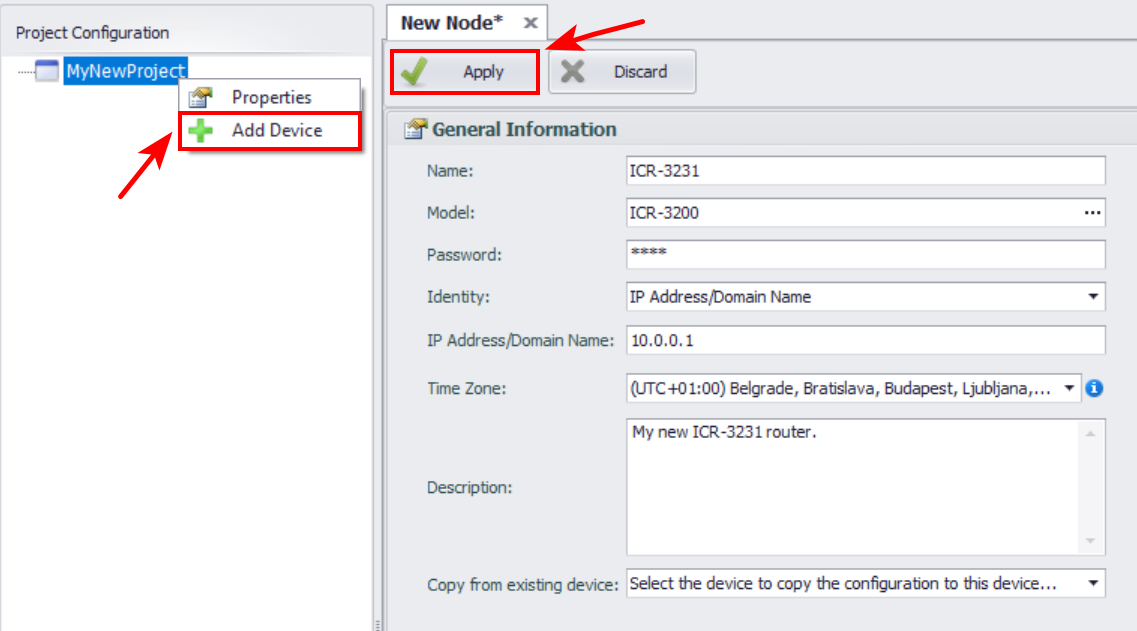
Create Device
| Item | Description |
|---|---|
| Name | Enter the name of the device. |
| Model | Select the ICR-3200 series device. |
| Password | Enter the password of the device. |
| Identity | You can choose between IP Address/Domain Name or Azure identity. |
| IP Address/Domain Name Azure | Enter the IP address or domain name of the device. Enter IoTHub Connection String. Enter IoT Edge Device ID number. |
| Time Zone | Choose the correct time zone of the device. |
| Description | Enter a description of the device. |
| Copy from existing device | Optionally, you can copy the configuration of an existing device. |
Create device items description
Sample Configuration
In this example, we configure a basic setup using the Simple MQTT Tag List.
In the Project Configuration panel, locate and uncheck the Data Publish (Cloud) option. Then double-click the SimpleMQTT function to configure it.
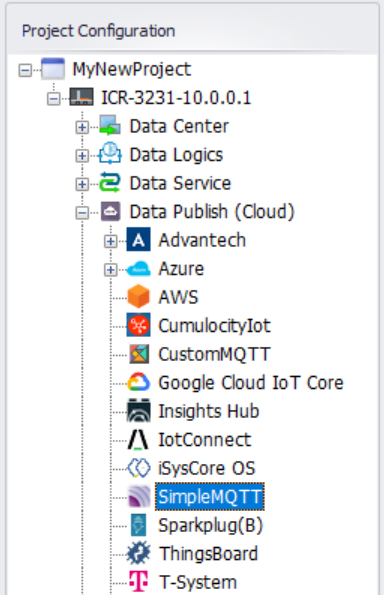
Simple MQTT In the Simple MQTT interface, enter the address of your MQTT broker.
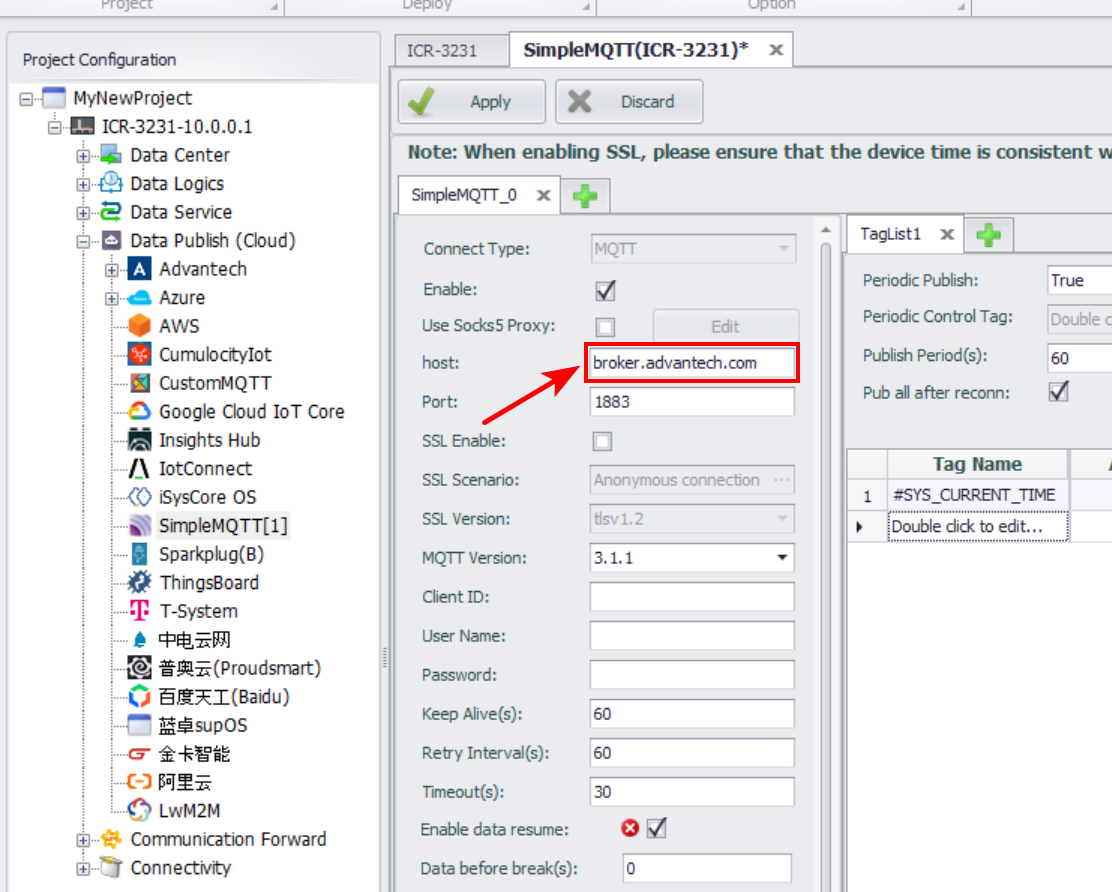
Simple MQTT broker configuration Add one or more tags to the Tag List, such as
#SYS_CURRENT_TIME, and then click OK to confirm.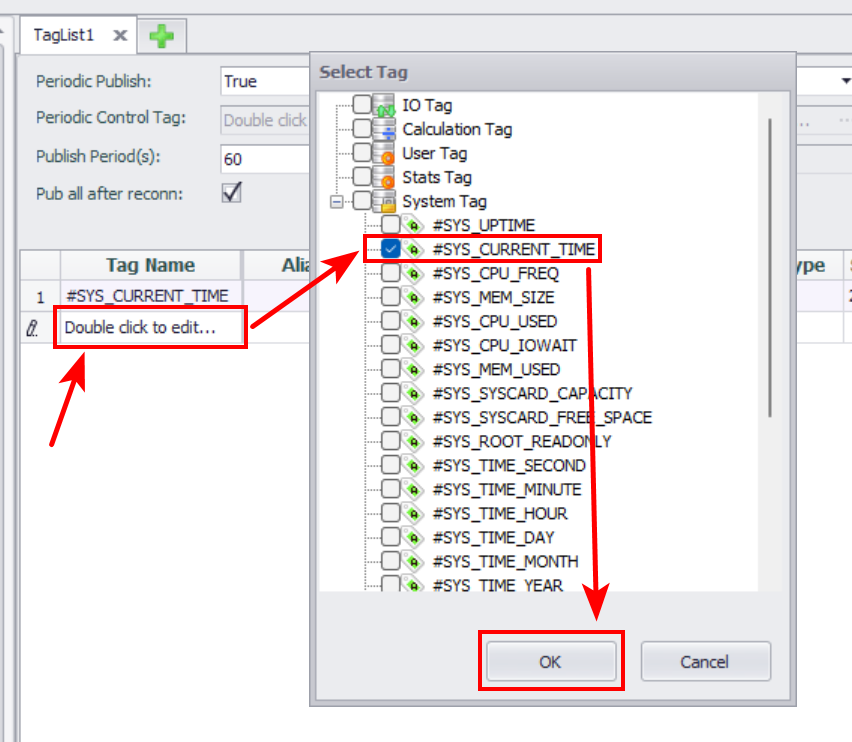
Simple MQTT tag list Click Apply to save your changes.
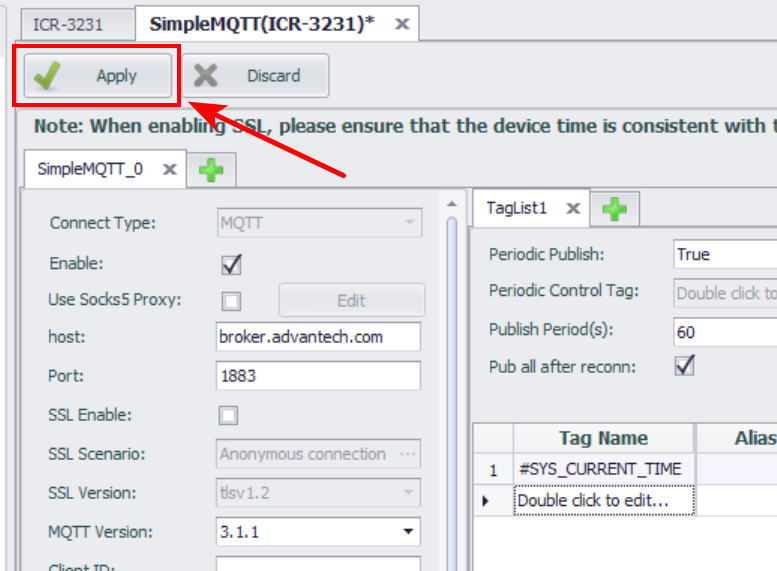
Apply If an error message appears stating "Some content in this page is error", look for a red cross icon. Hover over it to display the exact error message.

Simple MQTT error Once the configuration is complete, click the project's top-level node and select Project Download to upload the project to the router.
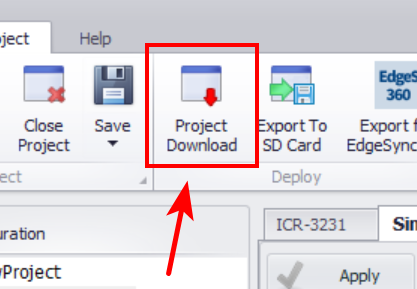
Project Download Optionally, you can install the MQTT Broker Router App on the router and send data to a local broker. To subscribe to the topic and receive data, connect to the router and run the following command:
mosquitto_sub -L mqtt://localhost/data/device_id
Known Issues
License Loss After EdgeLink Reinstallation
If you are using a router with a valid EdgeLink license (model with -EL suffix) and you reinstall the EdgeLink application, the license may be lost during the reinstallation process.
Workaround
If the license file has been lost due to reinstallation, you can restore it manually using the following command:
cp /var/data/.edgelink/.elic /opt/edgelink/project/Execute this command in the router's CLI after reinstallation is complete.
Note
This issue affects only licensed routers (-EL) and occurs only when the EdgeLink application is reinstalled without preserving the license file. Back up the license file before performing any manual updates or reinstallations.