
Band Select
 Installation files
 Caution
Use this Router App with caution and observe all applicable legal restrictions.
Warning
This Router App has been tested with router firmware version 6.3.10. After updating the router firmware, check whether a newer version of the Router App is available and install it if necessary to ensure compatibility.
Tips
This Router App is not installed on Advantech routers by default. For instructions on how to upload a Router App, see the Customization Pages → Router Apps section in your router's manual.
Supported cellular modules
This Router App is intended only for routers equipped with one of the cellular modules listed below. To identify the cellular module installed in your router, check the Mobile WAN status under Mobile Network Information.
- Cellient
- MPL200
- Cinterion
- PLS8-E
- PLS8-X
- PLS83-EP
- PLS83-W
- PLS83-X
- Fibocom
- FM101-EAU
- Huawei
- ME909s-821
- Quectel
- BG95-M4
- BG96
- EC25-AU
- EC25-AUX
- EC25-AF
- EC25-AFX
- EC25-E
- EC25-EU
- EC25-EUX
- EC25-J
- EG25-G(D)
- EM12-G
- RG255C-GL
- RM505Q-AE
- RM520N-GL
- SIMCom
- SIM7070
- Telit
- LE910-EU V2
- LE910-NA1
- LE910C4-WWX
- LE910C4-WWXD
- FN990A28
- FN990A28-HP
- Unitac
- ML620EU
- ML620DE
Description
The Band Select Router App allows you to configure which frequency bands the router uses to connect to mobile networks. The router is preconfigured at the factory to support the frequency bands required in its target region. Change these settings only if your application requires it.
Web Interface
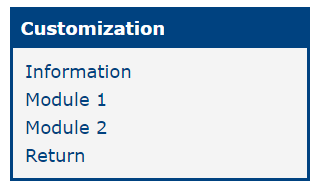
To open the Band Select Router App, click its name on the Router Apps page in the router's web interface. The available options depend on the installed cellular module. The figure below shows the menu of a router equipped with two cellular modules.
Configuration
To configure the frequency bands, select the desired cellular module under Configuration. Make sure that the Enable Band Select option is checked, select the required frequency bands, and click Apply. The figure below shows an example configuration in which only selected frequency bands are enabled.
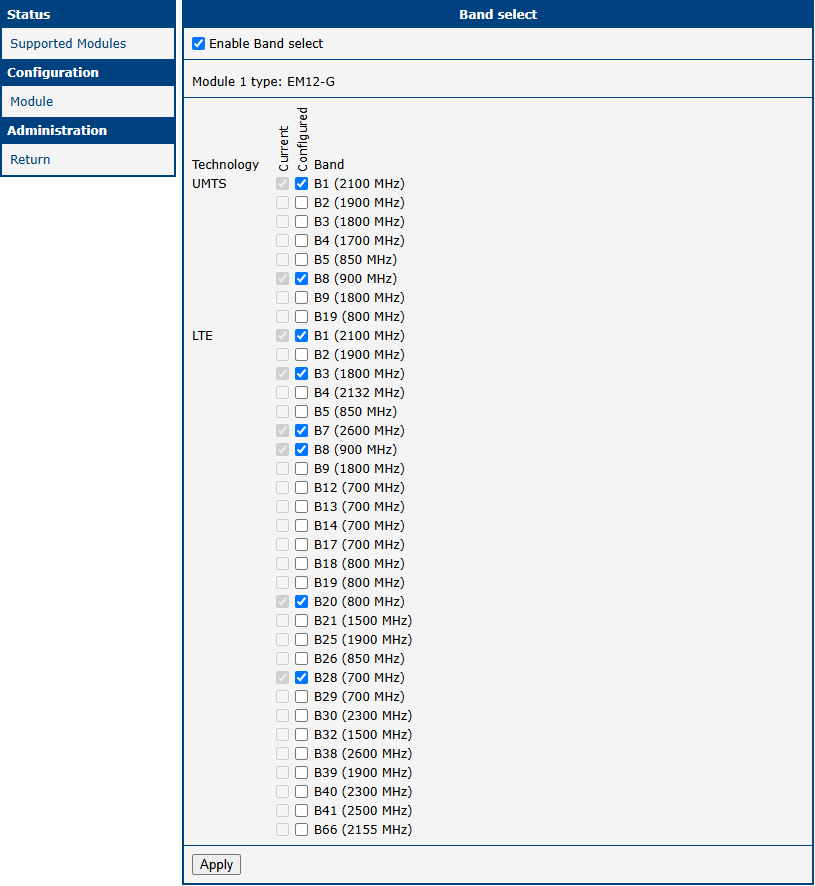
The selection table lists the available frequency bands grouped by technology (GSM, UMTS, LTE, etc.) and shows their corresponding frequencies. The available technologies and frequency bands depend on the cellular module, the selected mobile network operator, and the firmware version installed in the module.
The table contains two columns of checkboxes:
- Current — Shows the frequency bands currently active on the module, as reported by the router.
- Configured — Allows you to select the frequency bands to enable. The selected settings take effect when Band Select is enabled and you click Apply.
In some situations, such as immediately after a module restart or a configuration change, the current values may be temporarily unavailable. In these cases, question marks appear instead of checkboxes.
Applying new settings may cause the cellular module to restart. During the restart, the current values may be temporarily unavailable.
Tips
After you apply the settings, you can uninstall the Router App. The selected configuration remains active.