
Loopback
 Installation files
 Caution
- This Router App has been tested on a router with firmware version 6.3.10. After updating the router firmware to a higher version, check whether a newer version of the Router App has also been released and update it accordingly for compatibility.
- The Loopback Router App is not installed on Advantech routers by default. See the manual of your router, section Customization Pages → Router Apps, for instructions on how to upload a Router App.
Tips
This Router App is compatible with Advantech routers of the v2 and v3 platforms only.
Router App Description
Description
The Loopback Router App creates a virtual network interface for managing and configuring the router. With this interface, you can assign the router an address that is reachable from a control device over the network and is not bound to any specific physical interface of the router.
Web Interface
Once the installation is complete, access the Router App's web interface by clicking the Router App name on the Router Apps page of the router's web interface.
The left panel of the web interface contains a menu with a Configuration section. The Customization section contains only the Return item, which switches back from the Router App's web page to the router's web configuration pages. The main menu of the Router App's web interface is shown in the figure below.

Configuration
Configure the Router App on the Global page under the Configuration menu section. The form contains three main parts: IP address configuration, permit address configuration, and permit mask configuration.
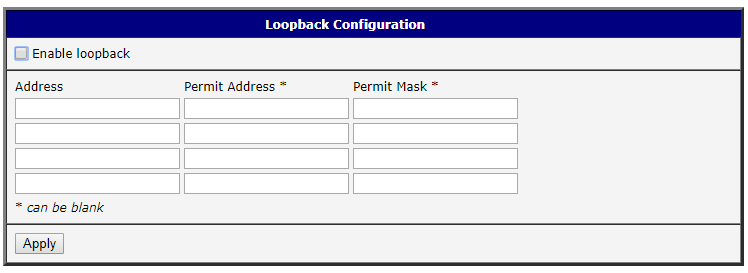
| Item | Description |
|---|---|
| Enable loopback | Activates the Router App — the loopback interface with the addresses configured below is created. |
| Address | Up to four IP addresses can be assigned to this router for external access. |
| Permit Address | IP addresses of devices that are allowed to connect to the router. You can also enter a network address; in that case, also specify a Permit Mask. |
| Permit Mask | Enter the mask here if a network address (rather than a host address) was entered in the Permit Address field. If the mask is left empty when a network address is set in Permit Address, it is not possible to connect to the router. |
| Apply | Button to save and apply all changes made in this configuration form. |
Configuration items
Configuration Example
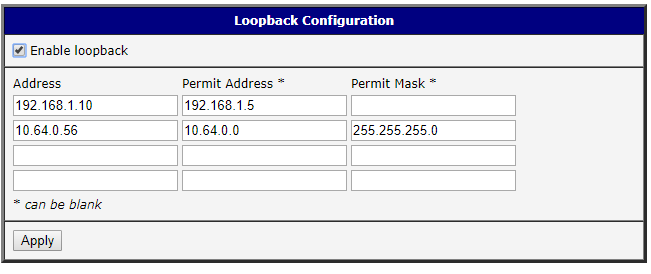
| Item | Value / Description |
|---|---|
| Enable loopback | Enabled — the loopback interface with the configured addresses is created. |
| Address | The router is also accessible at: 192.168.1.10, 10.64.0.56. |
| Permit Address | Only the device with IP address 192.168.1.5 can connect to 192.168.1.10. All devices in the 10.64.0.0/24 network can connect to 10.64.0.56. |
| Permit Mask | Enter the mask here if a network address (rather than a host address) was entered in the Permit Address field. If the mask is left empty when a network address is set, it is not possible to connect to the router. |
Configuration example items