Serial to TCP
 Installation files
 Caution
- This Router App has been tested on a router with firmware version 6.3.10. After updating the router firmware to a higher version, check whether a newer version of the Router App has also been released and update it accordingly for compatibility.
Description
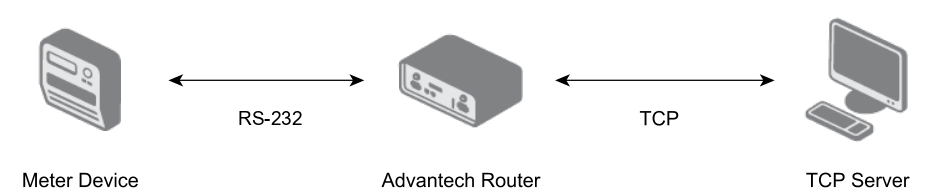
The Serial to TCP Router App connects a serial line device to one or more TCP servers. Communication works in both directions — serial to TCP and TCP to serial. It can be used in data collection and measurement applications: sending data from a serial line meter to a server, or sending commands and control data to serial devices remotely over TCP.
Caution
The router must have an RS-232 port or a USB port with a connected RS-232 converter. After uploading the Router App, you can configure the serial line parameters and up to five TCP servers. The router acts as a TCP client and handles communication between the TCP servers and the serial line.
The router firmware provides a similar feature but supports only a single TCP server connection. The Serial to TCP Router App supports connections to up to five TCP servers simultaneously. Unlike this Router App, the firmware also supports RS-485/422.
Both the firmware and this Router App transfer raw data between the router's serial port and a PC. For more complex serial port mirroring (virtual serial port), see the Serial over LAN Router App.
Configuration
The Router App configuration is accessible via the Customization section in the router's web interface — click Router Apps, then Serial to TCP.
The menu contains a Status section (with System Log), a Configuration section (with the Global configuration page), and an Administration section (with Return to go back to the router's configuration).

Tips
Configuration settings can be changed only by users with the Admin role. Users with the User role can view the configuration, but the Apply button is not available to them.
Clicking Global opens the Router App configuration.
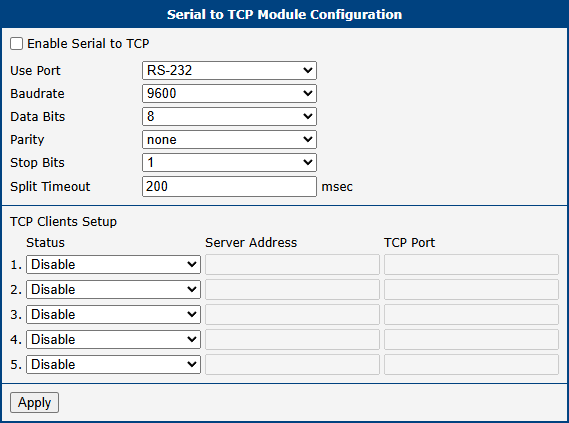
Enable the Enable Serial to TCP checkbox to activate the Router App (the change takes effect after you click Apply). The Use Port field lists only the RS-232 expansion ports actually present in the router (labeled RS-232, or RS-232 (1) and RS-232 (2) if the router has two), plus USB (needs converter) if the router has a USB connector. If the router has neither an RS-232 nor a USB port available, the configuration page shows only the message No RS-232 or USB port available. instead of the form.
Tips
If a listed port is already used for another purpose in the router's configuration (for example, RS-232 access over TCP/UDP, or the AT-SMS protocol), applying the configuration with that port selected shows an error naming the conflicting feature.
The remaining serial line connection parameters are configured in the fields below:
| Item | Description |
|---|---|
| Use Port | Selects which port is used for the serial connection: an RS-232 expansion port, if present in the router, or USB (needs converter), if the router has a USB port for connecting a USB-to-serial converter. |
| Baudrate | Applied communication speed. |
| Data Bits | Number of data bits. |
| Parity | Control parity bit: • none — No parity. • even — Even parity. • odd — Odd parity. |
| Stop Bits | Number of stop bits. |
| Split Timeout | Time for delimiting messages. If the gap between two received characters exceeds this value (in milliseconds), all received data is assembled into a message and sent. Default: 200 ms. |
Serial port configuration items
The last part — TCP Clients Setup — configures up to five TCP clients for connecting to up to five TCP servers:
| Item | Description |
|---|---|
| Status | Enable or disable this TCP client. |
| Server Address | IP address of the TCP server. |
| TCP Port | Port of the TCP server. |
TCP client configuration items
When configured, all active TCP clients send serial line data to their respective TCP servers — all configured and listening servers receive the same serial data. Data sent from any configured TCP server is also forwarded to the serial line.
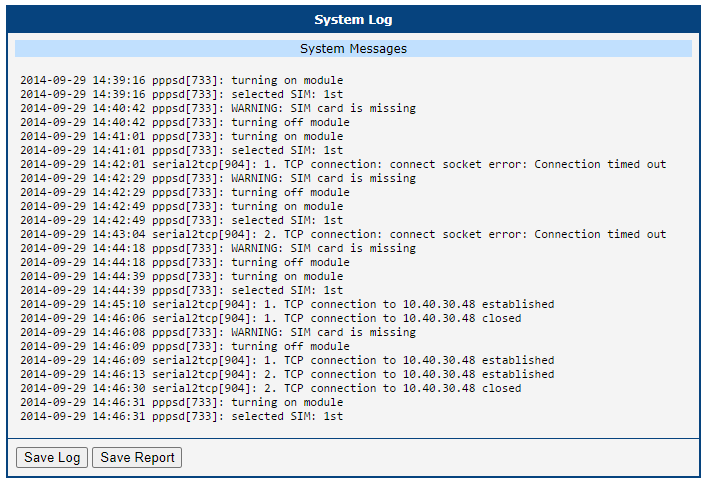
System Log
If connection problems occur, view the system log by clicking System Log in the menu. This log is filtered to show only messages from the Serial to TCP Router App, including information about successful or failed connection attempts. To view the complete, unfiltered system log, navigate to Status → System Log in the main router web interface. Click Save to save the system log to your computer.