Web Terminal
 Installation files
 Application Introduction
The Web Terminal Router App opens a console window directly within the router's web interface, providing an experience similar to connecting via SSH. Key benefits include:
- If SSH access to the router is unavailable or disabled for security reasons, the app provides an alternative way to access the router's console.
- For temporary console access, it eliminates the need to enable SSH and configure associated settings such as NAT or firewall rules.
- It offers a simple and quick way to access the router's console without requiring a separate SSH client application.
- It provides a remote command-line interface directly in the web interface, supporting the same commands available through a standard SSH connection (e.g., using PuTTY).
Installation
To install this Router App, follow the instructions in the manual of your router, section Customization Pages → Router Apps.
Application Usage
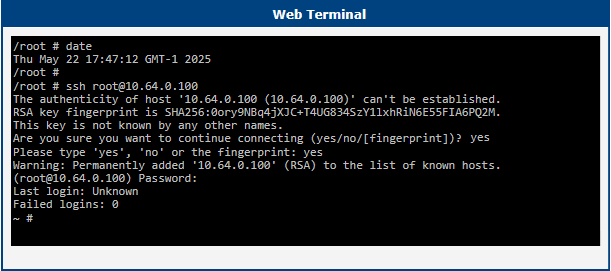
Once installed, navigate to Customization → Router Apps in the router's menu and click Web Terminal. A console window opens as shown below. You can work in this window as you would in a standard console session — including using the ssh command to connect to another router or machine.
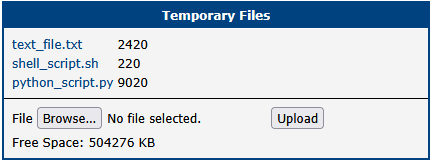
The Router App also supports uploading files to and downloading files from the /tmp directory on the router. Select the Temporary Files menu item within the Web Terminal interface to access the file management screen. Use the Browse... button to select a file and the Upload button to transfer it to /tmp. Clicking a filename in the list downloads it. Files cannot be deleted through this interface — use the rm command in the console instead.