File Uploader
 Installation files
 Caution
- This Router App has been tested on a router with firmware version 6.3.10. After updating the router firmware to a higher version, check whether a newer version of the Router App has also been released and update it accordingly for compatibility.
The File Uploader Router App synchronizes files between the router and a remote device using FTP (File Transfer Protocol) or SFTP (SSH File Transfer Protocol). The router can also act as a mediator between two FTP locations: an FTP downloader and an FTP/SFTP uploader are both available.
When the Router App is enabled, the contents of a user-defined directory on the router are periodically uploaded to the specified FTP/SFTP server. Files can optionally be synced from another FTP server before the upload. Uploaded files can optionally be removed based on configurable parameters. If an upload fails, the synchronization is retried. After three unsuccessful attempts, the upload is postponed until the next scheduled interval. The file size is not limited. The router always acts as an (S)FTP client when downloading or uploading files.
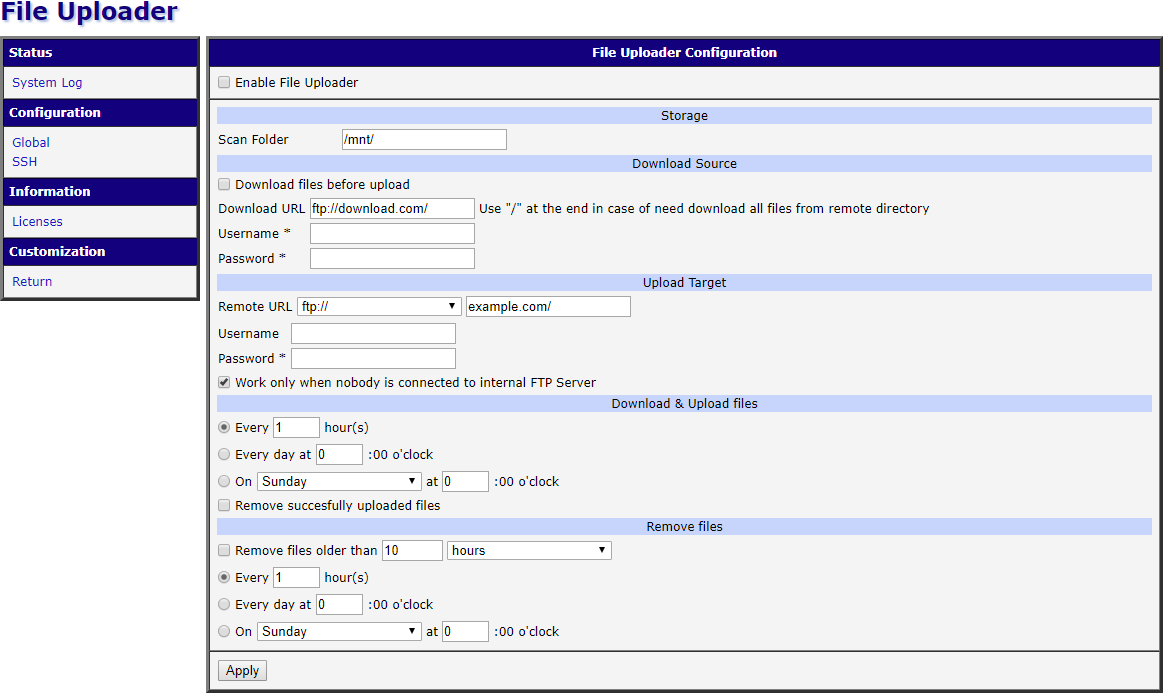
The web interface is accessible by clicking the Router App name on the Router Apps page of the router's web interface. The left pane contains a menu with Configuration pages: Global for overall configuration (landing page) and SSH for optional SFTP configuration. The System Log page lets you monitor the current state of the Router App. The Licenses page lists the open-source software components and their licenses. The Return item switches back to the router's web interface.
Configuration
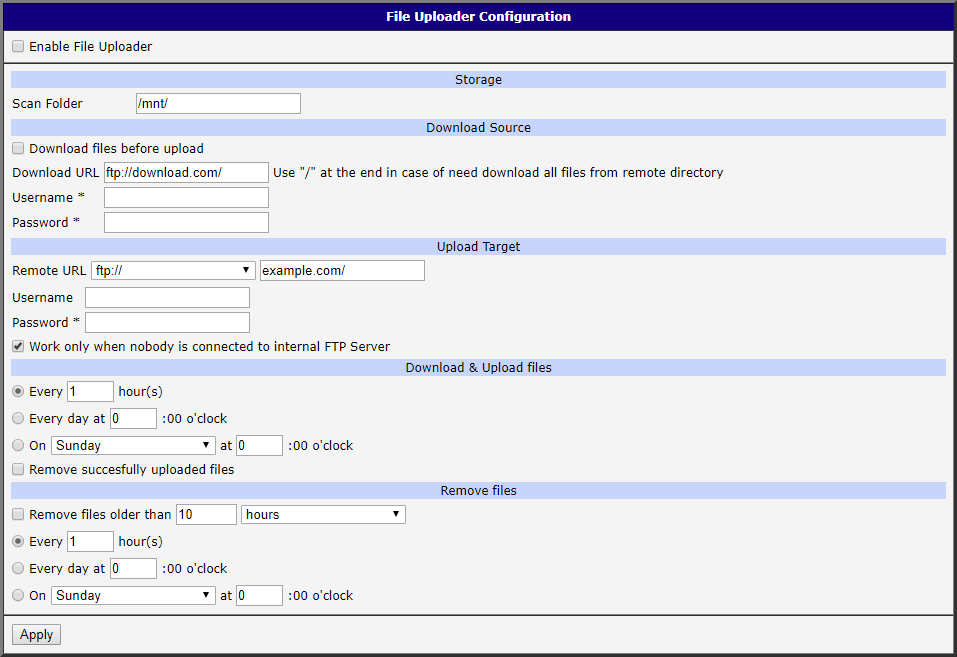
The configuration is accessible under the Global item in the menu. The first item — Enable File Uploader — activates the Router App and starts the script for periodic uploads. Click the Apply button to save all changes.
Storage
| Item | Description |
|---|---|
| Scan Folder | The contents of this directory on the router are synchronized (uploaded) to the remote (S)FTP server. |
Storage configuration
Download Source
| Item | Description |
|---|---|
| Download files before upload | Enable or disable this feature. If enabled, files are first downloaded from an FTP server into the Scan Folder (e.g., from a PLC), and then uploaded to the Upload Target. |
| Download URL | URL of the remote FTP server to download data from. Only FTP is supported. The address must be entered in the form ftp://example.com/. If the URL ends with /, all files in the remote directory are downloaded. Otherwise, the last segment is treated as a filename and only that file is downloaded. |
| Username | Username for logging into the defined FTP server. |
| Password | Password for logging into the defined FTP server. |
Download source configuration
Upload Target
| Item | Description |
|---|---|
| Remote URL | URL of the remote server to upload files to. Select the protocol prefix: • ftp://: FTP protocol. • sftp://: SFTP protocol. Additional SSH parameters can be defined on the SSH page. After choosing the protocol, enter the address in the form example.com/. |
| Username | Username for logging into the defined (S)FTP server. |
| Password | Password for logging into the defined (S)FTP server. |
| Work only when nobody is connected to internal FTP Server | If enabled, files are uploaded only when no client is connected to the router's internal FTP server. This ensures files cannot be modified during upload. |
Upload target configuration
Caution
Keep the Work only when nobody is connected to internal FTP Server option enabled. This ensures that file transfers are performed only when no client is connected to the router's internal FTP server.
SFTP Configuration via ssh_config
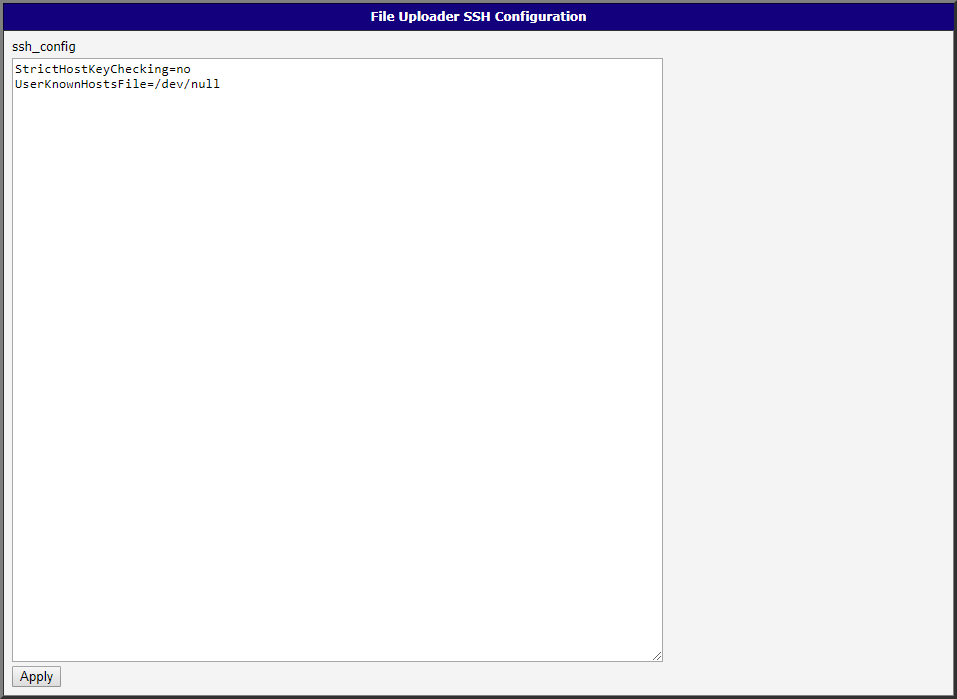
For more detailed SFTP access configuration, the ssh_config file can be edited on the SSH page. For a description of the parameters in this file, see the documentation:
https://linux.die.net/man/5/ssh_config
Explanation of the pre-defined parameters:
StrictHostKeyChecking=no— Automatically adds new host keys to the user known hosts files. This is necessary because the Router App cannot interactively respond to SSH prompts when connecting to an unknown host for the first time. A more secure alternative is to manually log in from the router's CLI to the server's SSH console before using the Router App.UserKnownHostsFile=/dev/null— Uses/dev/nullas the user host key database, so host keys are not stored and no known-hosts file is kept.
Download & Upload Files Period
The configuration form lets you choose between three scheduling intervals for uploading files to the (S)FTP server:
- Every specified number of hours.
- Every day at the specified hour.
- On a selected day of the week at the specified hour.
Additionally, you can enable the Remove successfully uploaded files option to automatically delete files immediately after upload.
Remove Files Period
The last section of the configuration form allows you to enable removal of old files. The Remove files older than option allows the Router App to delete files in the Scan Folder that are older than the specified time period. A wide range of time periods is available, from several hours to several years.
If this option is enabled, the removal can be scheduled periodically:
- Every specified number of hours.
- Every day at the specified hour.
- On a selected day of the week at the specified hour.
System Log
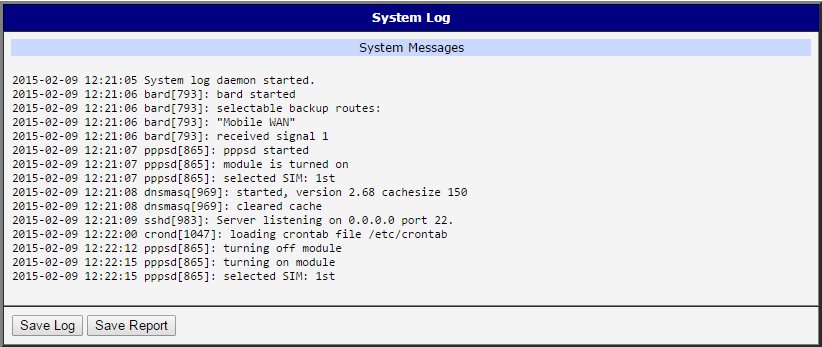
If connection problems occur, you can view the system log by clicking the System Log menu item. The log displays detailed reports from all applications running on the router, including messages related to this Router App. Click the Save Log button to save the system log to your computer.
Licenses
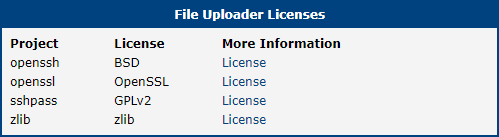
This section lists the Open-Source Software (OSS) licenses used by this Router App.