
Pinger
 Installation files
 Description
The Pinger Router App verifies the connection between an Advantech router and one or two remote devices, either manually or automatically.
Manual mode is designed for one-time connectivity testing. Automatic mode extends this with long-term continuous testing and can trigger automated actions when a connectivity issue is detected. It supports testing against one or two devices simultaneously.
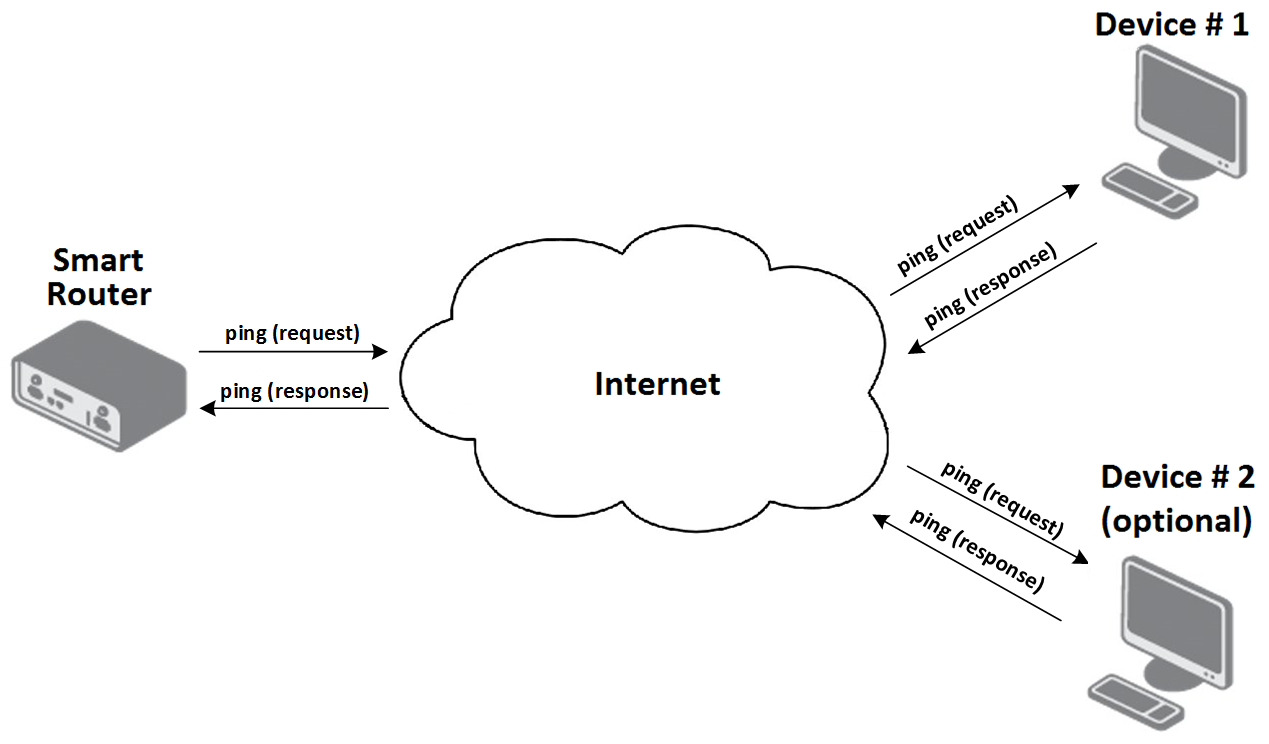
During testing, the Router App periodically sends IP datagrams to a device and expects a response (see the functional diagram below). If a response is received, the Router App calculates connection parameters and produces a statistical summary.
Tips
You can specify target addresses for both manual and automatic modes in IPv4 or IPv6 format, or as a domain name. These settings must be consistent with the overall router configuration. For details, see the router manual.
Web Interface
The Pinger Router App web interface is accessible by clicking the Router App name on the Router Apps page of the router's web interface.
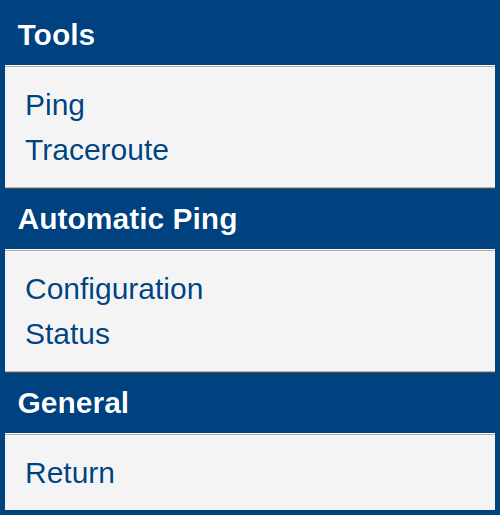
The left pane contains the menu sections Tools, Automatic Ping, and General, as shown in the figure below. The General section contains only the Return item, which returns to the router's main web interface.
Tools
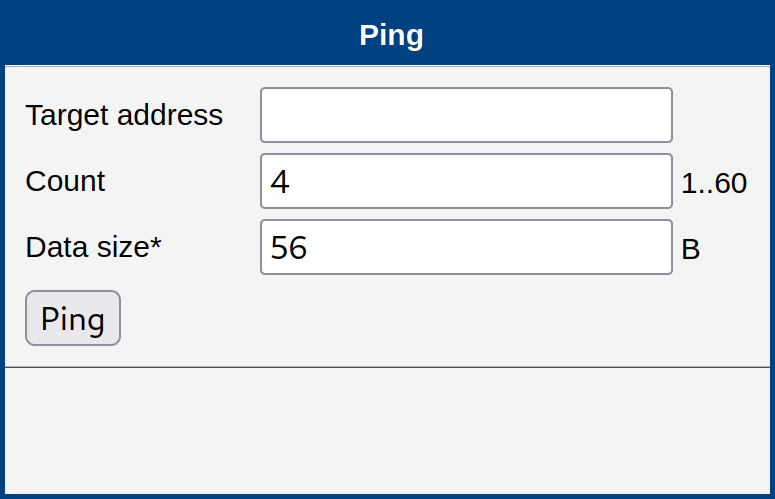
The Tools section contains a Ping page for manually checking the availability of a device at a specified address. Enter the target address, the number of requests to send, and optionally the data size. Configuration items are described in the table below.
| Item | Description |
|---|---|
| Target Address | IP address of the device to test. |
| Count | Number of requests to send (1–60). |
| Data Size* | Data payload size for packets (default: 56 B). |
* — can be left blank
Manual Ping parameters
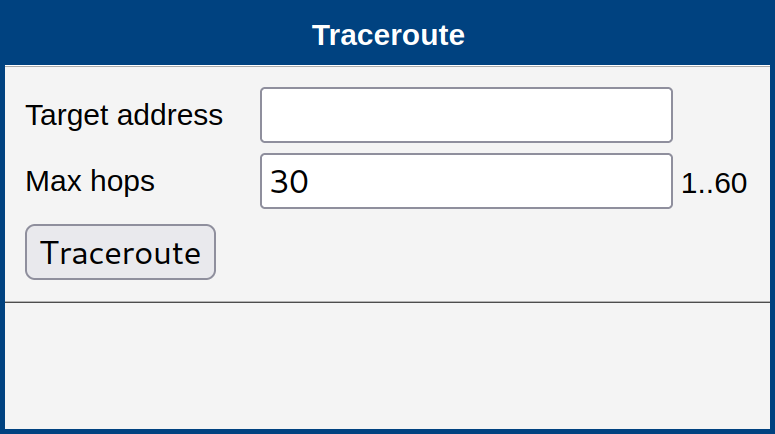
The Tools section also includes a Traceroute page. Traceroute is a network diagnostic tool for displaying the route and measuring transit delays of packets across an IP network. Enter the target address and the maximum number of hops. The output is in standard traceroute command format.
| Item | Description |
|---|---|
| Target Address | IP address of the target device. |
| Max Hops | Maximum number of routers a packet passes through from source to destination. |
Traceroute parameters
Automatic Ping
Description of Settings
The automatic ping test is configured on the Configuration page in the Automatic Ping section. Parameters are organized into the following groups:
- Initial (common) settings
- Line-failing state settings
- Line-lost state settings
- Line-reestablished state settings
- Availability monitor settings
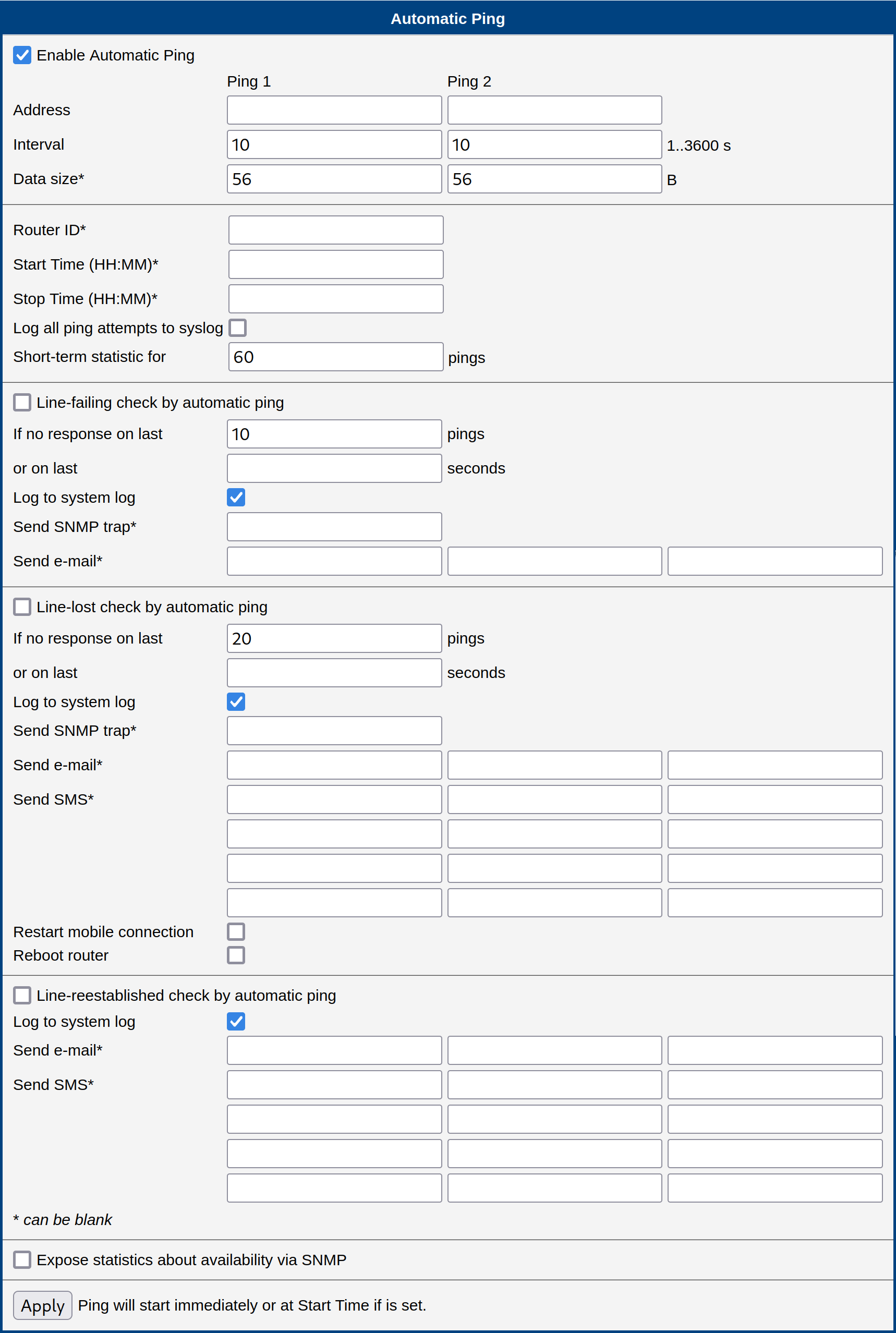
To enable the automatic ping test, select the Enable Automatic Ping checkbox. You can configure the device address (Address), ping interval (Interval), and data size (Data Size) independently for up to two devices in the Ping 1 and Ping 2 columns.
When both devices are configured, the test runs against Ping 1 by default. If no response is received, it switches to Ping 2 and remains there until Ping 2 also stops responding, at which point it switches back to Ping 1. The test uses the interval configured for the device currently being tested.
The Router ID field identifies the router in error messages. The Start Time and Stop Time fields optionally restrict the test to a specific daily time window (24-hour format), applying to both Ping 1 and Ping 2. If these fields are left blank, the test runs continuously.
| Item | Description |
|---|---|
| Enable Automatic Ping | Activates the automatic ping test. |
| Ping 1 | Configuration column for the first target device. |
| Ping 2* | Configuration column for the second target device. |
| Address | IP address of the device used in the test. |
| Interval | Interval between ping tests in seconds (maximum: 3600). |
| Data Size* | Data payload size (default: 56 B). |
| Router ID* | Router identification string used in error messages. |
| Start Time (HH:MM)* | Start time of the test in 24-hour format. |
| Stop Time (HH:MM)* | Stop time of the test in 24-hour format. |
| Short-term statistics for x pings | Number of pings used for short-term statistics. See the Status section. |
* — can be left blank
Common parameters for Automatic Ping
The Line-failing state is triggered when either the number of consecutive missing responses reaches a configured count, or the time since the last response exceeds a configured interval. When this state is detected, the Router App can log the event to the system log, send an SNMP trap, or send an email.
| Item | Description |
|---|---|
| Line-failing check by automatic ping | Enables evaluation of the line-failing state based on the two parameters below. |
| If no response on last x pings | Number of consecutive missing responses required to trigger line-failing. |
| or on last x seconds | Duration of missing responses required to trigger line-failing. |
| Log to system log | Logs the event to the router's system log. |
| Send SNMP trap* | SNMP server address for error notifications. |
| Send e-mail* | Email address for error notifications (up to three addresses). |
* — can be left blank
Line-failing state parameters
The Line-lost state is triggered under the same conditions as line-failing but with a separately configured threshold. When this state is detected, the following actions are available: logging, SNMP trap, email, SMS, restarting the mobile interface, or rebooting the router.
| Item | Description |
|---|---|
| Line-lost check by automatic ping | Enables evaluation of the line-lost state based on the two parameters below. |
| If no response on last x pings | Number of consecutive missing responses required to trigger line-lost. |
| or on last x seconds | Duration of missing responses required to trigger line-lost. |
| Log to system log | Logs the event to the router's system log. |
| Send SNMP trap* | SNMP server address for error notifications. |
| Send e-mail* | Email address for error notifications (up to three addresses). |
| Send SMS* | Phone number for SMS error notifications (up to 12 numbers). |
| Restart mobile connection | Restarts the router's mobile interface. |
| Reboot router | Reboots the router. |
* — can be left blank
Line-lost state parameters
Tips
Once the automatic ping test enters the line-failing or line-lost state, it remains in that state until a successful response is received.
The Line-reestablished state is triggered when the automatic ping test starts receiving responses again after a line-failing or line-lost condition. Possible actions are logging, email, and SMS notification.
| Item | Description |
|---|---|
| Line-reestablished check by automatic ping | Enables evaluation of the line-reestablished state. |
| Log to system log | Logs the event to the router's system log. |
| Send e-mail* | Email address for notifications (up to three addresses). |
| Send SMS* | Phone number for SMS notifications (up to 12 numbers). |
* — can be left blank
Line-reestablished state parameters
Caution
For email and SMS notifications to work, configure the appropriate settings on the router. For details, see the router manual.
When Expose statistics about availability via SNMP is enabled, router availability statistics are exposed in the SNMP tree and displayed on the Status page.
If the Router App is stopped, accumulated statistics are discarded and not exposed via SNMP. On the next start, the Router App initializes new statistics from scratch. Upgrading the Router App briefly stops and restarts it without discarding the statistics.
Tips
If the ping interval is set to 61 seconds or more, the following warning is shown: "Availability data will not be reliable. Set the interval to 60 seconds or shorter."
The automatic ping test starts immediately after you click Apply. If Start Time is configured, execution is postponed to that time.
Caution
Before clicking Apply to start an automatic ping test, verify that Enable Automatic Ping is checked, and that the required state checks (Line-failing check by automatic ping, Line-lost check by automatic ping, or both) are enabled.
Sample Configuration
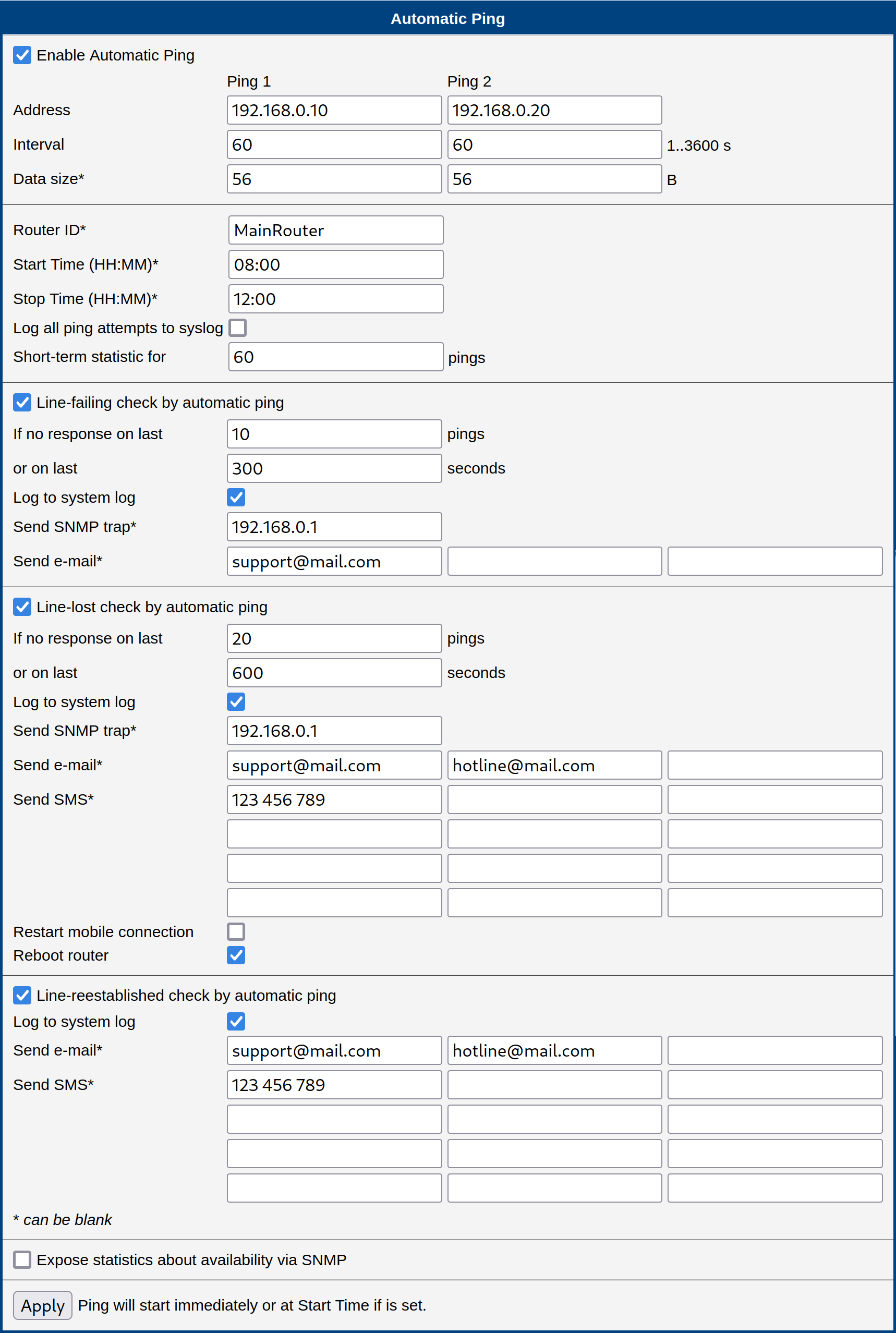
The example below shows a configuration for testing the availability of two devices — 192.168.0.10 (Ping 1) and 192.168.0.20 (Ping 2) — every 60 seconds with the default data size of 56 B. A Router ID is set for identification in error messages. Testing is restricted to 08:00–12:00.
Line-failing triggers when 10 consecutive pings go unanswered, or when no response has been received for 300 seconds. Actions performed:
- Log the event to the system log.
- Send an SNMP trap to
192.168.0.1. - Send an email to
support@mail.com.
Line-lost triggers when 20 consecutive pings go unanswered, or when no response has been received for 600 seconds. Actions performed:
- Log the event to the system log.
- Send an SNMP trap to
192.168.0.1. - Send an email to
support@mail.comandhotline@mail.com. - Send an SMS to phone number
123 456 789. - Reboot the router.
Line-reestablished triggers when a successful response is received after a line-failing or line-lost condition. Actions performed:
- Log the event to the system log.
- Send an email to
support@mail.comandhotline@mail.com. - Send an SMS to phone number
123 456 789.
Status
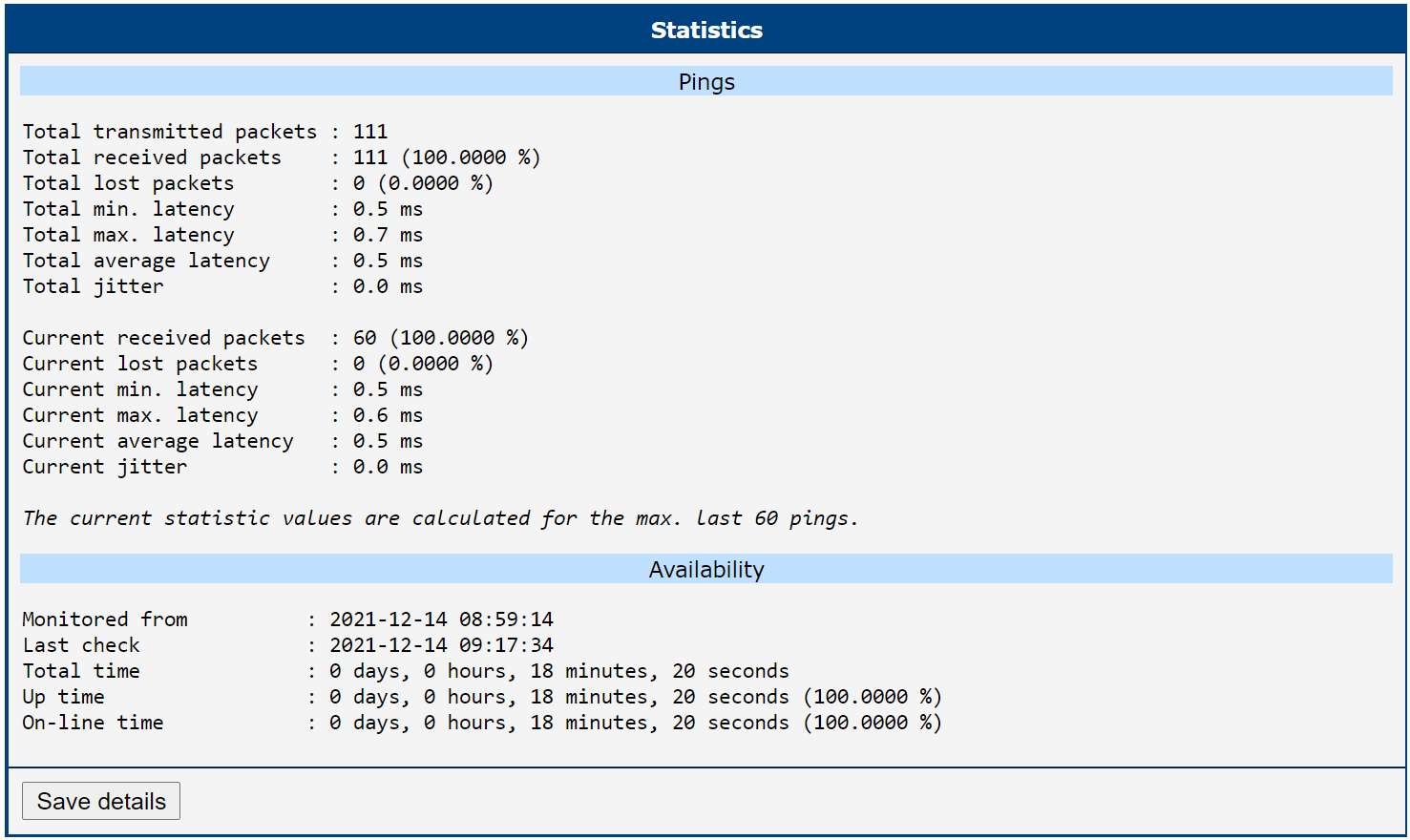
Statistical information for the automatic ping test is available on the Status page in the Automatic Ping section, as shown in the figure below. The page is divided into two parts: ping statistics and availability statistics.
In the ping statistics section, Total… values cover the entire time the Pinger Router App has been installed and enabled, while Current… values cover the last N pings, where N is set in the Short-term statistics for x pings field on the Configuration page.
Statistics include transmitted and lost packet counts; minimum, maximum, and average response times; and jitter (the average difference between successive response times).
The availability section shows when monitoring was started (Monitored from), when the last check was performed (Last check), total monitoring time (Total time), device availability time (Up time), and network connection time (On-line time).
Use the Save details button to download a detailed report. After 10,000 pings, the oldest records are discarded. The same statistics are accessible via SNMP when Expose statistics about availability via SNMP is enabled. Refresh the browser page to update the displayed values.
SNMP
When Expose statistics about availability via SNMP is enabled, all Pinger statistics are accessible via SNMP. The Pinger daemon must be running and SNMP must be enabled in the router configuration. For details, see the router manual.
You can use any SNMP client application to retrieve the data with the router's SNMP service settings.
Tips
- Advantech router SNMP data is published in a private SNMP tree.
- A MIB files are required to interpret the data correctly.
- Download the
UM-PINGER-MIB.myMIB file with Pinger statistics definitions from the bitbucket.org/bbsmartworx/snmp-mib/src/master/modules/. - Other MIB files are available at bitbucket.org/bbsmartworx/snmp-mib/src/master/routers/.
- Download the
The figure below shows how to retrieve Pinger SNMP statistics in a Linux terminal.
