
FOTA
 Installation files
 FOTA Operation
FOTA (Firmware Over-The-Air) is an additional feature for Advantech routers that enables automatic or manual firmware updates for their cellular modules. FOTA updates only the cellular module's firmware — not the router's main firmware.
For proper operation, the router must have an active Internet connection to access a FOTA server — either the default Advantech server or a custom-configured one.

FOTA Router App
Caution
Uploading incorrect cellular module firmware may irreversibly damage the router. Update firmware from any source other than the Advantech FOTA server at your own risk!
Once the FOTA Router App is installed, access its web interface by clicking the Router App name on the Router Apps page of the router's web interface. The left side of the interface displays the Router App menu.
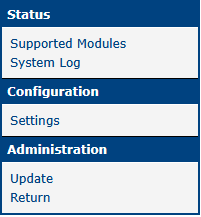
To return to the router's main web interface, use the Return button in the Administration section.
Status
Supported Cellular Modules
The Supported Modules page provides a list of cellular modules compatible with the FOTA Router App. The modules are grouped by manufacturer for easier navigation.
Logging Information
The System Log page displays log messages specifically related to the FOTA Router App, allowing you to monitor the app's operation and identify configuration issues. To download the log messages as a text file (.log), click the Save Log button. To generate a detailed report (.txt) for technical support, click the Save Report button.
Configuration
Automatic Updates
To configure automatic updates, navigate to Configuration → Settings. Select the Enable automatic update checkbox and click Apply. If you prefer to perform only manual checks and updates, refer to the Administration → Online Update section instead.
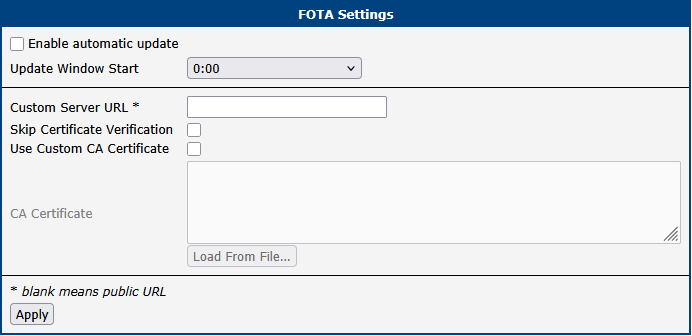
| Item | Description |
|---|---|
| Enable automatic update | Enables scheduled automatic updates using a preset connection to the Advantech FOTA server, which contains up-to-date firmware information. |
| Update Window Start | Specifies the hour when automatic updates start. You can also choose between daily and weekly update frequency. The update process may start a few minutes after the scheduled time. |
| Custom Server URL | Optional address of a local copy of the FOTA server, for use in isolated networks. The local server must contain the same firmware information and firmware files as the FOTA server provided by the manufacturer. You can specify either an https: path or a local file: path. A local path entry, for example for a mounted flash drive, may look like this: file:///mnt/update. You cannot use this field to specify custom or other unsupported firmware that is not available on the manufacturer's FOTA server. For more details, contact Advantech technical support. |
| Skip Certificate Verification | When enabled, allows the router to bypass the server's certificate verification process. |
| Use Custom CA Certificate | Enable to use a custom CA certificate instead of the default Advantech CA certificate. |
| CA Certificate | Field for pasting or uploading your custom CA certificate. |
FOTA configuration items
Firmware Update Process
Once automatic updates are enabled, the router connects to the configured server to check for new firmware according to the interval defined in Update Window Start.
The FOTA server hosts a JSON file containing cellular module names, firmware release numbers, dependencies, and links to firmware files. The Router App downloads this JSON file and compares available firmware releases with the version currently installed in the cellular module. If a newer version is available, the corresponding file is downloaded. A stable Internet connection and continuous power supply are required for a successful download.
The Router App checks for new firmware whenever the router is connected to the Internet, regardless of which interface is in use.
Once a new firmware file has been downloaded, the update is applied automatically. The cellular module restarts during this process. The router remains operational throughout the update, but cellular connectivity is temporarily unavailable until the module restarts.
Administration
Online Update
The Update page displays available FOTA packages, with the newest version shown first. Click the Reload Available FOTA Packages button to manually refresh the list.
Depending on the cellular module, the FOTA system may use a delta upgrade mechanism. In this case, instead of a single universal update package, multiple installation files may be listed, all targeting the same final firmware version.
The figure below shows an example of a module using the delta upgrade mechanism. The module model is SIM7070, with the currently installed firmware version 1951B14SIM7070. Three packages are listed, all targeting version 1951B17SIM7070. Each package is designed for a specific source firmware version. As a result, you can use only the package that matches the currently installed firmware. In this example, only the package for upgrading from 1951B14SIM7070 to 1951B17SIM7070 has the Install button enabled.
Tips
The Upgrades field, displayed as a tooltip for each entry, indicates the source firmware version the update package applies to — not the version that will be installed.
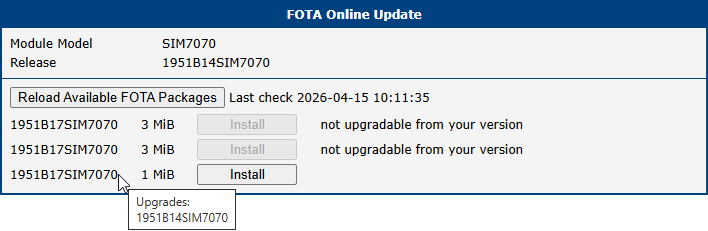
The following messages may appear in the last column of the firmware list. Each message is followed by the recommended action:
- not upgradable from your version → choose the highest upgradable version
- requires ICR-OS x.y.z → update the router's firmware first
- requires FOTA x.y.z → update the FOTA Router App first
Tips
When you hover over a firmware entry, a pop-up window shows the compatible firmware versions available for an upgrade. When you hover over the firmware size, the pop-up window shows the actual filename of the firmware.