VirtualHere USB Server
 Installation files
 Caution
- Communication with some USB devices, such as webcams or audio adapters, requires a low-latency network connection (ideally less than 20 ms). The Router App may not work correctly over slow cellular networks.
- The free version of this Router App has limited features. To unlock all features, purchase a VirtualHere license.
- Ensure that the router is equipped with a USB port and that the port is enabled under Configuration → USB Port → Enable USB port.
Description
Introduction
The VirtualHere USB Server Router App makes USB devices connected to the router's USB port accessible remotely over a network, as if they were physically connected to a client computer. This technology is commonly known as USB over IP or USB over Ethernet. It is ideal for situations where a USB device must be used by a computer that is not in the same physical location.
The system consists of two components:
- The VirtualHere USB Server — the Router App itself, running on the Advantech router. It manages the physical USB devices and makes them available on the network.
- The VirtualHere USB Client — software running on a remote computer (Windows, macOS, or Linux). It connects to the server and presents the shared USB devices to the operating system.
When a remote client uses a USB device, it appears to the client's operating system as a locally connected device, so existing drivers and software work without modification.
VirtualHere Software
The entire solution is provided by VirtualHere. For more information, refer to the official website at www.virtualhere.com. Client software is available for Windows, macOS, and Linux (both GUI and console versions) and can be downloaded from www.virtualhere.com/usb_client_software.
The free version allows sharing only one device with one client at a time and does not support configuring a different network port or using SSL encryption. To unlock these advanced features, purchase a license at www.virtualhere.com/purchase. After you receive the license key, paste it into the License field in the Router App's configuration to upgrade.
Application GUI
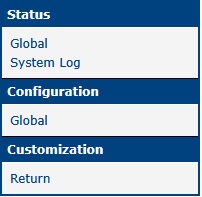
To open the Router App web interface, click the Router App name on the Router Apps page of the router's main web interface. The left menu provides navigation to the Configuration, Status, and Customization sections. The Return link in Customization takes you back to the main router web interface.
Configuration
Global
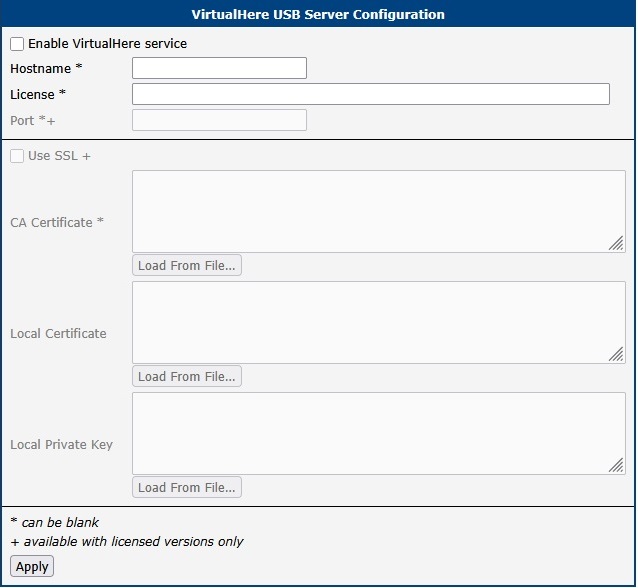
Configure all main settings on the Global page in the Configuration section.
| Configuration Item | Description |
|---|---|
| Enable VirtualHere service | Enables or disables the VirtualHere USB server. The service must be enabled for clients to connect. |
| Hostname | A descriptive name for this server, displayed in the VirtualHere client software to help identify the router on the network. If left blank, the router's default hostname router is used. |
| License | License key for the VirtualHere software. Required to share multiple devices simultaneously or access premium features. Leave blank when using the free version. Licenses are available at www.virtualhere.com/purchase. |
| Port | TCP port on which the server listens for incoming client connections. Default: 7575 for standard connections, 7574 for SSL connections. Leave blank to use the default port. |
| Use SSL | Enables SSL/TLS encryption for all server–client communication. Recommended for use over untrusted networks. Available in licensed versions only. |
| CA Certificate | Certificate Authority (CA) certificate used to verify client certificates when SSL is enabled. Can be pasted as text or loaded from a file. Used only when SSL is enabled. |
| Local Certificate | The server's SSL certificate. Can be pasted as text or loaded from a file. Used only when SSL is enabled. |
| Local Private Key | The server's private key corresponding to the local certificate. Can be pasted as text or loaded from a file. Used only when SSL is enabled. |
Application configuration items
Usage Example
Sharing a USB Flash Drive
Caution
This guide assumes that the router is equipped with a USB port and that the port is enabled under Configuration → USB Port → Enable USB port.
This section walks through sharing a USB flash drive connected to the router's USB port with a remote computer. The example uses the free, unlicensed version of the Router App. After the connection is established, the drive appears on the remote computer as if it were physically plugged in.
Configure the router — In the Router App's configuration, optionally set a Hostname. Ensure the service is enabled and click Apply.
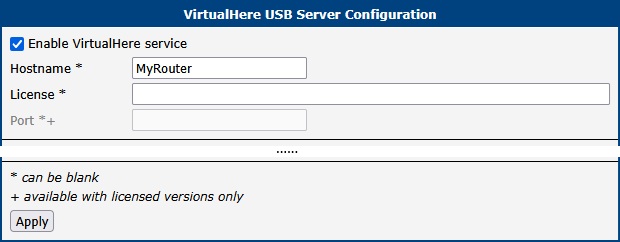
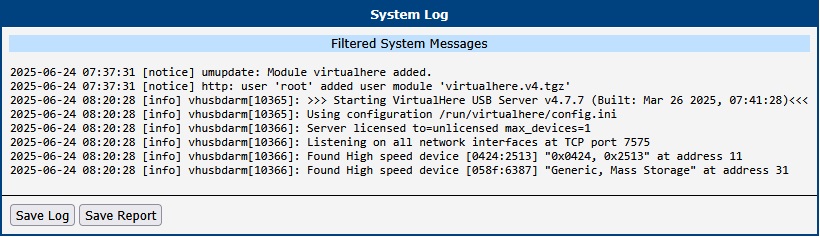
VirtualHere Router App configuration Connect the flash drive — Insert the USB flash drive into the router's USB port. Monitor the System Log page to confirm that the device has been detected.
Download the client software — Download the client application for your operating system from www.virtualhere.com/usb_client_software.
Install and run the client — Install and launch the downloaded application. On some platforms, no installation is required, and you can run the application directly.
Connect to the server —
- Automatic discovery: If the computer is on the same local network as the router, the client discovers the server automatically. The router's name appears in the client window along with available USB devices.
- Manual connection: If the server is not discovered automatically (e.g., different network or firewall), right-click USB Servers in the client and select Specify Servers. Enter the router's IP address and port in the format
IP_address:portand confirm.
Use the flash drive — After the client connects to the server, the USB drive appears in the client's device list. Right-click the device name and select Use This Device. The device status changes to In use by you.
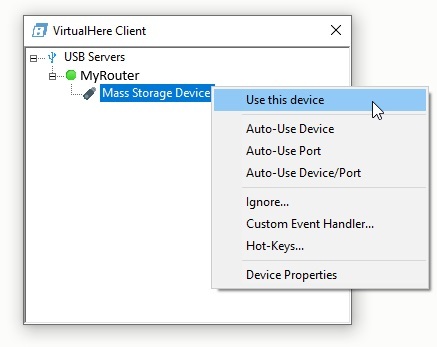
VirtualHere client Finished — The USB flash drive now appears on the remote computer (e.g., in This PC on Windows or Finder on macOS) as if it were plugged in locally.
Disconnecting — To release the device, right-click it in the client and select Stop Using This Device.
Application Activity Monitoring
Global Status
The Global Status page (accessible via Status → Global) displays real-time information about the server's activity and is useful for verifying that the service is running correctly.

System Log
Detailed log messages are available on the System Log page. The log reports the Router App's activity, including client connections, device sharing events, and errors.