Cumulocity Agent
 Installation files
 Warning
- This Router App has been tested on a router with firmware version 6.3.10. After updating the router firmware to a higher version, check whether a newer version of the Router App has also been released and update it accordingly for compatibility.
Tips
- Because of their storage requirements, geolocation and LUA scripts are not supported on routers of the V2 production platform.
- For more information about the Cumulocity service, see the Cumulocity IoT developer center.
Cumulocity is a cloud-based subscription service for creating Internet of Things (IoT) solutions. It provides fast visibility and control over remote devices, works with any network architecture, and is specifically designed for mobile networks — making it an ideal solution for Advantech routers.
Cumulocity stores all device information in one place and displays it visually through a web interface. The Cumulocity Agent Router App allows you to monitor and store information about Advantech routers.
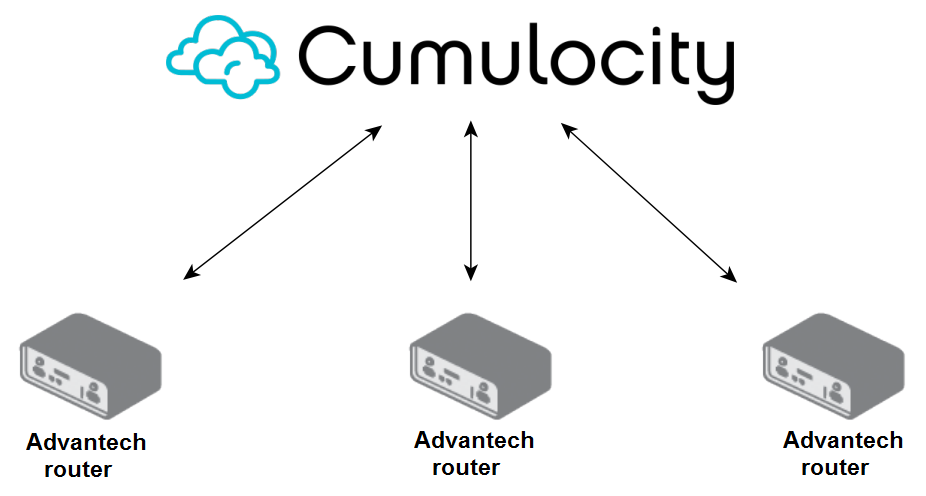
After you connect the router to the Cumulocity cloud, basic router information is immediately available. Cumulocity also starts collecting statistics about signal strength and other parameters. The following information is accessible through Cumulocity:
- Basic information about the router (name, type, model, serial number, IMEI, etc.).
- Graphs of measurements and statistics — signal strength, memory usage, and data traffic.
Installation
Download the latest version of the Cumulocity Agent Router App from the Router App catalog (Installation files).
In the router web interface, navigate to Customization → Router Apps, select the downloaded installation file, and click Add or Update.
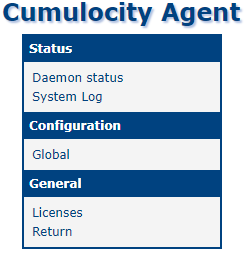
Once installation is complete, access the Router App's web interface by clicking the Router App name on the Router Apps page. The main menu contains the Status, Configuration, and General sections. Click Return to go back to the router's web interface.
Configuration
The Cumulocity Agent configuration is accessible via Router Apps → Cumulocity Agent → Configuration → Global.
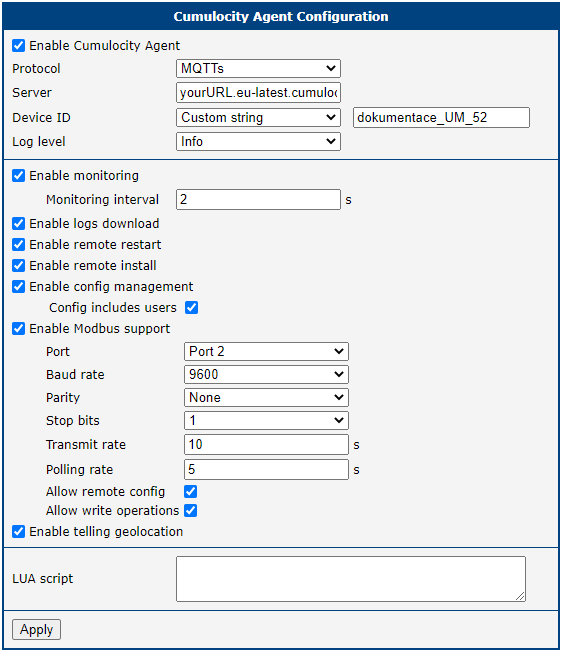
To get the server address, log in to the Cumulocity cloud and copy the relevant part of the URL as shown in the figure below.

Tips
Add the router to the Cumulocity cloud in the Cumulocity web interface (see the Cloud Administration section). You only need to know the Device ID of the router.
| Item | Description |
|---|---|
| Enable Cumulocity Agent | Enables the Cumulocity Agent Router App. |
| Protocol | Communication protocol: MQTTs or HTTPs. Both use secure connections only. HTTPs uses port 443, MQTTs uses port 8883. These ports are enabled on the router automatically — ensure they are also open in the rest of the infrastructure. |
| Server | Address of the Cumulocity cloud server without the http prefix, e.g., yourURL.eu-latest.cumulocity.com. The address may differ by region. |
| Device ID | Unique identifier of the router. Options: • Serial number — serial number of the router. • Cellular IMEI — IMEI of the first cellular module. • LAN MAC — LAN MAC address of the first Ethernet interface ( eth0). • Own string — custom ID; you must ensure that it is unique. |
| Log level | Logging level: Critical, Error, Warning, Notice, Info, or Debug. |
| Enable monitoring | Enables monitoring of cellular signal strength, power supply voltage, storage, temperature, memory, and CPU. |
| Monitoring interval | Interval in seconds at which monitored values are sent to the cloud. |
| Enable logs download | Enables the server to download logs (dmesg, main log, module logs) from the router. |
| Enable remote restart | Enables the server to restart the router remotely. |
| Enable remote install | Enables the Cumulocity server to install Router Apps or firmware on the router. |
| Enable config management | Enables the server to retrieve the router configuration. |
| Config include users | The downloaded configuration includes local user accounts and password hashes. For security reasons, disable this option if you do not need it. |
| Enable Modbus support | Enables communication with Modbus devices. |
| Port, Baud rate, Parity, Stop bits, Transmit rate, Polling rate | Modbus communication settings. |
| Allow remote config | Allows configuration changes from the cloud. |
| Allow write operations | Required when writing from the cloud to Modbus devices via the router. Without this option, the router rejects write requests. |
| Enable tell geolocation | Enables the server to retrieve the router location remotely. Works only on routers with a GNSS module. Not supported on V2 platform routers. |
| LUA script | Optional script executed on agent startup. Maximum length is 12,000 characters. Not supported on V2 platform routers. |
Cumulocity Agent configuration items
Tips
Most options are described in detail in the following subsections.
Monitoring
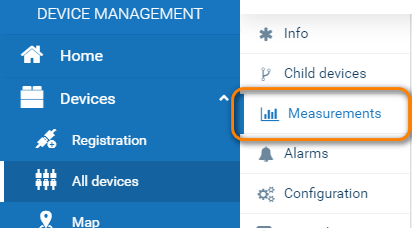
When enabled, monitoring data (cellular signal strength, power supply voltage, free storage, temperature, memory, and CPU usage) is available under the Measurements menu item in the device detail.
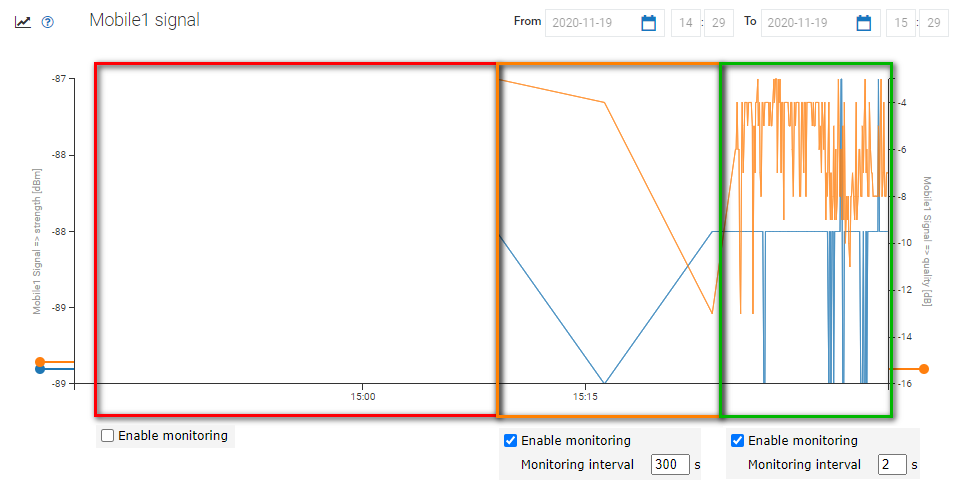
The Monitoring interval value (in seconds) determines how often the monitored values are sent to the cloud.
Logs Download
When enabled, a Logs menu item appears in the device detail. You can request a log file with custom criteria and parameters, and download it once it is ready. If a rotated log is available, it is merged with the current log into a single continuous file.
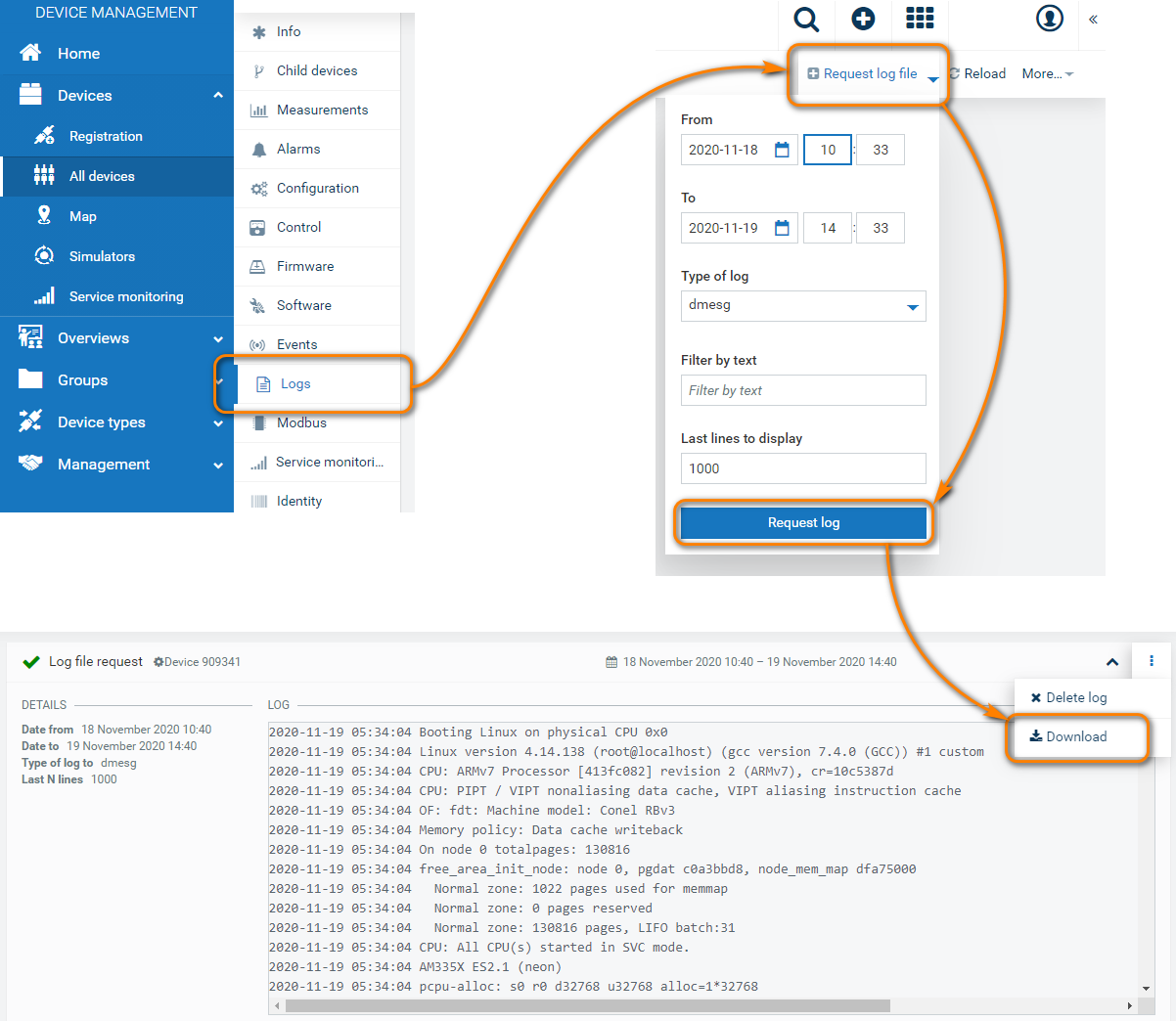
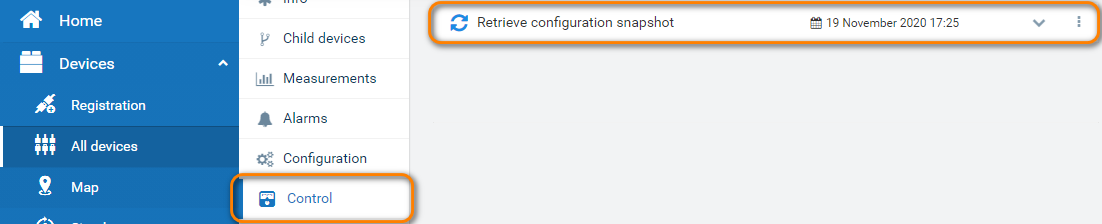
When a log is requested, a record of the action appears under the Control menu item.

Remote Restart
When enabled, a Restart device item becomes available under the More... dropdown menu in the device detail.
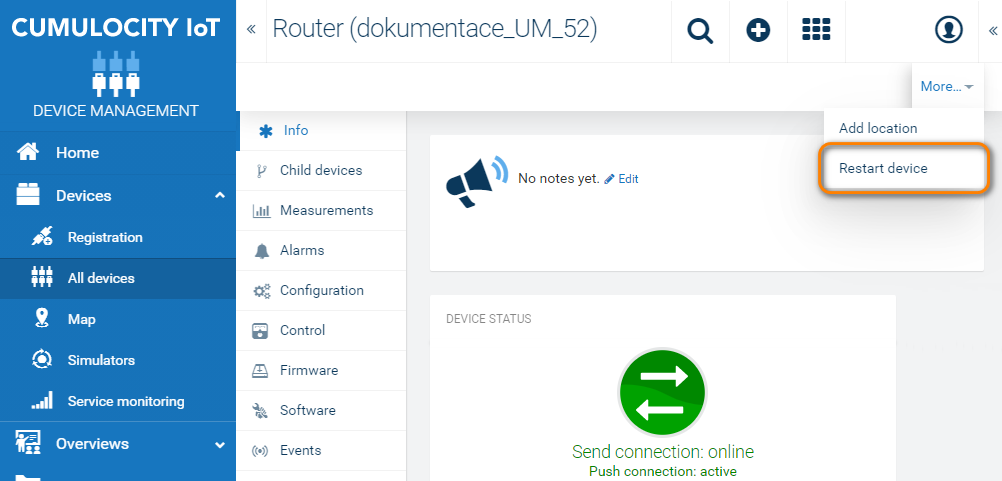
When a restart is requested, a record of the action appears under the Control menu item.

Remote Install
When enabled, the Cumulocity server can install Router Apps (software) or firmware on the router. Installation resources are managed in the Management section. Software can be added to the repository by uploading a binary file or by providing a URL to the software archive.
Tips
When adding software via a URL using HTTPS, root CA certificates must be available on the router at /opt/cumulocity/etc/certs (named by hash, see the c_rehash OpenSSL tool). When installing directly from the Advantech server, the certificate is included in the package.
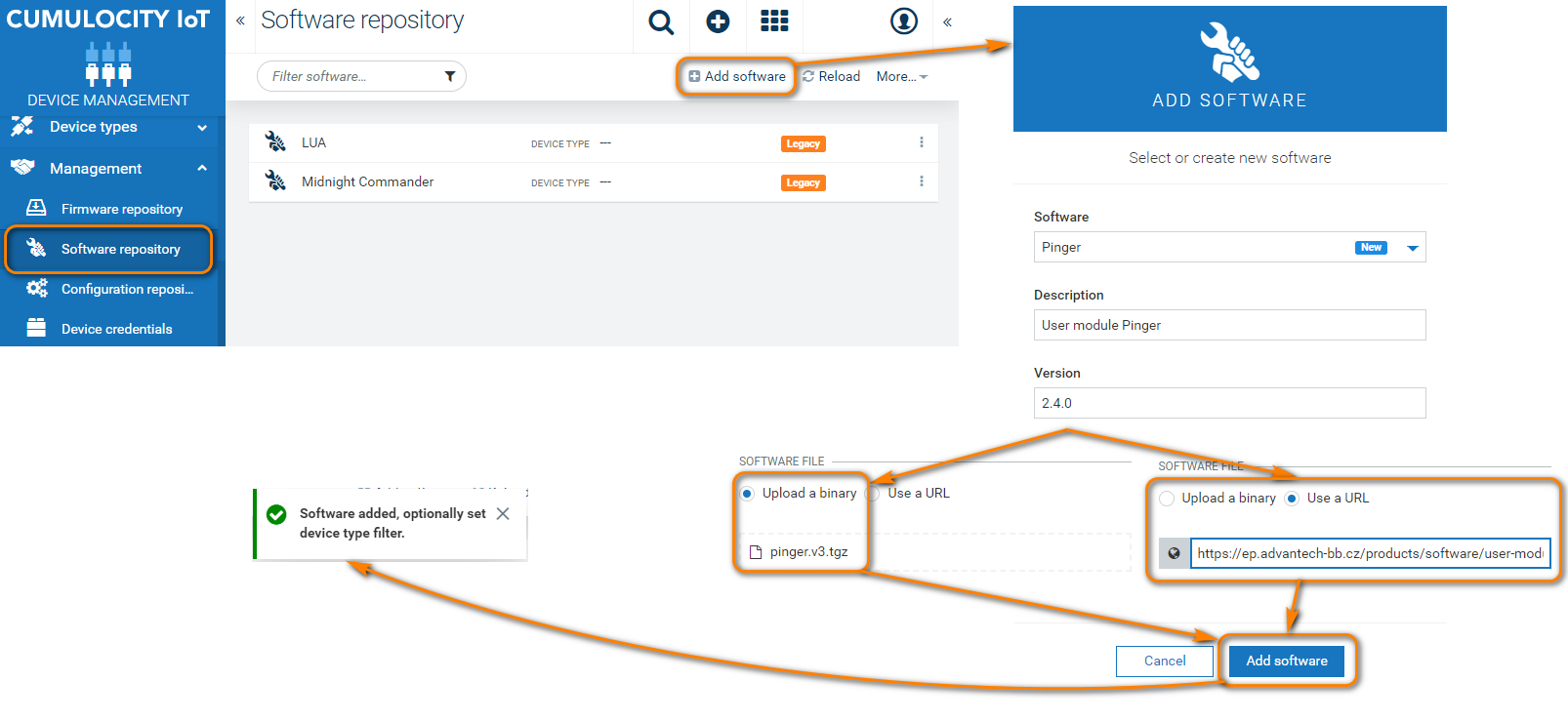
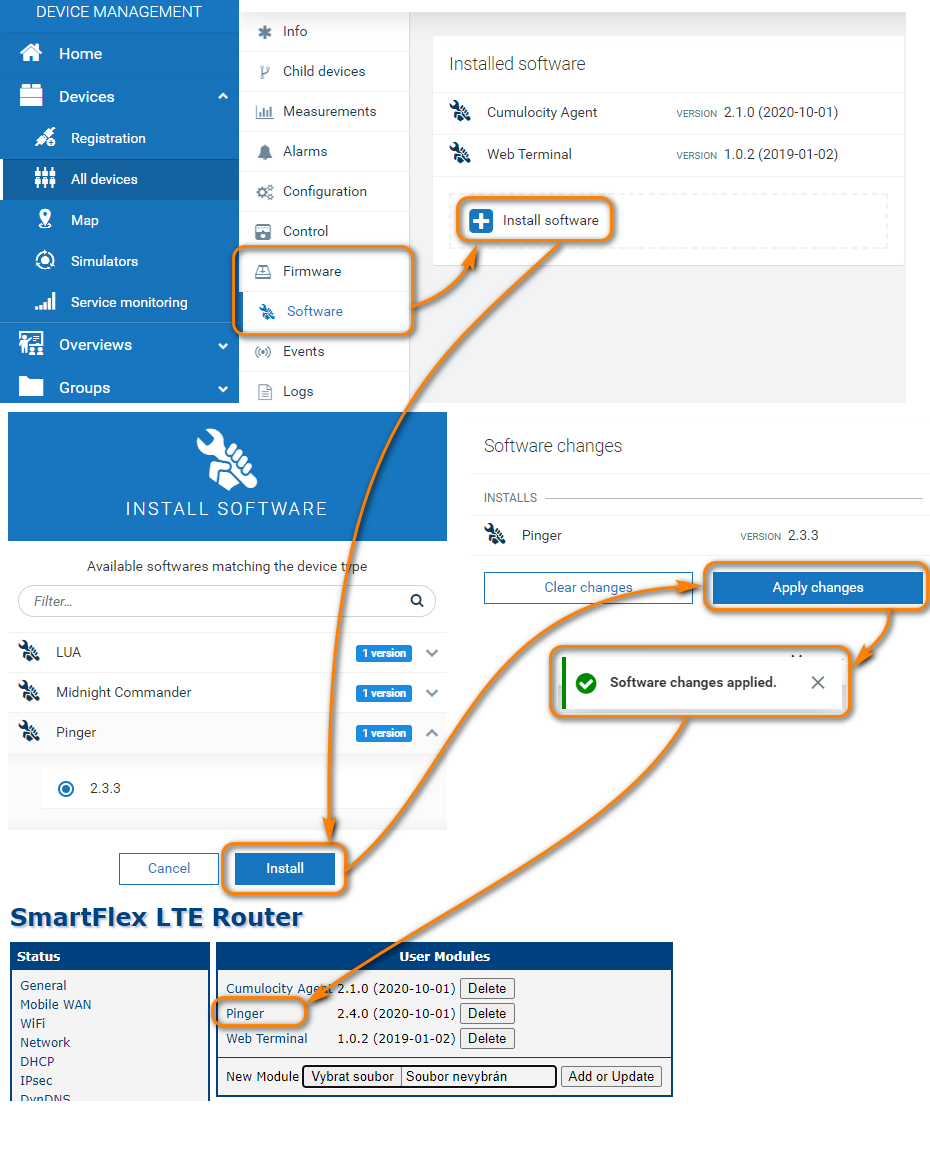
After you add software or firmware, it is ready for installation. Software installation is managed under Device Management → Devices → All devices → your_router → Software.
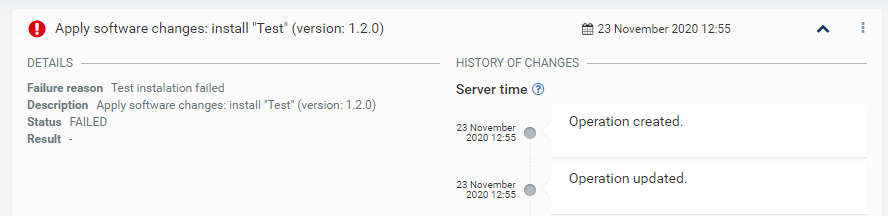
When software is installed or uninstalled, a record of the action appears under the Control menu item.

Config Management
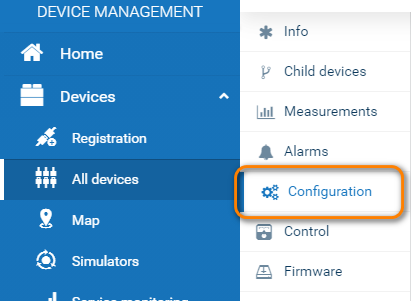
When enabled, a Configuration menu item becomes available under Device Management → Devices → All devices → your_router → Configuration.
The Config include users option includes local user accounts and password hashes in the downloaded configuration. For security reasons, disable this option if you do not need it.
When the configuration is retrieved, a record of the action appears under the Control menu item.
Modbus Support
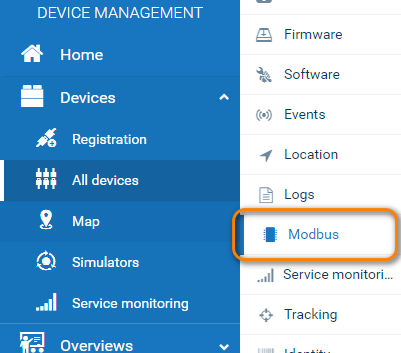
When enabled, the Cumulocity server can connect to Modbus devices via the router.
Tips
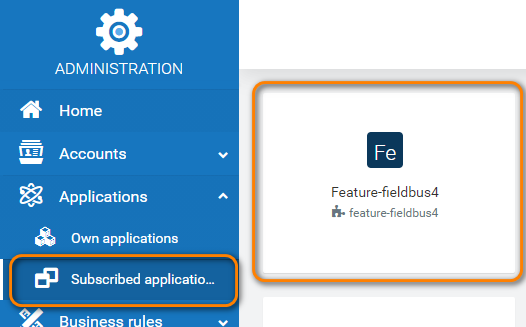
Modbus support requires a full Cumulocity account with Fieldbus activated under Administration → Subscribed applications.
Port, Baud rate, Parity, and Stop bits apply only to Modbus connections via RS-485 or RS-232. These settings must match all devices on the bus.
Transmit rate defines how often data is sent to the cloud. Polling rate defines how often data is read from Modbus devices. Both values are time intervals, so the Transmit rate value cannot be lower than the Polling rate value. For example, with a water level sensor, you may want to poll frequently to detect alarms quickly while transmitting less often.
To specify which data to retrieve via Modbus, define the device registers under Device types → Device protocols. A defined protocol can be reused across multiple devices.
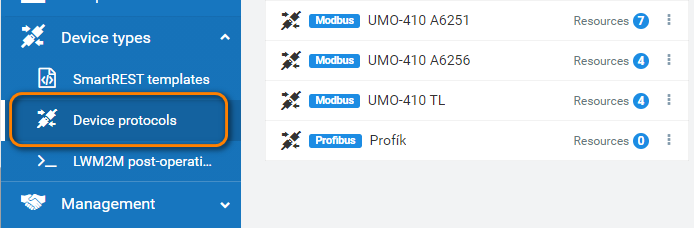
In the protocol definition, you define binary coils/discrete inputs or value holding/input registers. Cumulocity offers a write (update) option even for discrete inputs and input registers, although these are read-only in Modbus. Any write operation from the cloud requires Allow write operations to be enabled on the router — otherwise the router rejects it.
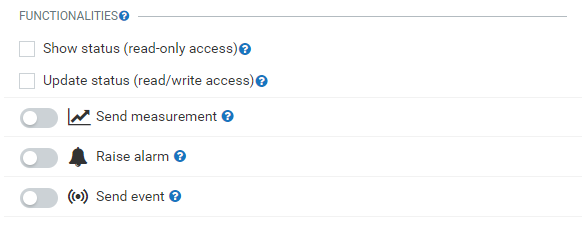
Each register has three behavior switches:
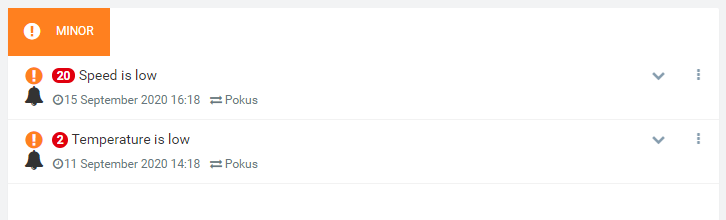
- Send measurements — Values from the Modbus device are treated as measurement data and displayed as a graph.
- Raise alarm — An alarm is raised if the value is non-zero.
- Send event — An event is registered when the value changes.
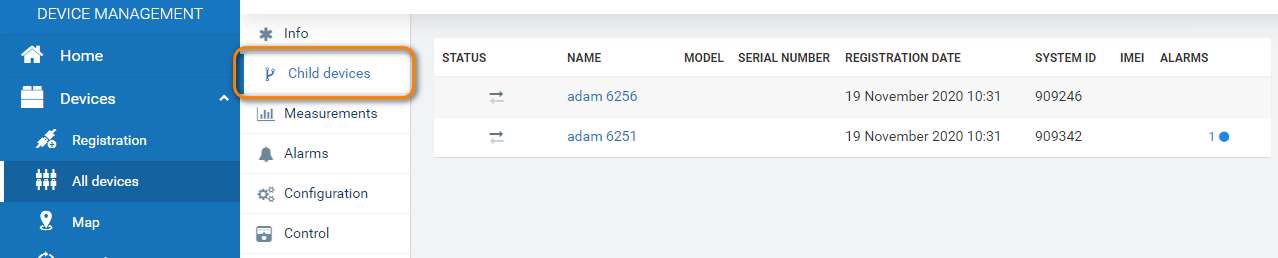
Results from these three switches are available in the Child devices menu item.
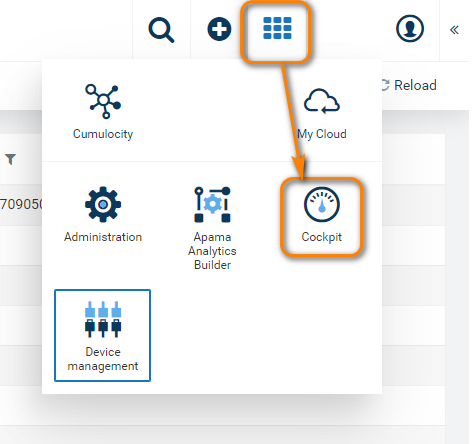
The remaining two options control the Cockpit widget:
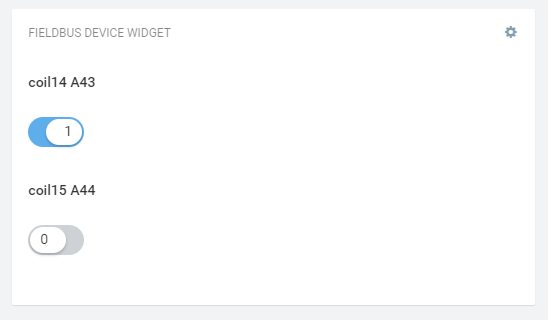
- Show status — Displays the value in a widget.
- Update status — Allows the value to be changed from the widget and written to the Modbus device (Allow write operations must be enabled on the router).
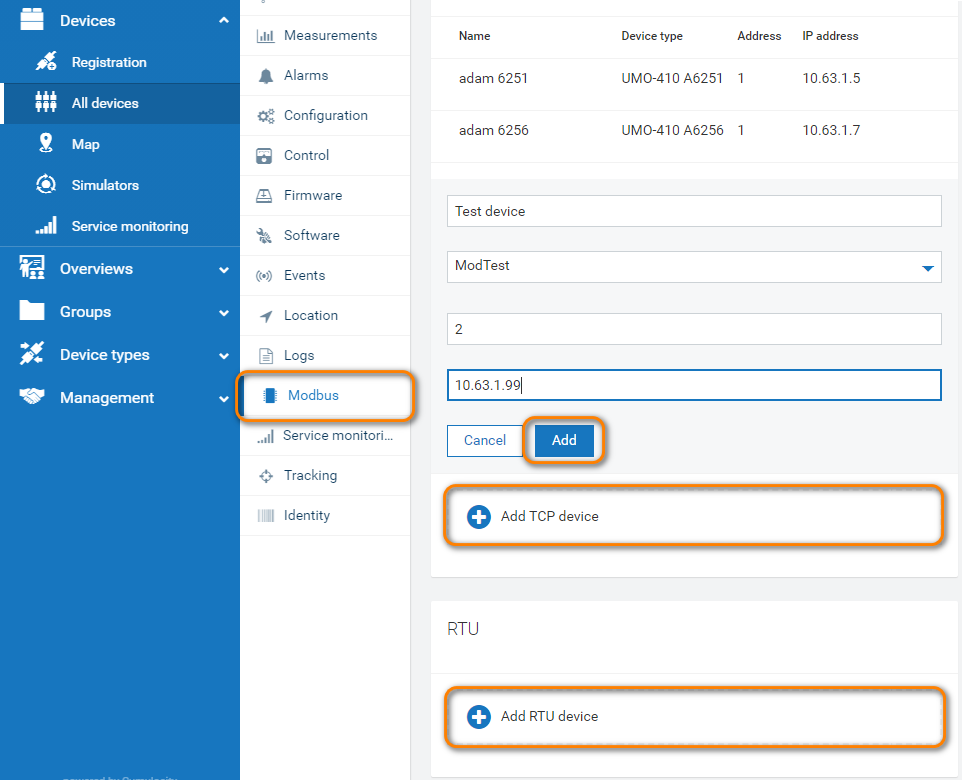
After you define the protocols, add TCP and RTU devices in the device's Modbus menu by entering their addresses and selecting the appropriate protocol.
Results are visible in Child devices and Cockpit:
Telling Geolocation
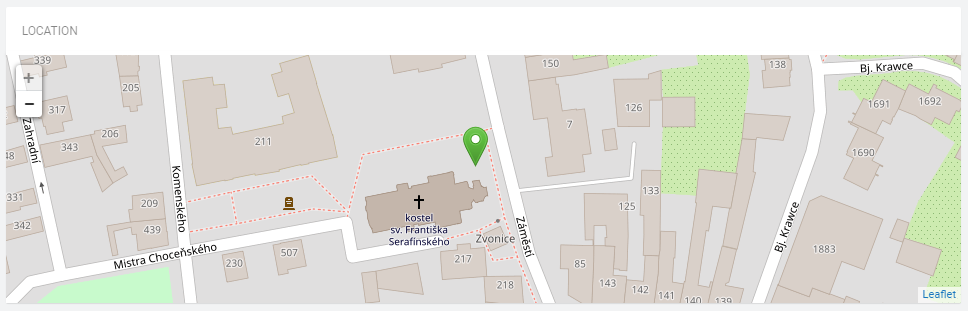
When enabled, the router's current location is available in the Cumulocity web interface. The map in the lower right corner of the device detail shows the current location. This feature works only on routers with a GNSS module.
Tips
Geolocation is not supported on routers of the V2 production platform.
Status
The Daemon status page shows the current state of the daemon and agent running on the router.
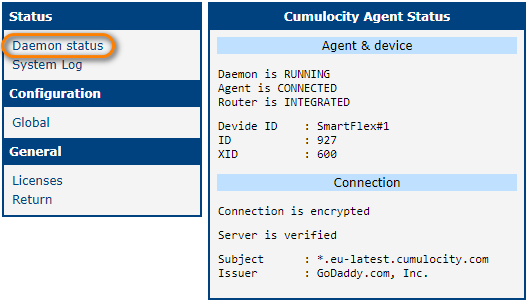
The page may show the following information:
- Daemon is RUNNING / NOT RUNNING — Indicates whether the agent daemon process is running.
- Agent is CONNECTED / NOT CONNECTED — Indicates whether the network connection between the router and the cloud is established.
- Router is INTEGRATED / NOT INTEGRATED — Indicates whether the router is registered and accepted in the cloud. If integrated, the device ID is assigned.
The System Log page displays the router system log, identical to the System Log in the router's Status section.
LUA Script
You can use a LUA script to start a timer for a periodic task (e.g., sending measurements) or to register a message handler for cloud requests.
The script length is limited to 12,000 characters. To work around this limit, split the code into modules and load them using the require() command. LUA searches for modules in /usr/lib/lua_modules. You can also place third-party LUA modules there or install them via Router App modules such as lua-libmodbus for Modbus support.
Every LUA script must contain an init() function that runs on module startup. It must return 0 on success, or a non-zero value on failure.
Communication between the device and Cumulocity uses the proprietary SmartREST protocol — a REST protocol optimized for small data transfers. Message templates are sent to the Cumulocity server once, and subsequent communication uses only variable values. See the official SmartREST documentation for details.
Built-in message templates are located at /opt/cumulocity/etc/srtemplate. Custom templates go to /var/data/cumulocity/srtemplate. The first line of a template file must be a unique identifier. Use message IDs between 900 and 999 to avoid conflicts with built-in messages.
Tips
LUA scripts are not supported on routers of the V2 production platform.
Example 1: Measurement
Tips
This LUA script example is compatible with Cumulocity Agent version 2.0.1.
The script below periodically sends the number of connected AP clients. For testing, configure an AP on the router and connect clients to it.
function init()
  timer = c8y:addTimer(1*10000, 'sendStat')
  timer:start()
  return 0
end

function sendStat()
  local file = io.popen('iw dev wlan0 station dump | grep Station | wc -l')
  local count = file:read('*n')
  file:close()
  c8y:send('200,' .. c8y.ID .. ',WifiAccessPoint,WifiAccessPoint,Clients,' .. count .. ',')
end
The init() function starts a timer that calls sendStat() every 10 seconds. sendStat() reads the number of AP clients and sends the value to the cloud using built-in message 200 for a general measurement. See the official Measurements documentation.
Example 2: Shell Command Handling
Tips
This LUA script example is compatible with Cumulocity Agent version 2.0.1.
This script waits for shell commands from the Cumulocity server, executes them, and returns results. Create the file /var/data/cumulocity/srtemplate with the following content:
lua_examples
11,901,,$.c8y_Command,$.id,$.deviceId,$.c8y_Command.text
10,902,PUT,/devicecontrol/operations/%%,application/json,,%%,UNSIGNED STRING STRING STRING,"{""status"":""%%"",""c8y_Command"":{""text"":""%%"", ""result"":""%%""}}"
The first line is a unique identifier. The second line defines received requests. The third line defines the response format.
function init()
  c8y:addMsgHandler(901, 'shell')
  c8y:send('103,' .. c8y.ID .. ',"""c8y_Command"",""c8y_Restart"",""c8y_LogfileRequest"""')
  return 0
end

function run(cl)
  local output
  local file = io.popen(cl)
  if file then
    output = file:read('*a')
    file:close()
  end
  return output
end

function shell(r)
  local operID, devID, command = r:value(2), r:value(3), r:value(4)
  local cmd, arg = command:match('(%S+)%s+([%a%d%.%-]+)')
  if cmd ~= 'ping' and cmd ~= 'traceroute' or not arg then
    c8y:send('105,' .. operID .. ',"Not supported command"')
    return
  end
  if cmd == 'ping' then
    command = 'ping -c 3 ' .. arg
  end

  c8y:send('104,' .. operID .. ',EXECUTING')
  local output = run(command)

  if output then
    output = output:gsub('"', '""'):gsub('\n', '\\n')
    c8y:send('902,' .. operID ..',SUCCESSFUL,"' .. r:value(4)
 .. '","' .. output .. '"')
    c8y:send('104,' .. operID .. ',SUCCESSFUL')
  else
    c8y:send('105,' .. operID .. ',"Can not execute command"')
  end
end
The init() function registers a handler for shell command requests. It also announces the router's supported capabilities to the server — this must repeat the capabilities previously sent by the module core. The second line in init() overwrites the previous definition; you can find the original capabilities in the log with debug level enabled.
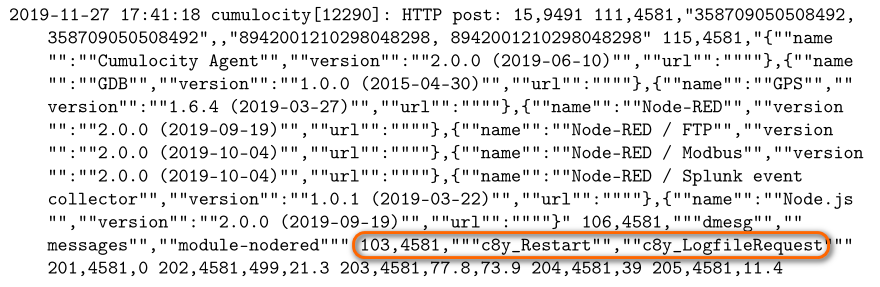
The shell() function processes the received shell command. For security reasons, this example limits available commands to ping and traceroute with a single IP or domain argument and no options. The script updates the operation state on the server before executing, and returns the result or reports failure.
LUA c8y Object
All LUA scripts have access to a c8y object that exposes timers, SmartREST message callbacks, and HTTP binary APIs.
Timer
A timer provides periodic execution of a LUA function.
c8y:addTimer(interval, callback)→timer— Creates a timer that fires everyintervalmilliseconds and calls the LUA function namedcallback. The timer is inactive when created.timer:start()— Activates the timer.timer:stop()— Deactivates the timer.timer.isActive— Boolean property indicating whether the timer is active.timer.interval— Read/write property for the timer period in milliseconds. Setting it to 0 results in undefined behavior.
Message Handler
A message handler is a SmartREST message callback executed when a message with a registered template ID is received.
c8y:addMsgHandler(MsgID, callback)— Registers a callback for message IDMsgID. Calling this multiple times with the sameMsgIDoverwrites the previous callback.record.size— Read-only property: number of tokens in the record.record:value(i)→string— Returns the token value at positioni(0-indexed).record:type(i)→int— Returns the token type at positioni(0-indexed).
Networking
c8y:send(request, prio)— Sends a request to Cumulocity asynchronously. Setprioto1for guaranteed delivery. Use sparingly — the buffer for failed requests has a limited capacity.c8y:post(dest, ct, data)→int— HTTP multipart POST to upload a binary. Returns response size on success,-1on failure.c8y:postf(dest, ct, file)→int— Likepost, but reads content from a file. Suitable for large files.c8y:get(id)→int— HTTP GET to download a binary by resource ID. Returns response size on success,-1on failure.c8y:getf(id, dest)→int— Likeget, but stores the binary in filedest. Returns bytes written, or-1on failure. Overwritesdestif it exists.c8y.resp— Read-only property containing the server response forpost,postf, andget. Undefined when those functions fail.
Misc
c8y.server— Server address the agent connects to.c8y.ID— Managed object ID for the agent.
Cloud Administration
Cloud Account
Log in to your Cumulocity account at https://yourURL.cumulocity.com/mycloud, where yourURL is your domain set up during registration.
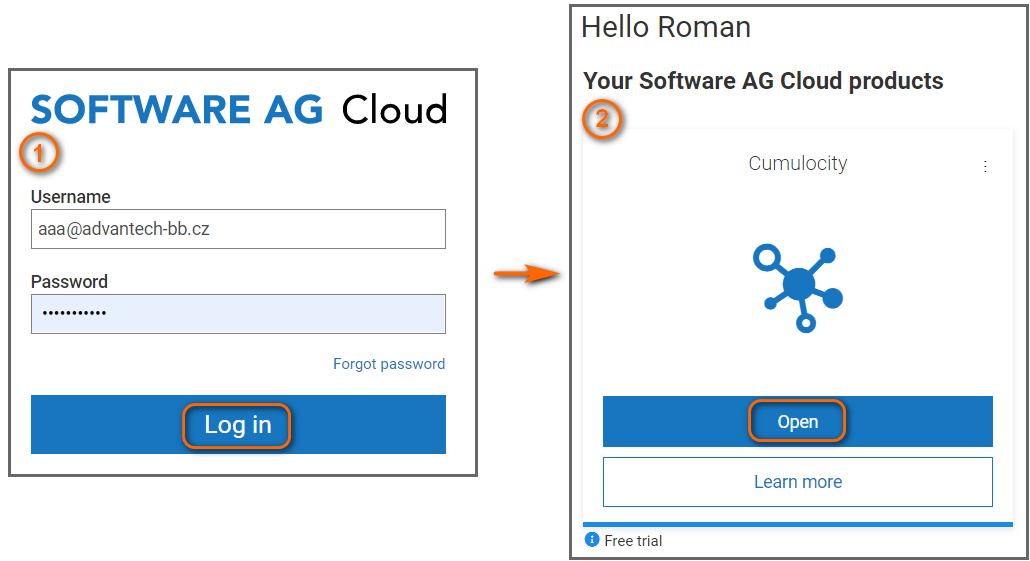
To create a new account, go to https://www.cumulocity.com/start-your-journey/free-trial/ and click Try for free. After receiving the confirmation email, log in at the address provided. Select the Cumulocity cloud product as shown in the figure below.
Device Registration
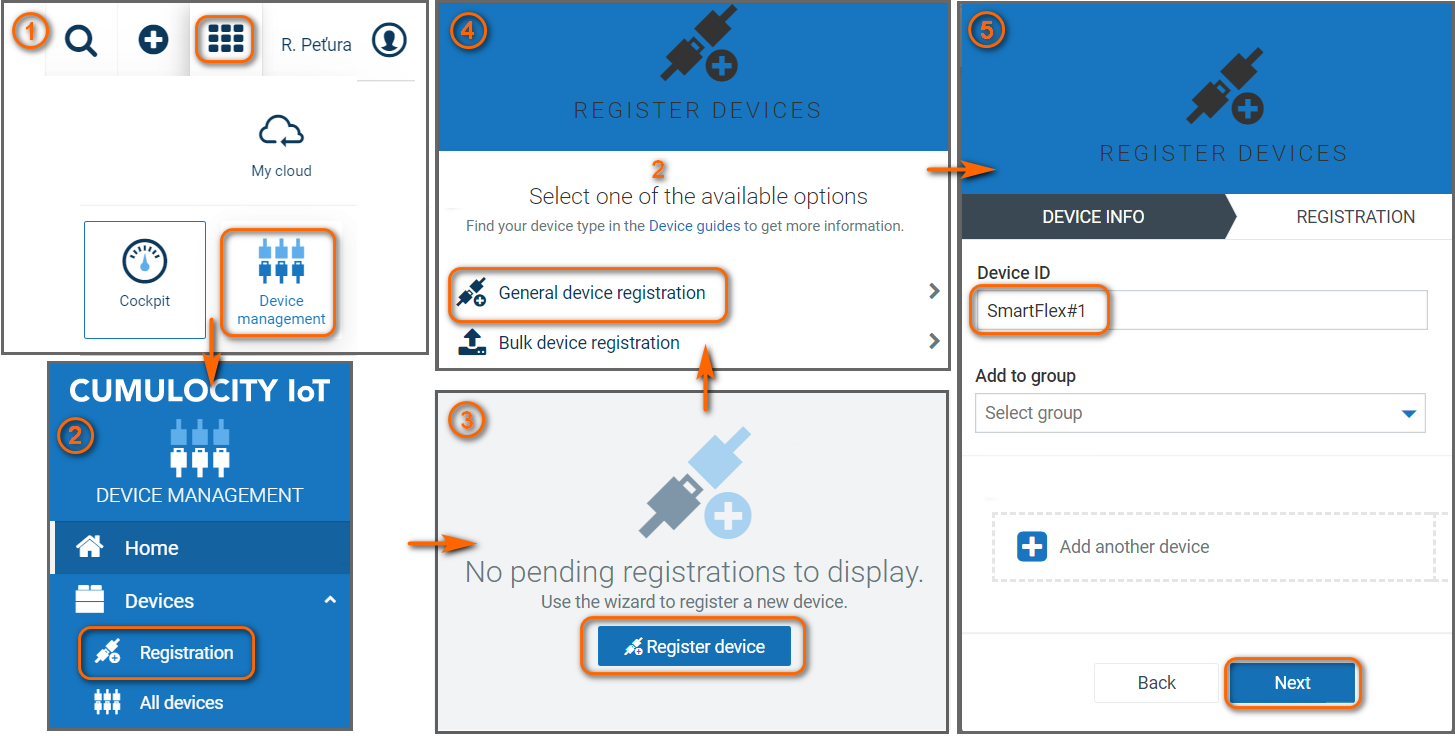
To register a new device, go to Devices → Registration and follow the steps shown in the figure below. Enter the router's Device ID exactly as configured in the Cumulocity Agent on the router.
The device appears in the list with Waiting for connection status. The Cumulocity Agent must be running and correctly configured on the router, and the router must have Internet access. After a short time, the status changes to Pending acceptance and the Accept button becomes available.
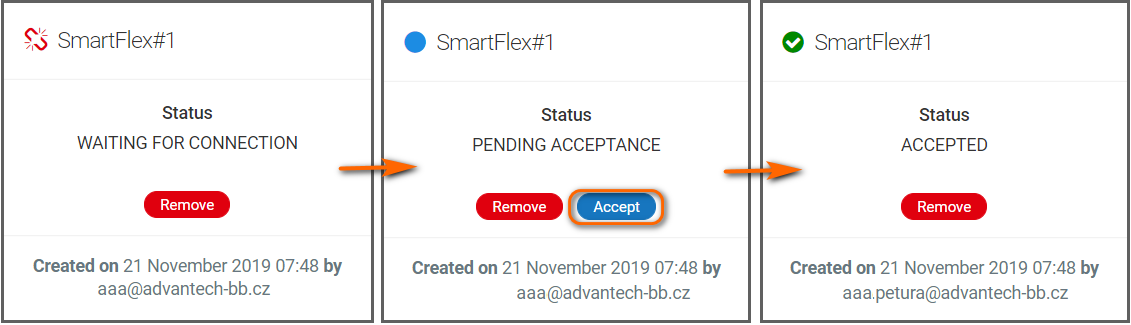
Click Accept to complete the registration.
Device Information
The registered device appears in the All devices section. It may take a few seconds to appear after acceptance.
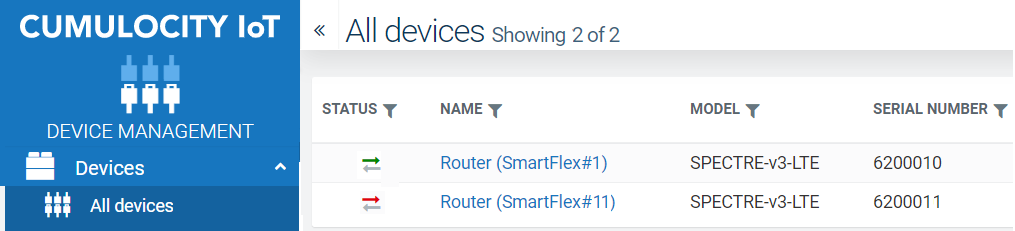
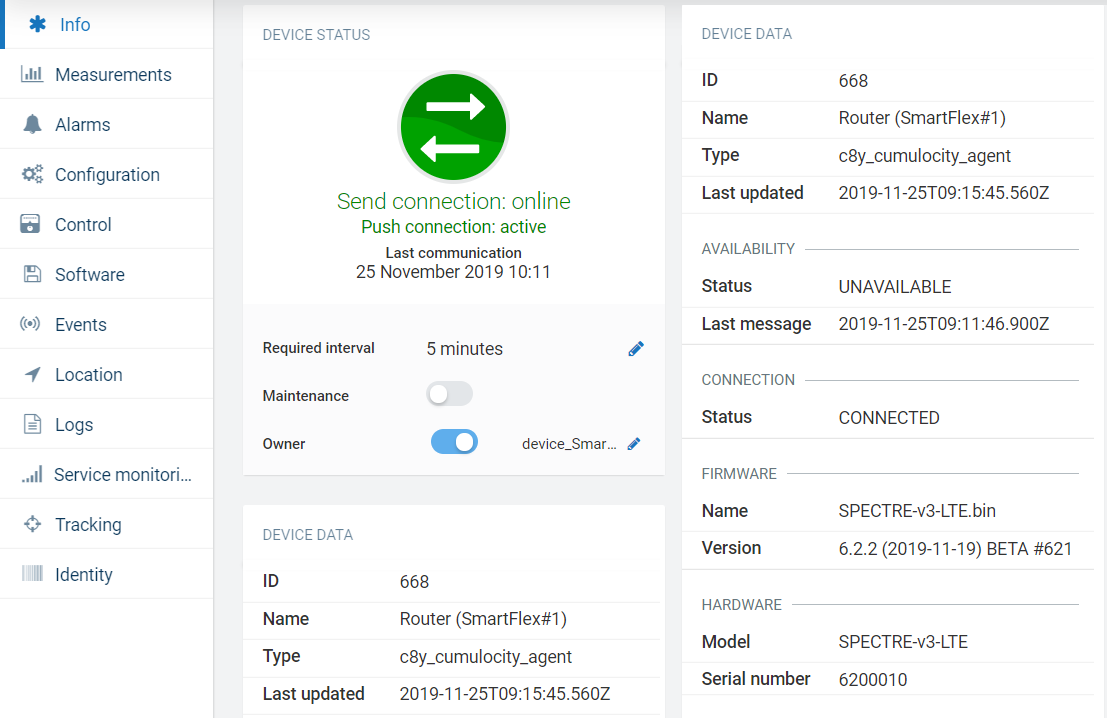
Click a device to open its basic information: name, type, model, serial number, ICCID, IMEI, and more. Some fields can be edited directly. Additional administration pages are available depending on the Cumulocity Agent configuration — for example, Alarms, Control, Software, Events, Location, and Logs.
FAQ
Required Certificates
If you define a repository with HTTPS sources in the Cumulocity cloud, the router needs root CA certificates to download from that source. Certificates or symlinks must be placed in /opt/cumulocity/etc/certs and named by hash (see the c_rehash OpenSSL tool).
Where is Network Card Information on the Cumulocity Website?
The router has complex network settings, and the default Cumulocity network plugin is too simple to reflect them fully.
Files with Credentials
The router agent stores credentials in /var/data/cumulocity/credentials. These credentials can be deleted or backed up if needed. The file is deleted when the Router App is uninstalled.
Device ID Was Changed
If the Device ID of an already-registered device is changed, the device cannot connect to the cloud. To fix this, delete the credentials file at /var/data/cumulocity/credentials.
I Cannot See the Modbus Menu Item Even Though Enable Modbus Support Is Checked
Make sure the Fieldbus application (feature-fieldbus4) is subscribed under Administration → Applications → Subscribed applications.
Licenses
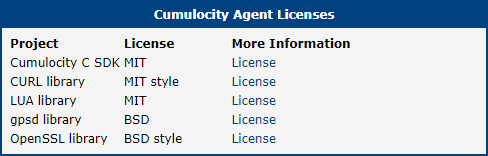
This section lists the Open-Source Software (OSS) licenses used by this Router App.